Tag: BlackBerry

  • Initial impressions on the BlackBerry Z10

    Initial impressions on the BlackBerry Z10

    On Wednesday, January 30th, I was fortunate enough to be invited to the Toronto launch for the BlackBerry 10 smartphone.  I had been eagerly anticipating the launch and was thrilled to be invited to both the party and a special pre-event for the BlackBerry Elite program.  I am very lucky to be a member of such a great program from a brand that truly knows how important its fans are to its long term success.  As a member of the program, I’d had sneak peeks at the Z10, participated in a conference call / slide share presentation with Alec Saunders – the Vice President of Developer Relations for BlackBerry, and had the chance to chat with other BlackBerry fans through BlackBerry Messenger (BBM) and on social media.  There was a reception for the members of the BlackBerry Elite program at a wonderful restaurant on Church Street prior to the evening’s fan night activities.  The always wonderful Kerri Birch was there (she’s one of the awesome people who manage the @BlackBerry twitter account).  There was some socializing, and then she announced that we were all getting BlackBerry Z10 smartphones to use and show off and generally do what I’ve always done with my devices.  I seriously debated squealing with delight but it wasn’t that type of restaurant.  I’m pretty sure that my friend Christine and I didn’t stop grinning for hours.  Some of the people there had received their phones earlier that day, and some had had them for a few days already so they helped those of us who had just received our phones put the micro Sim cards in and get started with our phones.

    Let me say now that I was a bit hesitant about going to a touch screen phone.  I’ve had some horrible auto correct fails on the iPhone and on an Android phone.  I found the keyboards hard to get used to and slow to type on.  The predictive text was average at best.  I created a new BlackBerry ID for my Z10 – because I was going to keep my Bold 9900 around as a backup, and because my Fido e-mail address wouldn’t migrate to the BlackBerry 10. Within 10 minutes of getting the Z10 up and running I was marveling at the ease of typing on this touch screen.  While a lot of the pre-launch information was describing the ability to type one handed, I was thrilled to discover that I could still “thumb type” on the Z10.  The predictive text is amazing – as you start typing words appear where your eyes would go on the keyboard if you were typing the whole word, and a simple swipe up will select that word.  For example if you were typing the word “hello”, you would type “h-e” and then as you look to the “l” the word “hello” is above it, a single swipe and it’s there. It’s pretty cool.  Another neat feature of the predictive text is if you type a few words “Testing out” the phone will suggest words that you’ve used before after those words or words that commonly come after the words you typed.  You just need to swipe up to select them.

    %{include image.html url=“/wp-content/uploads/2013/02/img_00000066.png” alt=“a white screen with the BlackBerry virtual keyboard displayed at the bottom and the words Testing out written on the screen” description=“The keyboard functions like a physical one”}

    The other thing that amazed me right away was how light the Z10 is.  It weighs less than 140g (5oz).  The light weight makes it easy to use one handed (even if I still prefer to type with 2 hands).

    It’s the little things that are making me love my Z10.  The address bar for the browser is at the bottom of the screen, not the top so that if you’re using it one handed you can tap the bar to enter an address without trying to stretch and reach the top of the rather tall screen.  I love how functional the documents to go feature is – I can create, edit, and share Excel, Powerpoint, and Word files on the go.  It’s a big improvement over the documents to go on my Bold 9900 that lets me edit and share documents but not create them.  Some of the apps aren’t quite as useful as I’d like them to be – Twitter for instance doesn’t yet allow multiple accounts and doesn’t let me use the lists I’ve meticulously created to manage all of the accounts I follow.  This isn’t a knock on the BlackBerry Z10 – it’s a criticism of the native app, and one that I’ve been told is being fixed.  I’ve been playing with different twitter apps, and though I still prefer the native app on my Bold 9900, I’ve found that Neatly is a nice little app for the Z10.  It allows me to mute hashtags (a huge plus) but didn’t import my lists from Twitter, which is kind of annoying since I don’t want to have to recreate them.   Likewise, the Facebook app is not as fully featured as the app on my Bold 9900.  I can’t say that I miss Facebook chat but some people will.

    I’ve had a lot of fun playing with the time shift camera – taking pictures with friends and their kids is so easy with the camera – the only thing i would change about it is to have the flash work with timeshift. Some of the times when I most need the feature have been in dimly lit situations where I need a flash too.  In fact it’s the flash that often makes people blink.  I’m hoping that there will be a way to let the flash stay on (like it does for a flashlight app) in a future update of the OS.

    The Hub has won me over completely.  I love being able to see all my messages immediately and decide if I want to stop what I’m doing in order to reply or if they’re not worth my time.  It’s now at the point where rather than being frustrated by the things I was used to about my Bold 9900 and don’t have on my Z10 (like the physical keyboard), I’m trying to do things like access the Hub on my 9900 and am frustrated when I can’t get there.

    One thing that I’m not using as much on my Z10 but that I can see a lot of other people using is the filters that are built into the camera.  I have to confess, I’m not huge on Instagram – mostly because it seems to just be a vehicle to share pictures that I don’t really need to see.  The one thing that intrigued me about Instagram was the photo filters.  I have a photo editing program on my Z10 ( KVAD Group Photo Studio Pro) that allows me to edit any pictures but for the simplified filter effects, I don’t even need to leave the camera.  You can take a picture of the pretty snow:
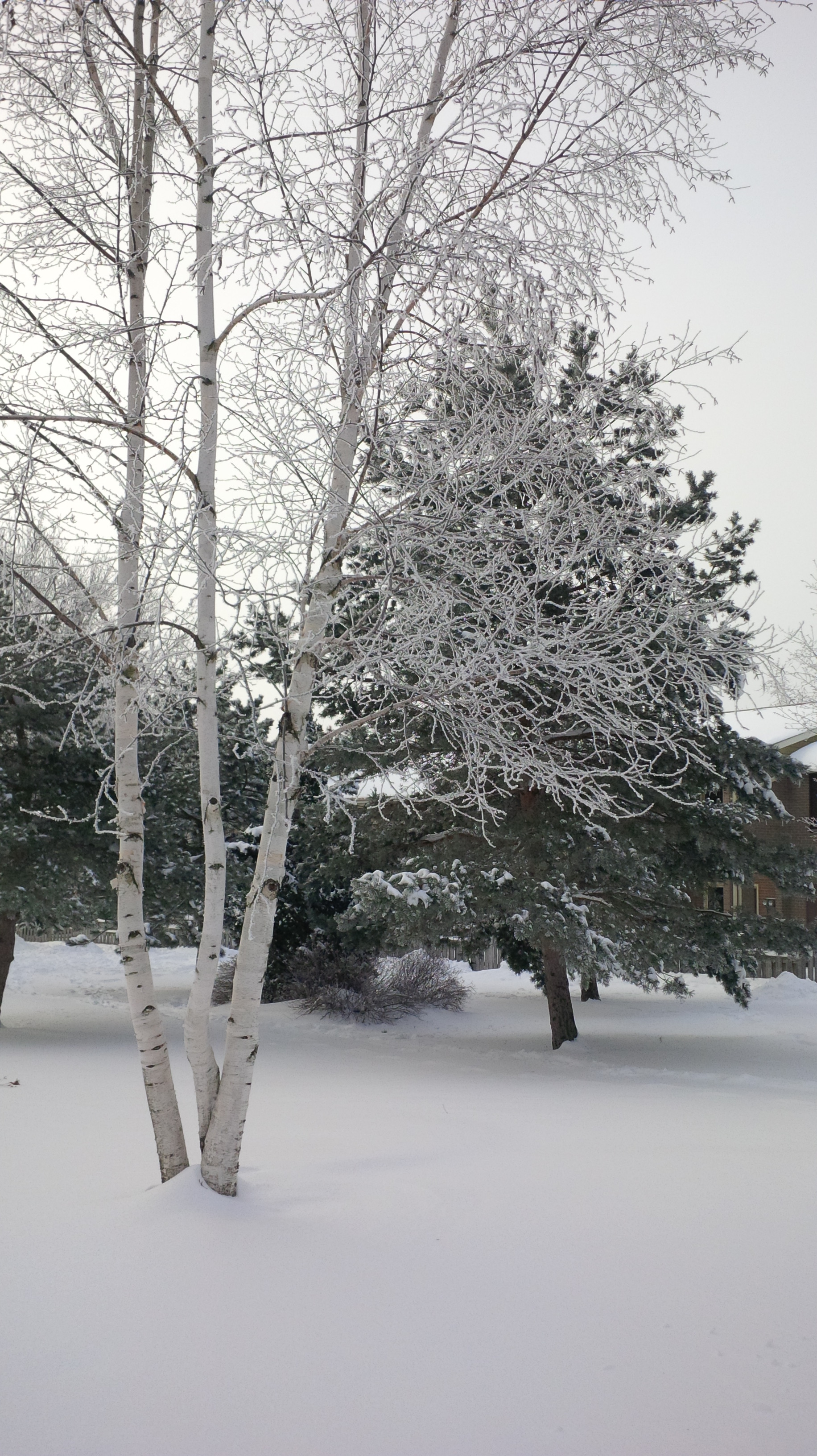
    photo of a birch tree with 3 trunks in front of a pine tree all covered in snow.
    Snow

    Then you can add any one of a number of artistic filters (black and white, sepia, antique, lomo, whiteboard, watercolor, negative, or sketch), styles (smooth face, sixties, grain, age photo, filmstrip, halftone, cartoon, or big eyes), auto enhance it, adjust the brightness, remove red eye, or change the contrast, sharpness, white balance, and saturation of the picture. Of course you can also rotate the picture, change its orientation or its aspect ratio; all within the editing program that is part of the camera package on the Z10.   The only style I really like to use so far is the age photo. Here’s the picture with the Age Photo style applied.

    %{include image.html url=“/wp-content/uploads/2013/02/img_00000102_edit.jpg” alt=“The same photo but with a large white border around it and several stylistic cracks through parts of the photo to make it look old” description=“The filters are pretty fun”}

    Do you have a BlackBerry Z10?  Are you holding out for the Q10? What is  your favourite feature on the BlackBerry 10?
  • To whet your ‘app’etite

    To whet your ’app’etite

    A number of people have been asking me to review apps for the BlackBerry 10. Gven that I am not currently in possession of a BlackBerry 10 device, I thought I’d write about what I know – some great free apps for the PlayBook. 

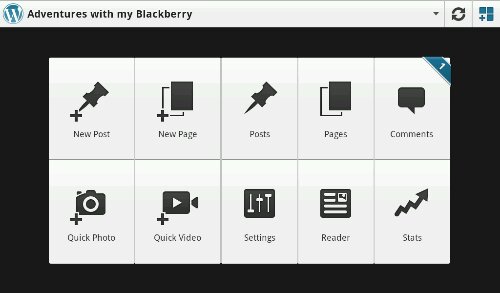
    The first app I want to discuss is the one I’m writing this review on – WordPress for PlayBook and BlackBerry10. I have posted a few blog posts from my Bold 9900 but until recently found the free WordPress clients for the PlayBook unappealing. Then, as I was searching for another app, I saw this one and thought ‘why not’. The app is just as functional as the website.

    The wordpress app for the BlackBerry playbook with 10 icons showing: New Post, New Page, Posts, Pages, Comments, Quick Photo, Quick Video, Settings, Reader, and Stats.
    The main menu screen

    You can manage multiple blogs, approve comments, track your statistics (which is scarily addictive!), edit old / saved posts, read blogs you subscribe to, add quick photos and videos, and, of course, write a new post. You. can write half a post, save it and come back later to finish it up. I love that it’s so easy to add pictures and screenshots right from my PlayBook. I write about my BlackBerry and PlayBook a lot so it makes sense to write on my BlackBerry and PlayBook.

    The only feature that is missing when typing using the WordPress app is the awesome autocomplete feature of the PlayBook’s keyboard. I’m so used to the PlayBook finishing my words that I get annoyed when the feature doesn’t work in an app. I do like that I can manage multiple WordPress blogs from the app and that switching between them is one-touch easy.

    What’s your favourite app for the PlayBook?

  • Elevator Pitch

    Elevator Pitch

    Somebody asked me today to explain, briefly, why I’m so enamoured with my BlackBerry Bold 9900. He said “pretend we’re in an elevator and you need to explain why you like it, not as a sales pitch but as someone who uses the product.” I am familiar with the concept of the elevator pitch and this is what I came up with:

    My BlackBerry is a tool, not a toy. It does everything I want it to and does it in a way that works for my lifestyle. It is reliable, fast, secure, and looks awesome. I use my BlackBerry as a phone, for email, for social media, to text, to get from point A to point B with BlackBerry Traffic, and to use BlackBerry Messenger (BBM). I play games and watch videos on it too, but the primary function of my BlackBerry is to help me be productive. I can open, read, edit, and save documents and share them with friends and colleagues from the dock or from my desk. I can take amazing pictures and share them instantly. It fits my hand perfectly, isn’t too big to put in my pocket, but has a screen big enough to watch a video if I choose. The fact that I’m supporting a Canadian company is just the icing on the cake.

    I wanted to add all of the awesome things I’ve heard about BlackBerry 10 and my impressions from the few times I’ve been fortunate enough to check out a Dev Alpha but until I have a BlackBerry 10 device in hand, I felt that I should speak only about what I know and that’s my Bold 9900.

    Well? Why are you part of Team BlackBerry?

    An animated GIF that shows the BlackBerry 10 Logo on a blue screen which fades into text reading Let's Do This
    BlackBerry 10 – Lets do this

  • The Grey Cup with BlackBerry

    The Grey Cup with BlackBerry

    It’s no secret that I love my BlackBerry devices. I also love the Canadian Football League. With the 100th Grey Cup practically in my backyard, I decided that once again this year, I was going to go and report from the big game without taking my old and heavy laptop. This year, however, I did add the BlackBerry Bluetooth keyboard for my PlayBook. This gave me more functionality with very little additional weight.

    I also added a second battery and charging case (which is basically a small case for the extra battery that you plug the regular micro usb adapter into) for my trusty Bold 9900. I knew I would be putting in some very long days and didn’t want to need to find somewhere to plug in my BlackBerry. Between the 2 batteries, I got somewhere in the range of 12-13 hours of heavy use out of my Bold each day. My BlackBerry was in hand from the time I got up (around 6am each day) until I finally got back to my hotel room somewhere between midnight and 1 am.

    I was pulling double duty at the Grey Cup this year – as a member of Argonotes (the official pep band of the Toronto Argonauts) and as a member of the media for Rouge Radio.com. I could not have successfully done both things without my BlackBerry calendar to help me keep track of where I needed to be and when. It was indispensable for getting press releases, schedule updates, and interview requests into my hands immediately so that I could add or adjust my schedule accordingly. Between my Bold and my PlayBook, I had everything I needed: email, calendar, documents to go, a voice recorder, cameras, a phone, access to text messages, Twitter, Facebook, and, of course, BlackBerry Messenger.

    I recorded interviews on my PlayBook while tweeting and taking pictures on my Bold or vice versa. I typed game notes on my PlayBook with the keyboard while watching the game. I freaked out another reporter by using the remote control feature to type on my PlayBook from 2 rows back in the press box. Having words appear on the tablet next to you that you were asked to watch for a couple of minutes can be a freaky experience, especially when the words are addressed specifically to you. (Yes I know, it was wrong to use my PlayBook to freak out other people but it was a prank I’d been planning for awhile and the opportunity presented itself at the Vanier Cup on Friday night.)

    The combination of my Bold 9900 and my PlayBook were all I needed to make the most of my Grey Cup experience – no need to lug around a heavy, awkward laptop, a voice recorder, or a camera – just my trusty BlackBerry Bold 9900 and my PlayBook.

    I will note that being able to update my Facebook, Twitter, and BBM statuses with things like “I just drank out of the Grey Cup” was awesome. I uploaded a ton of Photos, directly from my devices, often while walking between events.

    Have you ever used a tablet instead of a Laptop? Would you consider leaving the laptop at home for a major conference or event?

    Exterior view of the Rogers Centre with 2 banners, a horizontal one reading 100th Grey Cup and a vertical one featuring an image of the Grey cup
    Banners outside the Rogers Centre

    [

  • She’s Connected and my BlackBerry

    She’s Connected and my BlackBerry

    You know what I absolutely love hearing when showing off my Bold 9900?  “Wow, I didn’t know a BlackBerry could do THAT”.  I heard that a lot this weekend at the She’s Connected Conference in Toronto.  Mostly it was the simple things like the fact that managing multiple accounts in the Native Twitter Application is so easy.  Or that I could remote control my PlayBook from my Bold 9900 (to be honest, that was me showing off because I had the bluetooth keyboard for the PlayBook and was perfectly capable of typing on that but I like the wow factor of the remote control).  I loved meeting so many fellow BlackBerry devotees and being able to help them use their devices more easily.  It’s not rocket science but there are tips and tricks that will enhance your experience as a member of Team BlackBerry.

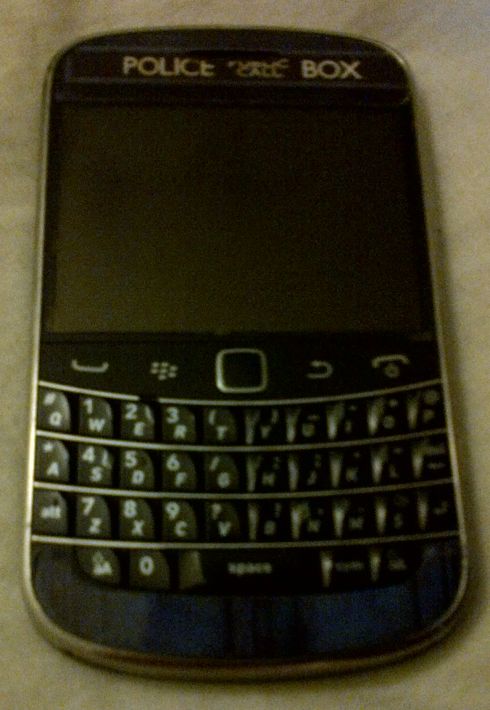
    A BlackBerry Bold 9900 with a sticker on it that makes it look like the TARDIS from Doctor Who - a blue police box
    My BlackBerry Bold 9900

    The one question everyone seemed to ask me was if I was excited about the upcoming release of the BlackBerry 10 devices and operating system.  The answer to that was an unequivocal YES!  I am very excited about BlackBerry 10 and can’t wait until it is released!  I still don’t know how I’m going to get a BlackBerry 10 device into my hot little hands but rest assured, it will be done.  I have friends who are developers for BlackBerry and their excitement at what the BB10 OS can do has rubbed off on me.    I truly believe that there is a core market of BlackBerry users who may have switched to another platform who are waiting for an excuse to come back to the BlackBerry fold.  I believe that the BlackBerry 10 Operating System will be the thing to bring them back.  I spoke to quite a few people who either had been BlackBerry users in the past or who were simply curious about the new product launch.  A number of them were at the end of their cell phone contracts and were eligible for a new device, either now or at the beginning of the year.  After chatting with me, many of them are waiting to see what BlackBerry 10 has to offer before deciding what phone to get. I wasn’t out to strong arm people into becoming members of Team BlackBerry but I wanted people to give it a chance.

    BlackBerry isn’t for everyone.  If you want a smartphone to game on, then this isn’t the right solution for you.  However, if you want your phone to work FOR you, and WITH you then you need to consider BlackBerry.  I primarily use my BlackBerry for social media, emails, as a gps, as a camera, and *gasp* to make and receive phone calls  Yes I have a number of very entertaining apps and games, but they’re not the reason I chose my BlackBerry.  I have far more games on my 64 gb PlayBook.

    BlackBerry PlayBook, small rectangular tablet in a case with a full keyboard
    My PlayBook

    Not once all conference did i wish I had a different phone.  My Bold 9900 had no issues connecting to the wifi, releasing the cached wifi info page so I could log in again on the second day, or with maintaining a battery charge throughout the conference.  I don’t want to have to carry around a charger for my phone because it won’t last 10 hours.  I was having too much fun trying to meet up with twitter friends to be hunting for somewhere to plug in my phone.

  • Thoughts on She’s Connected 2012

    Thoughts on She’s Connected 2012

    In case you haven’t noticed, I’ve been blogging over at my other blog Adventures with my BlackBerry for the last few months.  I’m going to have another wrap up there but from the technological side of things – how my BlackBerry helped me make connections and made my conference experience more enjoyable.  This is more about the experience I had at She’s Connected (or SCCTO which was the twitter hashtag for the event), what I learned, and the great people I met.

    Overall, I had a great time at She’s Connected. The getting up at the crack of dawn wasn’t something I was looking forward to but I had great carpool with Courtney and Jacki and not only did we get to the hotel an hour before the conference breakfast was supposed to start, the fabulous people at the Renaissance Hotel were able to check us into our room super early (at 7am) so that we didn’t have to come back later and check in or try to do it after the conference when we were tired etc.  I have to say that the Renaissance is a fabulous hotel, and I wish I’d spent more than just one night there!   I’d go back for Grey Cup in the blink of an eye but it’s definitely out of my price range!

    I learned a lot about myself at the conference.  I learned I can be funny and witty in real life even with strangers and when I’m scared to death that I’ll say something stupid and they will write me off as a moron.  I learned that mink eyelashes are pretty cool and very dramatic but take a long time to get used to.  I learned that having a professional do a blow out on my hair leads to the same result as me doing one – flat hair in less than an hour!  Not that the stylist from Blo wasn’t really good, but my hair is stupid that way.  It looked fabulous for the hour, but then it was just messy and full of product.   I learned that I really get a kick out of people complementing me on my business cards (which were super fabulous thanks to Lindsay from Grace Announcements).

    The sessions were amazing.  It’s impossible to pick just one to single out as the best.  One of the best part of the sessions was that the panelists and speakers were more than willing to meet and speak with the attendees after the panels.  There were 2 time slots in which I couldn’t find a session that I really wanted to attend, one on Friday and one on Saturday.  This worked out pretty well because it gave me a chance to hang out in the McCafe lounge and get my nails painted and enjoy a chair massage.  On Friday I got to hang out in the Molson 67 lounge and learn about pairing Beer and Cheese.  This was really awesome and I’m never going back to wine and cheese again.

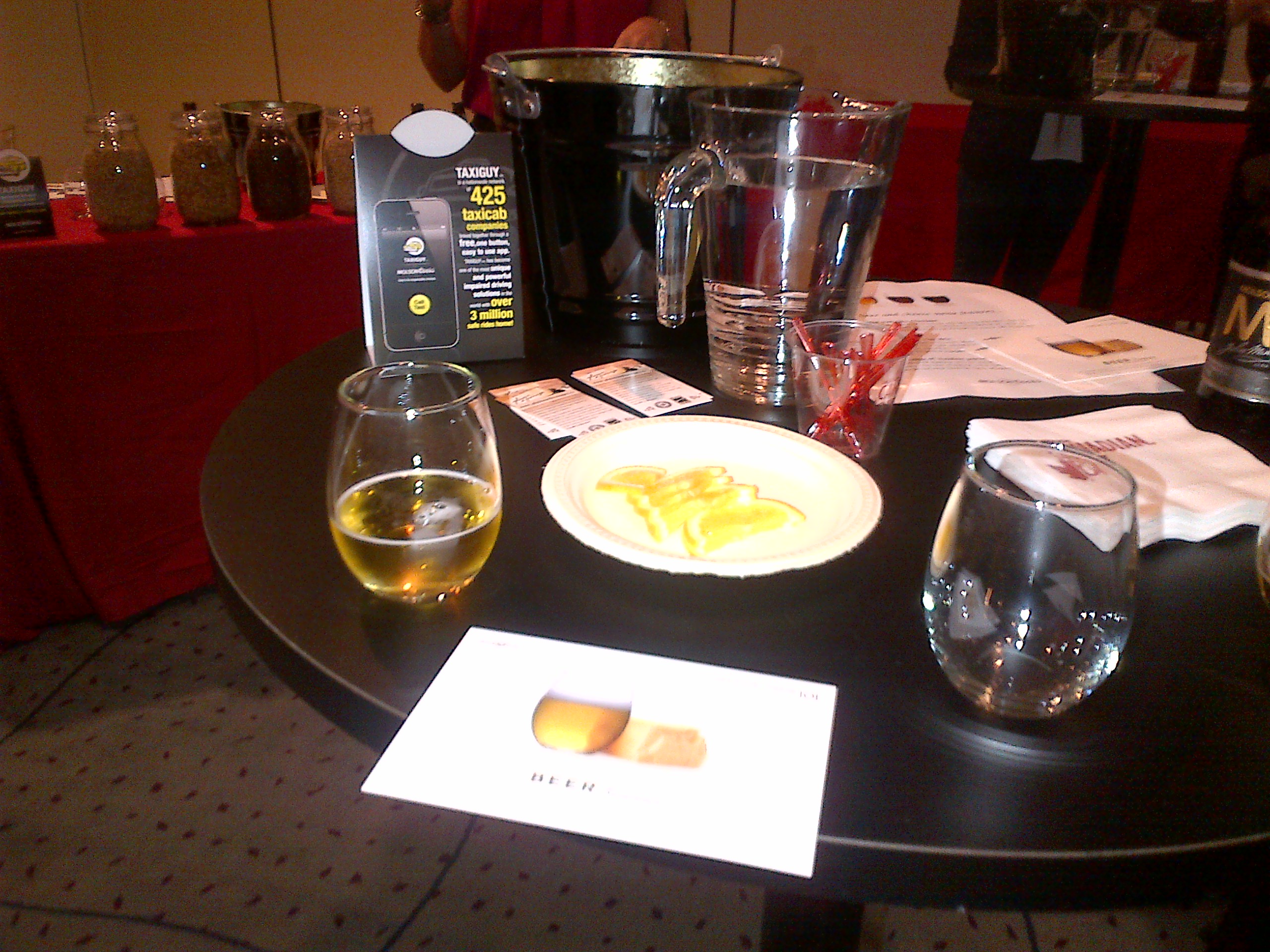
    A hightop bar table with 1 small glass of beer, an empty glass, and a plate of cheese between the two glasses.
    Beer and cheese = nature’s perfect pairing.

    I learned a lot about trying to find a niche in the overcrowded world of online writing, editing and social media.  I got some awesome advice from awesome people.  I got to meet people with whom I’ve been tweeting and BBMing for over a year. I learned that if I love blogging (and I do) I should keep doing it.  That getting a chance at a community manager position isn’t as impossible a dream as I thought it would be and that some brands and agencies are okay with paying bloggers.

    I missed the Friday ’80s Party because I wanted to go watch the Argos Lose Argo game and play with Argonotes.  I love playing with the best band in the CFL.  Even when the team loses, we get to go out and entertain thousands of people.  I did, however, stick around for the Shades of Grey party on Saturday night.  There’s not a lot to say about that Party other than wow.  I got gel nail polish put on – it’s supposed to last 2 weeks and so far it’s lasted through me digging in sand and typing so I’m impressed.  The food was delicious!  It’s A Cake Thing made some of the best cookies and cupcakes that I’ve ever had!  They looked as good as they tasted.

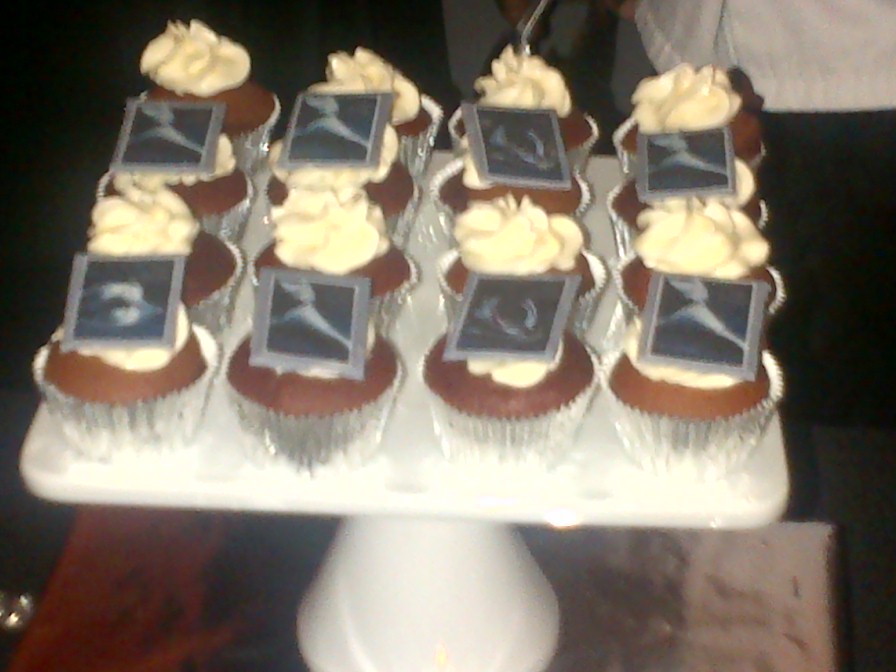
    a tray with 12 vanilla cupcakes with white frosting in 3 rows of 4. The front and back rows have decorations in greyscale on them
    The Shades of Grey Cupcakes

    All in all it was a great 2 days.  I’m glad it was only 2 days because I was exhausted at the end of the party.  I know I’ve missed some wonderful people and things in this wrap up but the point is, it was a great experience and I can’t wait to go again next year.

  • Conference Time!

    Conference Time!

    I’m very excited to be going back to the She’s Connected Conference this year.  Last year I had a great time meeting new people and learning a lot about blogs, brands and how the two can work together.  The only thing I really didn’t like about the experience was lugging my laptop around to take notes on.  This year I’m solving that problem by borrowing a BlackBerry PlayBook Keyboard Case from a friend to test it out during the conference.  If I like it, I may just have to find a way to purchase one. My BlackBerry PlayBook already goes pretty much everywhere I do, so it makes sense to use it at the conference.  I will, of course, also be taking my BlackBerry Bold 9900.  Not only can I use the BlackBerry Bridge and connect my tablet to my phone, but I can use my BlackBerry PlayBook charger to charge everything.  I love the way it looks like a little netbook but one that has a ton of great apps on it.

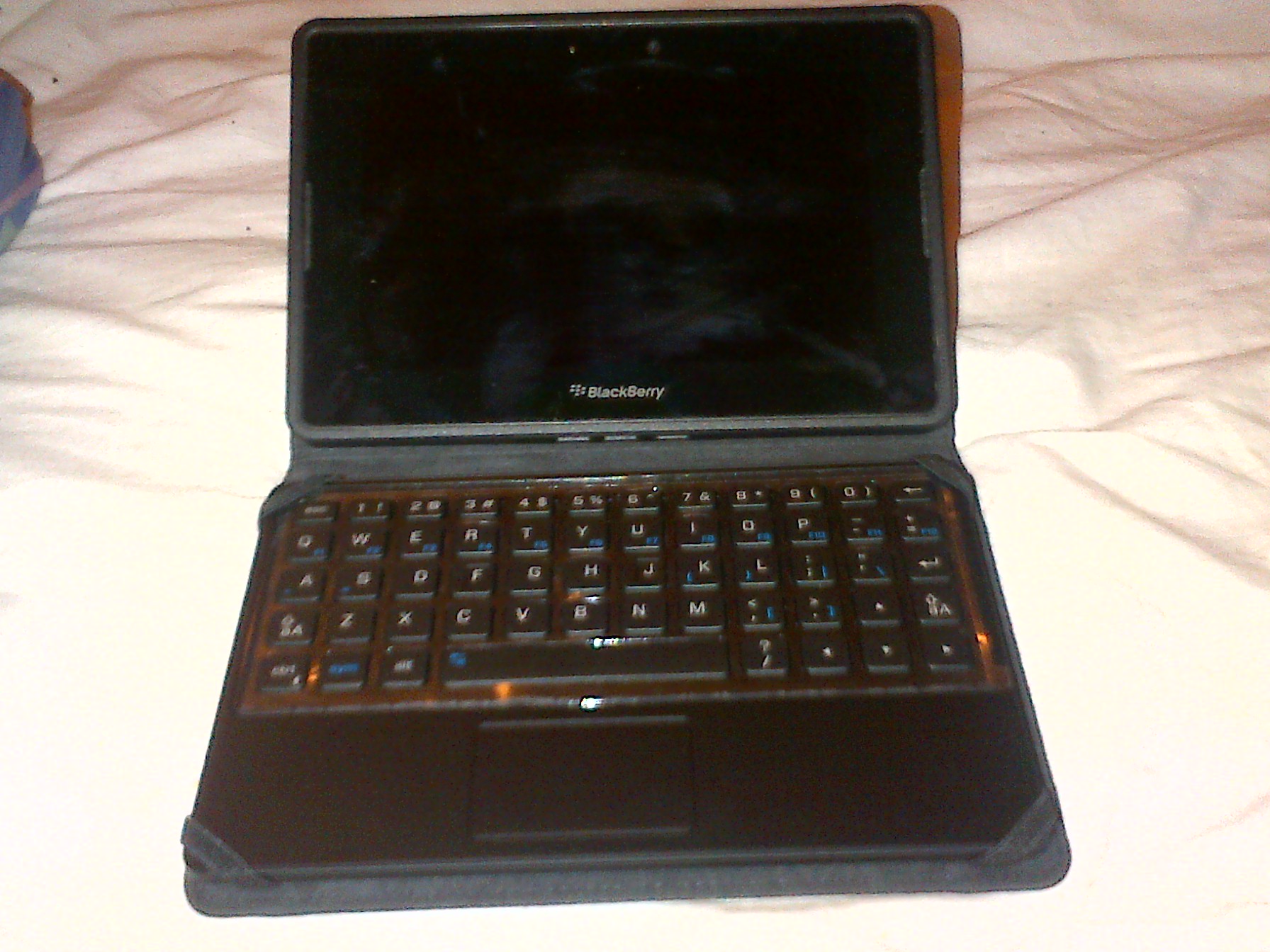
    %{include image.html url=“/wp-content/uploads/2012/10/playbook-keyboard.jpg” alt=“A BlackBerry Playbook stands up on a bed in a case with a full keyboard” description=“The PlayBook with keyboard”}

    Yes I realize I’m a little insane to be going to a conference about blogging and social media and not taking my laptop.  I still love my laptop (though at 7 years old it’s on its last legs) but I don’t like lugging it around and constantly worrying about it being stolen.  With the keyboard, I have everything I need to make my BlackBerry PlayBook into a mini laptop for the 2 days I’ll need it.  I covered the Grey Cup in 2011 without taking my laptop (again it was a weight / space / afraid it would get broken issue) and didn’t really miss it and won’t be borrowing the digital audio recorder again since the recording on my PlayBook is actually better quality and easier to upload.  One thing I want to try to find before I leave for the conference is a neoprene sleeve so the case doesn’t get scratched when I toss it in my bag.  I got a neoprene case with the PlayBook but it’s too small to fit the PlayBook and case.
    I’m also going to be wearing a BlackBerry shirt to the conference on Friday.  I have promised several people that I’d help set up their BlackBerry devices to do what they needed them to do and I figure it’s best if they can find me.  🙂  While I don’t work for Research In Motion (though I would love to work for such a great company whose products I love and use daily), I have spent a lot of time with my BlackBerry Bold 9900, my friends’ BlackBerries, and I’ve got a pretty good grasp of what’s going on with them.  If I should happen to run into a problem that I can’t fix, I also know that help is only a BBM message away.    If you’re attending the She’s Connected Conference and want me to show you how either my Bold 9900 or my PlayBook / PlayBook with keyboard work just ask!  I’m always happy to talk mobile devices!

  • Ten Things you need to know about your BlackBerry

    Ten Things you need to know about your BlackBerry

    Since I started this blog, I’ve met a lot of other members of Team BlackBerry.  One of the things that constantly astounds me is how few people regularly back up their BlackBerry handheld devices.  I learned the hard way about backing up my BlackBerry – earlier this year I managed to brick my Bold 9900 (totally a user error on that one).  I hadn’t backed up in over a month, and while I have a lot of technologically inclined friends, I still lost a few things.  I now back up my BlackBerry at least once a week and have BlackBerry Protect doing a daily back up.  Some of these tips seem really simple, and they are very easy to implement but they will make life easier as a BlackBerry owner.

    1. Plug it in!  Plug your BlackBerry into your computer to create a backup and to move files and folders from your computer to your device and vice versa.  You may never need the backup, but if you do, you’ll be happy you did it.

    2. Use folders so that your home screen isn’t cluttered with apps.  Keep only the things you access daily on your home screen.

    3. Update your BlackBerry – Not just the Operating System (OS) updates but also applications.  Having the latest version of an application means it’s more likely to work the way it was intended and integrate with other applications such as Blackberry Messenger (BBM) more smoothly.

    4. Turn off WiFi coverage when you’re out of range for it.  Unless you’re searching for hotspots, you don’t actually need your wi-fi on when you’re out and about.  When wi-fi is turned on, it will continuously look for networks to connect to which will drain your battery.

    5. Press and hold the BlackBerry button to see what applications are running in the background and close any that you aren’t actually using in order to free up memory and save your battery. The BlackBerry Button is the one that looks like this:

      %{include image.html url=“/wp-content/uploads/2012/10/blackberry-logo.jpg” alt=“The BlackBerry logo – 3 columns of elongated white filled in capital D shapes with 2 in the first column, 3 in the middle column, and 2 in the 3rd column” description=“The BlackBerry Logo.”}

    6. Blackberry Shortcuts.  These are awesome.  Tired of typing your number in a Facebook message, direct message on twitter or on BBM?  Type mynumber and poof – there it is.  Mypindoes the same thing but with your PIN.  If you need to insert the date into a post, type ld (long date) and the date will show up (ie: Tue, Oct 15, 2012). To get the long version of the current time, type lt to show (12:54:45 AM).

    7. Going to a movie and need to put your phone on vibrate quickly?  Press and hold the “Q” key and it will automatically switch your phone to vibrate.  To switch back, press and hold the “Q” key again.

    8. Set up auto on/off times.  You can do this by going to Settings –> Device –> Auto On /Off  and set what time you want your BlackBerry to automatically turn off at night and when you want it to turn on in the morning.  You can set different times for weekdays versus weekends too.

    9. Learn how to do a soft reset of your device.  You know the handy Ctrl + Alt + Del command you use to reboot your computer?  You can do the same thing on your BlackBerry by pressing Alt + Shift + Del at the same time. (If you have a full touch screen you’ll have to do the battery pull instead)

    10. Get a shell or a holster and a screen protector.  I love my holster – it means that I can always have my BlackBerry on me.  If you dislike holsters (and I know some of you do), get a shell casing so the back doesn’t get all scratched up in your purse or briefcase.  The cases make the BlackBerry easy to grip too.  A screen protector is a must if you have a touchscreen and it’s great even if you don’t.  When applied correctly, they don’t interfere with the touchscreen sensitivity but help protect your screen against nicks and scratches.  Of course you can always get a really cool sticker for your BlackBerry like I have for mine.  Have I mentioned how much I love my TARDIS-Berry?

    Well, that’s it.  Those are my top 10 BlackBerry tips.  Do you have a tip or a trick for other members of Team BlackBerry?

  • Why I’m Retiring the GPS

    Why I’m Retiring the GPS

    I don’t actually have a GPS but my parents do, as do a lot of my friends, so when I’m going somewhere where there’s a good possibility of my getting horribly, horribly lost (*cough* Hamilton *cough*) I borrow someone’s GPS to ensure I make it back home.  I’ve managed to make out decently well with borrowed GPS units in the past but they’re bulky and I can’t leave it in the car for fear of it being stolen .  All that is a thing of the past now that I have discovered the wonder that is BlackBerry Traffic.    BlackBerry Traffic is a free app that you can download from BlackBerry App World and in my opinion, it’s better than a GPS and it’s on something you’re probably bringing with you anyway – your BlackBerry!

    Once downloaded, BlackBerry Traffic appears as an icon on your homescreen.  It’s pretty easy to find – it’s the one that looks like traffic lights

    %{include image.html url=“/wp-content/uploads/2012/09/traffic.png” alt=“A BlackBerry home screen with 3 rows of app icons on it. One of the app looks like a traffic light and is circled in Red” description=“BlackBerry Traffic”}

    Now I’m a huge fan of putting things in folders on the BlackBerry, but I leave BlackBerry Traffic out on my homescreen because I use it pretty much daily.

    Once you start up BlackBerry Traffic, you can set up addresses for “Home” and “Work”.  You can also add an address to the “My Places” section if you know the address you’re looking for, or you can search for one you don’t know.

    %{include image.html url=“/wp-content/uploads/2012/10/traffic-2.png” alt=“BlackBerry Traffic Home screen with the words BlackBerry Traffic Where do you want to go? Choose a destination on the screen and home, set work, my places, and search options below it.” description=“The BlackBerry Traffic Home Screen”}

    Once you choose your destination, the app does a search based on current traffic conditions and gives you two options. You select the one you want to take, and you get step by step voice instructions either through your bluetooth headset or through the speaker on your BlackBerry to where you’re going.  It gives plenty of notice for upcoming turns, allowing you to change lanes if necessary.  It’s best to set your destination before you go because otherwise your attention won’t be on driving and the app won’t be hands free.  (I have, when needed, pulled over to the shoulder to revise a route.)

    I have a very bad habit of not being able to find my way to or from Ivor Wynne Stadium in Hamilton.  Every time I’ve gone there I’ve been lost.  Except this year.  The difference?  BlackBerry Traffic.  Before I left, I did a search for Ivor Wynne Stadium and chose which of the 2 routes presented I wanted to take.

    The one I chose, ended up being great.  Note that BlackBerry Traffic gives you an estimated time of arrival – in this case about 30 minutes early but I was sure I would need that time to get myself un-lost.

    %{include image.html url=“/wp-content/uploads/2012/10/traffic3.png” alt=“BlackBerry Traffic screen showing turn by turn directions to Ivor Wynn Stadium with an accident notification circled in red in the directions and an ETA in the top right corner circled in red and labelled.” description=“I love the ETA”}

    The yellow exclamation point was notifying me about an accident about 9 km along the QEW – as it turned out, the accident was cleared by the time I reached that point but it was great to be prepared for a bit of a delay there.

    I got to the stadium about 30 minutes early (first time ever!) The game went well, and then when I got back to my car, I simply turned BlackBerry Traffic back on and chose “Home” as my destination.

    %{include image.html url=“/wp-content/uploads/2012/10/traffic4.png” alt=“The BlackBerry Traffic directions screen showing directions to home in a list format with the ETA in the top right corner” description=“I find the directions easy to follow”}

    I got home in under an hour (a first), and with no stress.  It was great.  It was after that day that BlackBerry Traffic became my favourite app. It’s helped me avoid long weekend traffic on highway 400 to cottage country, and accidents on the 401 going to Toronto.  It isn’t the app i use the most (that would be either BlackBerry Messenger or Twitter) but it’s the one I’d miss the most if it was gone! One word of  caution is that if you leave it running, it does chew through battery.  Once you get to your destination, you should exit the app to conserve battery.

    Have you tried BlackBerry Traffic?

  • Synchronizing Calendars between devices

    Synchronizing Calendars between devices

    I’ve been a little quiet on here lately, mostly because I’ve been busy giving BlackBerry Traffic a workout!  A friend who has recently purchased a PlayBook asked  me a question via Twitter today about syncing his BlackBerry calendar with the calendar on the PlayBook.  I synched them as soon as I got my PlayBook in December, so naturally I went to the help on the PlayBook to get him an answer.  The steps there will get your calendars synched but the instructions are a tad confusing.  Here’s the easy way of doing it.

    Step 1: Connect your PlayBook and your BlackBerry using BlackBerry Bridge.

    Step 2:  On your Playbook, in the top right corner is an icon that looks like a cog:  it will take you to the settings.

    %{include image.html url=“/wp-content/uploads/2012/09/settings2.jpg” alt=“screenshot of a BlackBerry PlayBook screen with the home apps row along the bottom and the settings gear icon in the top right corner circled in red” description=“Settings”}

    Step 3:  In the Settings page, there will be a bunch of options on the left hand side.  Select Accounts and then “Email, Calendar and Contacts”.

    %{include image.html url=“/wp-content/uploads/2012/09/pb-calendar-accounts1.jpg” alt=“The BlackBerry PlayBook settings menu expanded to show the Accounts view with the first option, Email, Calendar and Contacts circled in red” description=“PlayBook Calendar Accounts”}

    Step 4:  Select “Add New Account”

    %{include image.html url=“/wp-content/uploads/2012/09/pb-calendar-accounts.jpg” alt=“The BlackBerry PlayBook settings menu expanded to show the Accounts view with the add new account button at the bottom right circled in red.” description=“Adding a new account”}

    Step 5:  Enter the email address you use for your BlackBerry Handheld device Calendar.

    %{include image.html url=“/wp-content/uploads/2012/09/accounts.jpg” alt=“The BlackBerry Playbook Add account screen with the words sign into existing account and boxes for the input of email address and passsword. There are advanced setup and next buttons on the bottom of the screen” description=“This is where you put your information”}

    *Repeat the above steps to add another calendar, if you have more than 1 on your Smartphone

    Step 6: Go to the Calendar application on your playbook and add the calendar(s) to it.

    %{include image.html url=“/wp-content/uploads/2012/09/pbcalendar.jpg” alt=“A calendar showing September 2012 with the 19th highlighted and events on the 19th pulled out in a tab on the left. At the bottom of the calendar is a small calendar icon with a plus sign that has been circled in red and labelled as the Add calendar button.” description=“The BlackBerry PlayBook calendar”}

    Step 7: From the drop down menu, select the new calendar.

    %{include image.html url=“/wp-content/uploads/2012/09/calendar.jpg” alt=“Calendar event view option with the add event feature selected. There is a dropdown with PlayBook local and Gmail calendars as options, fields for subject, location, attendees, start and end date / time, an all day check box, a recurrance option and a reminder time drop down menu.” description=“Adding events to Calendar”}

    You have now successfully synched your PlayBook and BlackBerry Handheld Calendars.  Remember to use BlackBerry Bridge to keep both your Handheld and your PlayBook Calendars on the same page!