Category: BlackBerry

  • Elevator Pitch

    Elevator Pitch

    Somebody asked me today to explain, briefly, why I’m so enamoured with my BlackBerry Bold 9900. He said “pretend we’re in an elevator and you need to explain why you like it, not as a sales pitch but as someone who uses the product.” I am familiar with the concept of the elevator pitch and this is what I came up with:

    My BlackBerry is a tool, not a toy. It does everything I want it to and does it in a way that works for my lifestyle. It is reliable, fast, secure, and looks awesome. I use my BlackBerry as a phone, for email, for social media, to text, to get from point A to point B with BlackBerry Traffic, and to use BlackBerry Messenger (BBM). I play games and watch videos on it too, but the primary function of my BlackBerry is to help me be productive. I can open, read, edit, and save documents and share them with friends and colleagues from the dock or from my desk. I can take amazing pictures and share them instantly. It fits my hand perfectly, isn’t too big to put in my pocket, but has a screen big enough to watch a video if I choose. The fact that I’m supporting a Canadian company is just the icing on the cake.

    I wanted to add all of the awesome things I’ve heard about BlackBerry 10 and my impressions from the few times I’ve been fortunate enough to check out a Dev Alpha but until I have a BlackBerry 10 device in hand, I felt that I should speak only about what I know and that’s my Bold 9900.

    Well? Why are you part of Team BlackBerry?

    An animated GIF that shows the BlackBerry 10 Logo on a blue screen which fades into text reading Let's Do This
    BlackBerry 10 – Lets do this

  • The Grey Cup with BlackBerry

    The Grey Cup with BlackBerry

    It’s no secret that I love my BlackBerry devices. I also love the Canadian Football League. With the 100th Grey Cup practically in my backyard, I decided that once again this year, I was going to go and report from the big game without taking my old and heavy laptop. This year, however, I did add the BlackBerry Bluetooth keyboard for my PlayBook. This gave me more functionality with very little additional weight.

    I also added a second battery and charging case (which is basically a small case for the extra battery that you plug the regular micro usb adapter into) for my trusty Bold 9900. I knew I would be putting in some very long days and didn’t want to need to find somewhere to plug in my BlackBerry. Between the 2 batteries, I got somewhere in the range of 12-13 hours of heavy use out of my Bold each day. My BlackBerry was in hand from the time I got up (around 6am each day) until I finally got back to my hotel room somewhere between midnight and 1 am.

    I was pulling double duty at the Grey Cup this year – as a member of Argonotes (the official pep band of the Toronto Argonauts) and as a member of the media for Rouge Radio.com. I could not have successfully done both things without my BlackBerry calendar to help me keep track of where I needed to be and when. It was indispensable for getting press releases, schedule updates, and interview requests into my hands immediately so that I could add or adjust my schedule accordingly. Between my Bold and my PlayBook, I had everything I needed: email, calendar, documents to go, a voice recorder, cameras, a phone, access to text messages, Twitter, Facebook, and, of course, BlackBerry Messenger.

    I recorded interviews on my PlayBook while tweeting and taking pictures on my Bold or vice versa. I typed game notes on my PlayBook with the keyboard while watching the game. I freaked out another reporter by using the remote control feature to type on my PlayBook from 2 rows back in the press box. Having words appear on the tablet next to you that you were asked to watch for a couple of minutes can be a freaky experience, especially when the words are addressed specifically to you. (Yes I know, it was wrong to use my PlayBook to freak out other people but it was a prank I’d been planning for awhile and the opportunity presented itself at the Vanier Cup on Friday night.)

    The combination of my Bold 9900 and my PlayBook were all I needed to make the most of my Grey Cup experience – no need to lug around a heavy, awkward laptop, a voice recorder, or a camera – just my trusty BlackBerry Bold 9900 and my PlayBook.

    I will note that being able to update my Facebook, Twitter, and BBM statuses with things like “I just drank out of the Grey Cup” was awesome. I uploaded a ton of Photos, directly from my devices, often while walking between events.

    Have you ever used a tablet instead of a Laptop? Would you consider leaving the laptop at home for a major conference or event?

    Exterior view of the Rogers Centre with 2 banners, a horizontal one reading 100th Grey Cup and a vertical one featuring an image of the Grey cup
    Banners outside the Rogers Centre

    [

  • She’s Connected and my BlackBerry

    She’s Connected and my BlackBerry

    You know what I absolutely love hearing when showing off my Bold 9900?  “Wow, I didn’t know a BlackBerry could do THAT”.  I heard that a lot this weekend at the She’s Connected Conference in Toronto.  Mostly it was the simple things like the fact that managing multiple accounts in the Native Twitter Application is so easy.  Or that I could remote control my PlayBook from my Bold 9900 (to be honest, that was me showing off because I had the bluetooth keyboard for the PlayBook and was perfectly capable of typing on that but I like the wow factor of the remote control).  I loved meeting so many fellow BlackBerry devotees and being able to help them use their devices more easily.  It’s not rocket science but there are tips and tricks that will enhance your experience as a member of Team BlackBerry.

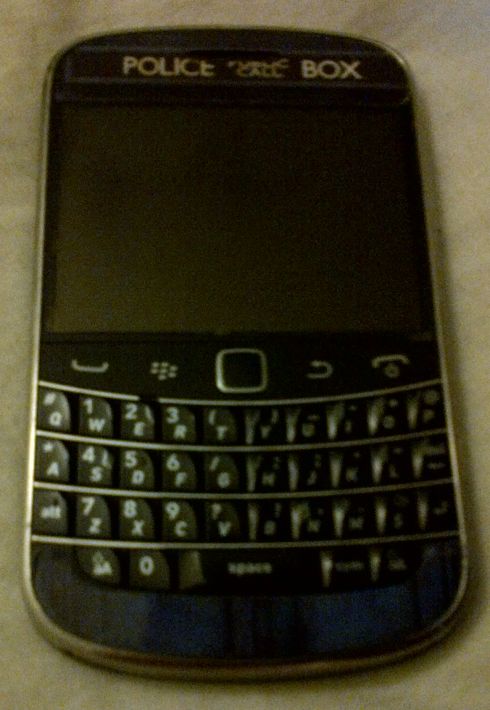
    A BlackBerry Bold 9900 with a sticker on it that makes it look like the TARDIS from Doctor Who - a blue police box
    My BlackBerry Bold 9900

    The one question everyone seemed to ask me was if I was excited about the upcoming release of the BlackBerry 10 devices and operating system.  The answer to that was an unequivocal YES!  I am very excited about BlackBerry 10 and can’t wait until it is released!  I still don’t know how I’m going to get a BlackBerry 10 device into my hot little hands but rest assured, it will be done.  I have friends who are developers for BlackBerry and their excitement at what the BB10 OS can do has rubbed off on me.    I truly believe that there is a core market of BlackBerry users who may have switched to another platform who are waiting for an excuse to come back to the BlackBerry fold.  I believe that the BlackBerry 10 Operating System will be the thing to bring them back.  I spoke to quite a few people who either had been BlackBerry users in the past or who were simply curious about the new product launch.  A number of them were at the end of their cell phone contracts and were eligible for a new device, either now or at the beginning of the year.  After chatting with me, many of them are waiting to see what BlackBerry 10 has to offer before deciding what phone to get. I wasn’t out to strong arm people into becoming members of Team BlackBerry but I wanted people to give it a chance.

    BlackBerry isn’t for everyone.  If you want a smartphone to game on, then this isn’t the right solution for you.  However, if you want your phone to work FOR you, and WITH you then you need to consider BlackBerry.  I primarily use my BlackBerry for social media, emails, as a gps, as a camera, and *gasp* to make and receive phone calls  Yes I have a number of very entertaining apps and games, but they’re not the reason I chose my BlackBerry.  I have far more games on my 64 gb PlayBook.

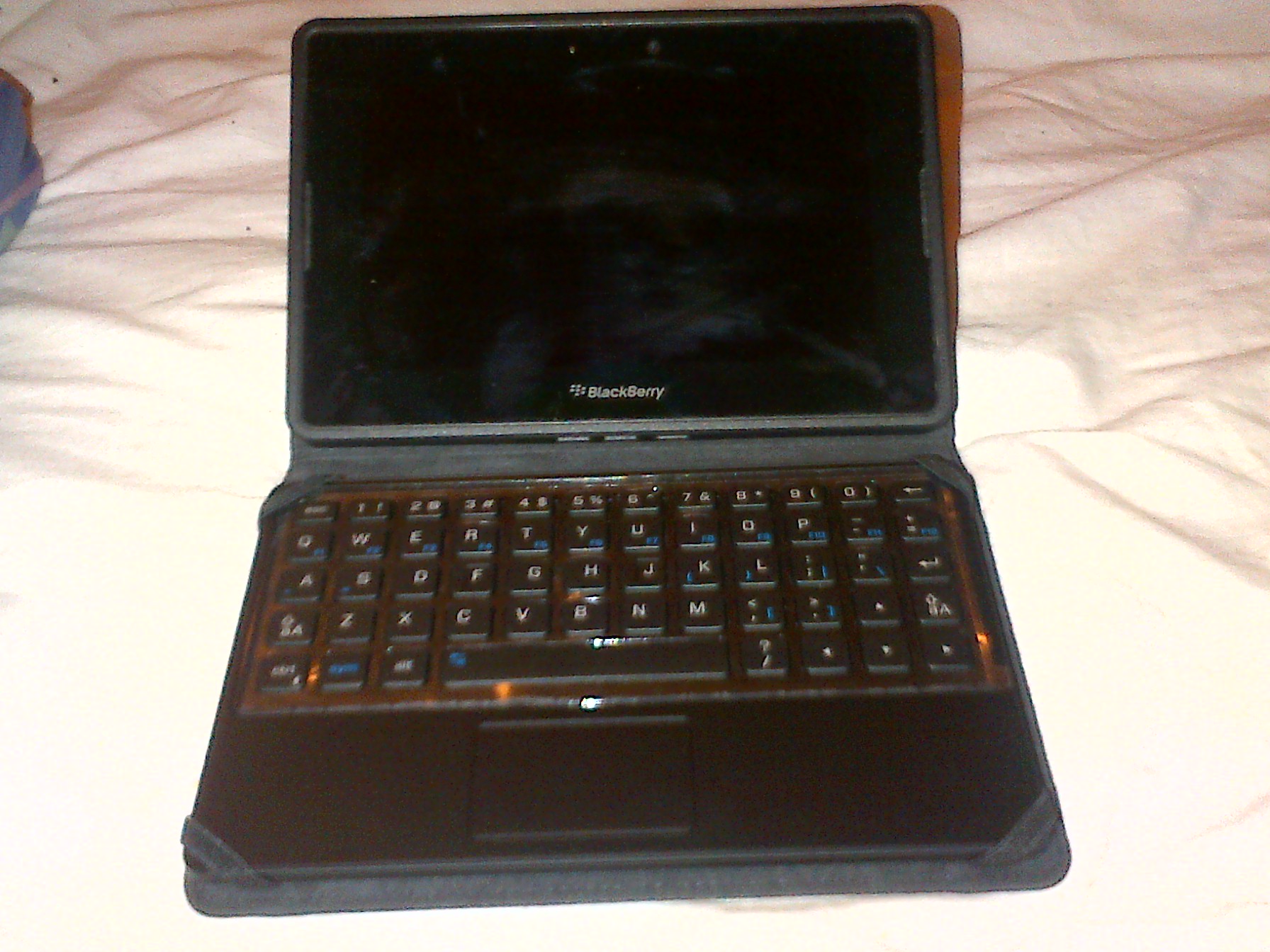
    BlackBerry PlayBook, small rectangular tablet in a case with a full keyboard
    My PlayBook

    Not once all conference did i wish I had a different phone.  My Bold 9900 had no issues connecting to the wifi, releasing the cached wifi info page so I could log in again on the second day, or with maintaining a battery charge throughout the conference.  I don’t want to have to carry around a charger for my phone because it won’t last 10 hours.  I was having too much fun trying to meet up with twitter friends to be hunting for somewhere to plug in my phone.

  • Conference Time!

    Conference Time!

    I’m very excited to be going back to the She’s Connected Conference this year.  Last year I had a great time meeting new people and learning a lot about blogs, brands and how the two can work together.  The only thing I really didn’t like about the experience was lugging my laptop around to take notes on.  This year I’m solving that problem by borrowing a BlackBerry PlayBook Keyboard Case from a friend to test it out during the conference.  If I like it, I may just have to find a way to purchase one. My BlackBerry PlayBook already goes pretty much everywhere I do, so it makes sense to use it at the conference.  I will, of course, also be taking my BlackBerry Bold 9900.  Not only can I use the BlackBerry Bridge and connect my tablet to my phone, but I can use my BlackBerry PlayBook charger to charge everything.  I love the way it looks like a little netbook but one that has a ton of great apps on it.

    %{include image.html url=“/wp-content/uploads/2012/10/playbook-keyboard.jpg” alt=“A BlackBerry Playbook stands up on a bed in a case with a full keyboard” description=“The PlayBook with keyboard”}

    Yes I realize I’m a little insane to be going to a conference about blogging and social media and not taking my laptop.  I still love my laptop (though at 7 years old it’s on its last legs) but I don’t like lugging it around and constantly worrying about it being stolen.  With the keyboard, I have everything I need to make my BlackBerry PlayBook into a mini laptop for the 2 days I’ll need it.  I covered the Grey Cup in 2011 without taking my laptop (again it was a weight / space / afraid it would get broken issue) and didn’t really miss it and won’t be borrowing the digital audio recorder again since the recording on my PlayBook is actually better quality and easier to upload.  One thing I want to try to find before I leave for the conference is a neoprene sleeve so the case doesn’t get scratched when I toss it in my bag.  I got a neoprene case with the PlayBook but it’s too small to fit the PlayBook and case.
    I’m also going to be wearing a BlackBerry shirt to the conference on Friday.  I have promised several people that I’d help set up their BlackBerry devices to do what they needed them to do and I figure it’s best if they can find me.  🙂  While I don’t work for Research In Motion (though I would love to work for such a great company whose products I love and use daily), I have spent a lot of time with my BlackBerry Bold 9900, my friends’ BlackBerries, and I’ve got a pretty good grasp of what’s going on with them.  If I should happen to run into a problem that I can’t fix, I also know that help is only a BBM message away.    If you’re attending the She’s Connected Conference and want me to show you how either my Bold 9900 or my PlayBook / PlayBook with keyboard work just ask!  I’m always happy to talk mobile devices!

  • Ten Things you need to know about your BlackBerry

    Ten Things you need to know about your BlackBerry

    Since I started this blog, I’ve met a lot of other members of Team BlackBerry.  One of the things that constantly astounds me is how few people regularly back up their BlackBerry handheld devices.  I learned the hard way about backing up my BlackBerry – earlier this year I managed to brick my Bold 9900 (totally a user error on that one).  I hadn’t backed up in over a month, and while I have a lot of technologically inclined friends, I still lost a few things.  I now back up my BlackBerry at least once a week and have BlackBerry Protect doing a daily back up.  Some of these tips seem really simple, and they are very easy to implement but they will make life easier as a BlackBerry owner.

    1. Plug it in!  Plug your BlackBerry into your computer to create a backup and to move files and folders from your computer to your device and vice versa.  You may never need the backup, but if you do, you’ll be happy you did it.

    2. Use folders so that your home screen isn’t cluttered with apps.  Keep only the things you access daily on your home screen.

    3. Update your BlackBerry – Not just the Operating System (OS) updates but also applications.  Having the latest version of an application means it’s more likely to work the way it was intended and integrate with other applications such as Blackberry Messenger (BBM) more smoothly.

    4. Turn off WiFi coverage when you’re out of range for it.  Unless you’re searching for hotspots, you don’t actually need your wi-fi on when you’re out and about.  When wi-fi is turned on, it will continuously look for networks to connect to which will drain your battery.

    5. Press and hold the BlackBerry button to see what applications are running in the background and close any that you aren’t actually using in order to free up memory and save your battery. The BlackBerry Button is the one that looks like this:

      %{include image.html url=“/wp-content/uploads/2012/10/blackberry-logo.jpg” alt=“The BlackBerry logo – 3 columns of elongated white filled in capital D shapes with 2 in the first column, 3 in the middle column, and 2 in the 3rd column” description=“The BlackBerry Logo.”}

    6. Blackberry Shortcuts.  These are awesome.  Tired of typing your number in a Facebook message, direct message on twitter or on BBM?  Type mynumber and poof – there it is.  Mypindoes the same thing but with your PIN.  If you need to insert the date into a post, type ld (long date) and the date will show up (ie: Tue, Oct 15, 2012). To get the long version of the current time, type lt to show (12:54:45 AM).

    7. Going to a movie and need to put your phone on vibrate quickly?  Press and hold the “Q” key and it will automatically switch your phone to vibrate.  To switch back, press and hold the “Q” key again.

    8. Set up auto on/off times.  You can do this by going to Settings –> Device –> Auto On /Off  and set what time you want your BlackBerry to automatically turn off at night and when you want it to turn on in the morning.  You can set different times for weekdays versus weekends too.

    9. Learn how to do a soft reset of your device.  You know the handy Ctrl + Alt + Del command you use to reboot your computer?  You can do the same thing on your BlackBerry by pressing Alt + Shift + Del at the same time. (If you have a full touch screen you’ll have to do the battery pull instead)

    10. Get a shell or a holster and a screen protector.  I love my holster – it means that I can always have my BlackBerry on me.  If you dislike holsters (and I know some of you do), get a shell casing so the back doesn’t get all scratched up in your purse or briefcase.  The cases make the BlackBerry easy to grip too.  A screen protector is a must if you have a touchscreen and it’s great even if you don’t.  When applied correctly, they don’t interfere with the touchscreen sensitivity but help protect your screen against nicks and scratches.  Of course you can always get a really cool sticker for your BlackBerry like I have for mine.  Have I mentioned how much I love my TARDIS-Berry?

    Well, that’s it.  Those are my top 10 BlackBerry tips.  Do you have a tip or a trick for other members of Team BlackBerry?

  • Why I’m Retiring the GPS

    Why I’m Retiring the GPS

    I don’t actually have a GPS but my parents do, as do a lot of my friends, so when I’m going somewhere where there’s a good possibility of my getting horribly, horribly lost (*cough* Hamilton *cough*) I borrow someone’s GPS to ensure I make it back home.  I’ve managed to make out decently well with borrowed GPS units in the past but they’re bulky and I can’t leave it in the car for fear of it being stolen .  All that is a thing of the past now that I have discovered the wonder that is BlackBerry Traffic.    BlackBerry Traffic is a free app that you can download from BlackBerry App World and in my opinion, it’s better than a GPS and it’s on something you’re probably bringing with you anyway – your BlackBerry!

    Once downloaded, BlackBerry Traffic appears as an icon on your homescreen.  It’s pretty easy to find – it’s the one that looks like traffic lights

    %{include image.html url=“/wp-content/uploads/2012/09/traffic.png” alt=“A BlackBerry home screen with 3 rows of app icons on it. One of the app looks like a traffic light and is circled in Red” description=“BlackBerry Traffic”}

    Now I’m a huge fan of putting things in folders on the BlackBerry, but I leave BlackBerry Traffic out on my homescreen because I use it pretty much daily.

    Once you start up BlackBerry Traffic, you can set up addresses for “Home” and “Work”.  You can also add an address to the “My Places” section if you know the address you’re looking for, or you can search for one you don’t know.

    %{include image.html url=“/wp-content/uploads/2012/10/traffic-2.png” alt=“BlackBerry Traffic Home screen with the words BlackBerry Traffic Where do you want to go? Choose a destination on the screen and home, set work, my places, and search options below it.” description=“The BlackBerry Traffic Home Screen”}

    Once you choose your destination, the app does a search based on current traffic conditions and gives you two options. You select the one you want to take, and you get step by step voice instructions either through your bluetooth headset or through the speaker on your BlackBerry to where you’re going.  It gives plenty of notice for upcoming turns, allowing you to change lanes if necessary.  It’s best to set your destination before you go because otherwise your attention won’t be on driving and the app won’t be hands free.  (I have, when needed, pulled over to the shoulder to revise a route.)

    I have a very bad habit of not being able to find my way to or from Ivor Wynne Stadium in Hamilton.  Every time I’ve gone there I’ve been lost.  Except this year.  The difference?  BlackBerry Traffic.  Before I left, I did a search for Ivor Wynne Stadium and chose which of the 2 routes presented I wanted to take.

    The one I chose, ended up being great.  Note that BlackBerry Traffic gives you an estimated time of arrival – in this case about 30 minutes early but I was sure I would need that time to get myself un-lost.

    %{include image.html url=“/wp-content/uploads/2012/10/traffic3.png” alt=“BlackBerry Traffic screen showing turn by turn directions to Ivor Wynn Stadium with an accident notification circled in red in the directions and an ETA in the top right corner circled in red and labelled.” description=“I love the ETA”}

    The yellow exclamation point was notifying me about an accident about 9 km along the QEW – as it turned out, the accident was cleared by the time I reached that point but it was great to be prepared for a bit of a delay there.

    I got to the stadium about 30 minutes early (first time ever!) The game went well, and then when I got back to my car, I simply turned BlackBerry Traffic back on and chose “Home” as my destination.

    %{include image.html url=“/wp-content/uploads/2012/10/traffic4.png” alt=“The BlackBerry Traffic directions screen showing directions to home in a list format with the ETA in the top right corner” description=“I find the directions easy to follow”}

    I got home in under an hour (a first), and with no stress.  It was great.  It was after that day that BlackBerry Traffic became my favourite app. It’s helped me avoid long weekend traffic on highway 400 to cottage country, and accidents on the 401 going to Toronto.  It isn’t the app i use the most (that would be either BlackBerry Messenger or Twitter) but it’s the one I’d miss the most if it was gone! One word of  caution is that if you leave it running, it does chew through battery.  Once you get to your destination, you should exit the app to conserve battery.

    Have you tried BlackBerry Traffic?

  • Synchronizing Calendars between devices

    Synchronizing Calendars between devices

    I’ve been a little quiet on here lately, mostly because I’ve been busy giving BlackBerry Traffic a workout!  A friend who has recently purchased a PlayBook asked  me a question via Twitter today about syncing his BlackBerry calendar with the calendar on the PlayBook.  I synched them as soon as I got my PlayBook in December, so naturally I went to the help on the PlayBook to get him an answer.  The steps there will get your calendars synched but the instructions are a tad confusing.  Here’s the easy way of doing it.

    Step 1: Connect your PlayBook and your BlackBerry using BlackBerry Bridge.

    Step 2:  On your Playbook, in the top right corner is an icon that looks like a cog:  it will take you to the settings.

    %{include image.html url=“/wp-content/uploads/2012/09/settings2.jpg” alt=“screenshot of a BlackBerry PlayBook screen with the home apps row along the bottom and the settings gear icon in the top right corner circled in red” description=“Settings”}

    Step 3:  In the Settings page, there will be a bunch of options on the left hand side.  Select Accounts and then “Email, Calendar and Contacts”.

    %{include image.html url=“/wp-content/uploads/2012/09/pb-calendar-accounts1.jpg” alt=“The BlackBerry PlayBook settings menu expanded to show the Accounts view with the first option, Email, Calendar and Contacts circled in red” description=“PlayBook Calendar Accounts”}

    Step 4:  Select “Add New Account”

    %{include image.html url=“/wp-content/uploads/2012/09/pb-calendar-accounts.jpg” alt=“The BlackBerry PlayBook settings menu expanded to show the Accounts view with the add new account button at the bottom right circled in red.” description=“Adding a new account”}

    Step 5:  Enter the email address you use for your BlackBerry Handheld device Calendar.

    %{include image.html url=“/wp-content/uploads/2012/09/accounts.jpg” alt=“The BlackBerry Playbook Add account screen with the words sign into existing account and boxes for the input of email address and passsword. There are advanced setup and next buttons on the bottom of the screen” description=“This is where you put your information”}

    *Repeat the above steps to add another calendar, if you have more than 1 on your Smartphone

    Step 6: Go to the Calendar application on your playbook and add the calendar(s) to it.

    %{include image.html url=“/wp-content/uploads/2012/09/pbcalendar.jpg” alt=“A calendar showing September 2012 with the 19th highlighted and events on the 19th pulled out in a tab on the left. At the bottom of the calendar is a small calendar icon with a plus sign that has been circled in red and labelled as the Add calendar button.” description=“The BlackBerry PlayBook calendar”}

    Step 7: From the drop down menu, select the new calendar.

    %{include image.html url=“/wp-content/uploads/2012/09/calendar.jpg” alt=“Calendar event view option with the add event feature selected. There is a dropdown with PlayBook local and Gmail calendars as options, fields for subject, location, attendees, start and end date / time, an all day check box, a recurrance option and a reminder time drop down menu.” description=“Adding events to Calendar”}

    You have now successfully synched your PlayBook and BlackBerry Handheld Calendars.  Remember to use BlackBerry Bridge to keep both your Handheld and your PlayBook Calendars on the same page!

  • Why my loyalty isn’t going anywhere

    Why my loyalty isn’t going anywhere

    In case you couldn’t tell from the title of my blog, I’m a BlackBerry fan.  I have tried iphones and Androids and while they were a lot of fun, my infatuation usually only lasted a month or two.  I’ve had my Bold 9900 for a year now.  A year of bad press for Research In Motion and of people constantly asking me why I would want to jump on board a sinking ship.  The answer is simple: I don’t believe that the ship is sinking.  I LOVE the functionality of my BlackBerry Bold 9900 and am very excited by what I’ve been hearing about BlackBerry 10.  My Bold 9900 allows me to work from the dock, at a football game, or from my bedroom.  Documents To Go allows me to edit word and excel documents from my BlackBerry without turning on my laptop or PlayBook.  BlackBerry Messenger (which despite some comments I’ve heard on Twitter is not going anywhere) helps me keep in touch with friends and family.

    I have a bunch of amazing apps on my BlackBerry Bold 9900 and on my PlayBook.  To all those who say that BlackBerry doesn’t have a wide selection of apps, I ask: Have you been to App World lately?  The app that I fell in love with  most recently is BlackBerry Traffic.  I drive into Toronto a few times a month, and there’s nothing I like less than being stuck in traffic because I don’t know the alternate routes.  Now I have an app that not only gives me my ETA based on current traffic conditions but it also gives me an alternate route in case I can’t take the traffic jams anymore.  How awesome is that?  The app gives you turn by turn directions either through your bluetooth headset or through the speaker on the BlackBerry.  You can even set it up to go through your car’s audio system (though I haven’t done this yet).    I learned about this awesome app from my friend Nick who used it to get us to the Canadian National Exhibition on Sunday despite some fairly major construction on the 401.  Yes we still ended up stuck in traffic but we knew how long we would be in that traffic and that (surprise!) there wasn’t any traffic turning into the underground parking at the Direct Energy Centre.
    The app is updated in real time by other users who are also running it.  So if I leave from the cottage 30 minutes ahead of Dad and we’re both running it, he gets updated if I slow down for an extended period of time.

    If I’m going home to visit my parents, I have a plethora of routes I can choose from.  BlackBerry Traffic makes it easy to pick the right one.  I simply select my destination and choose the route that’s quickest.

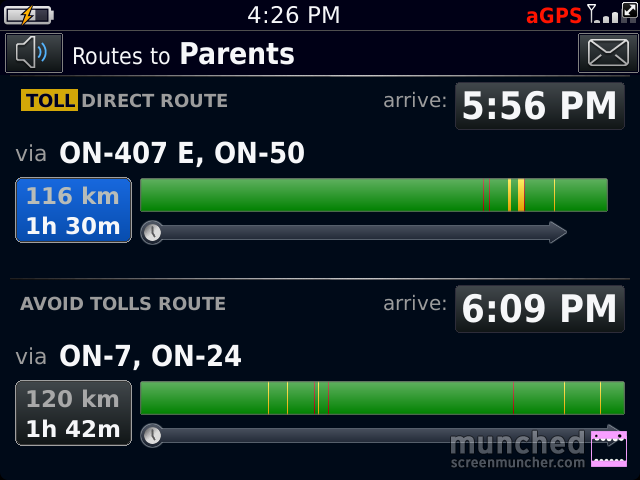
    The BlackBerry Traffic app screen with the words Routes to Parents at the top and 2 different routes below, one with tolls and one avoiding tolls.
    The choice screen.

    In this case I’d pick the 2nd one because it doesn’t take me on the 407. The green sections indicate good traffic flow, the yellow indicates slower than normal flow, and the red sections mean traffic is very slow.

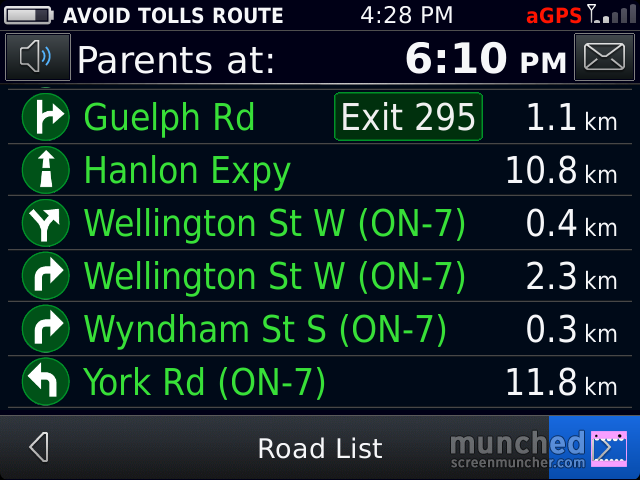
    You can click on a route and it will show you road by road how the traffic is:

    The BlackBerry Traffic directions screen with all of the roads in green, indicating no delays on the route. The top of the screen says Parents at 6:03pm (the ETA), the time on the phone is 4:28
    All Green!

    I’m going to test this app out more thoroughly over the Labour Day weekend when I’ll be doing a lot of driving, some of it to very unfamiliar places.  So far it’s the best traffic app I’ve seen for ANY device.

  • The Camera Question Part II – PlayBook Edition

    The Camera Question Part II – PlayBook Edition

    One of the best features of my BlackBerry PlayBook is its portability.  I didn’t want a tablet I’d need a separate bag to lug around.  I wanted something truly portable.  With its 7 inch display, the PlayBook fits in my purse, meaning I can take it pretty much anywhere I go.  Case in Point – I went to the Honda Indy Toronto on July 6th.  The Toronto area Honda dealers all get together and sponsor the Friday at the Indy so that fans get onto the grounds and into the grandstands for free.  It’s an awesome promotion and a great way for people who wouldn’t be able to afford to go otherwise.  I was going primarily to watch a driver I’ve known for most of his life, James Hinchcliffe, race in the GoDaddy car.  The Indy Cars go in excess of 100 miles per hour so catching them on film isn’t easy.  I decided that instead of using a digital camera,  I would try to take pictures on my BlackBerry Bold 9900 and my PlayBook.

    %{include image.html url=“/wp-content/uploads/2012/07/img_00000037.jpg” alt=“a bright green Indycar turns around a corner on the racetrack at the Honda Indy Toronto with the red Honda bridge visible in the background of the shot” description=“James Hinchcliffe on Track”}

    That would be James on track at full speed.  I was surprised at just how good the camera on the playbook was at taking pictures of objects moving quickly!  The quality of the ones on my bold were just as good.  I love me a good camera.

  • How my Playbook saved the evening.

    How my Playbook saved the evening.

    I was visiting my parents last weekend and one evening, we were bored.  There was nothing on TV and we were all talked out.  Yes we have tons of DVDs but there wasn’t one that we could all agree on.  That’s when my inspiration struck.  I got out my Playbook, connected it to the wireless network, and grabbed my HDMI cable.  Luckily, my parents have a new TV with a very conveniently placed HDMI port on one side.  I plugged in the playbook, switched the source feed on the TV to the HDMI port, and all of YouTube was at our disposal.  We spent a very enjoyable evening watching music videos ranging from Great Big Sea to Gordon Lightfoot with some Simon and Garfunkel and The Guess Who sprinkled in.

    I also showed my parents, who don’t use YouTube unless I send them a link to something, some of my favourite videos. Then I played a slideshow of the pictures I had on my playbook.  Not every video looked good on the big screen but we could all watch them and it was a really enjoyable evening.  Although I don’t have any kids, if I did, this would be an awesome way to show videos of the kids taken on the Playbook to friends, relatives, living further away who happened to visit.  It’s a good thing that Dad has a playbook because I think the evening of YouTube might just become a family tradition.  The next time I’m home, I’m going to set up the Remote control on the Playbook and sit on the couch to direct the action.