Tag: help

  • Word Wednesday – Fire

    Word Wednesday – Fire

    I have a love – hate relationship with fire. On one hand, I’m a Girl Guide, so I love nothing more than to sit around a campfire telling stories, singing songs, and roasting marshmallows, spider dogs, and the occasional sour key (don’t ask – it was a dare). On the other hand, fire terrifies me. Like wake up at night sweating with my heart racing terrified. It’s always been like that. There is no specific event that triggered it, but I’ve always been very aware that while we like to think fire is an element that can be controlled, it can’t be – not all the time. As a result, I’m meticulous about fire safety and making sure a campfire or a cooking fire is well and truly out before I go on and do anything else. Even then I’ve been known to sneak out of my tent to double and triple check that it’s out and nothing is smoldering. My family teases me all the time about this habit, but it’s either that or not sleep all night because I’m obsessing over whether or not the fire is out. I take solace in the fact that almost all of my family is terrified of heights (both parents included) but I’m fine – the only thing I don’t like is someone else rocking the gondola or the suspension bridge but being up there? No issues other than the occasional bit of ear pain caused by the wonky tubes and not liking pressure changes. I also have a fear of dock spiders but that comes from a specific incident and I’ve become much better over the years with that fear.

    Fire is a force of nature that is just so unpredictable. Water is too when you think about it but I took years and years of swimming lessons, wear a life jacket, and control my exposure to it when it’s very cold to limit my risk. There are some ways to mitigate the risk of fire – like having working smoke detectors (yes, lots), a fire extinguisher in the kitchen (yep), and a fire escape plan (always), but when it comes down to it, fire feels less controlled than water.  It could also be an exposure thing – I grew up around water – we had a backyard, fenced in pool in the house I grew up in and we’ve had a family cottage on a lake – so learning water safety and how to swim was a non negotiable in the house. I’m happiest in or on the water and always have been. As a kid my parents joked that I was part fish because they would have to drag me out of the water for meals or bedtime. Fire was present, and I was taught fire safety in Girl Guides from a young age but it never felt like a safe thing. This is all despite my godfather being a firefighter and teaching me lots of cool things about fire. Hence the love-hate relationship – I’m fascinated by it, am great at building them, and enjoy small campfires, while at the same time worrying that it will become out of control and burn down all that I hold dear.

    So when I heard from a friend who lives in Fort McMurray about the wildfires burning near there on the weekend I was worried. I told her to be safe and to keep an eye on it since wildfires are by their very nature, unpredictable. A sudden shift in the wind (especially in northern Alberta where the landscape is flatter and winds can appear out of nowhere) and things could go from “I’ve got this” to “UH-OH” in a hurry. Which is exactly what happened on Tuesday. A shift and increase in wind activity drove the fire from the outskirts of town into town and threatened all of the homes, businesses, and people in the city.  Fort McMurray is an oil-town – most of the people there work in the oil industry directly or indirectly. The town has grown a lot in the past 20 years since I first visited, and now it seems destined to shrink due to the fire. When I heard that the whole town had been evacuated, I started creeping the social media feeds of my friends who are in the area, making sure they were safe. They all left with nothing but the clothes they were wearing, whatever they could grab in 2 minutes, and each other. All of the people I know managed to get their pets out, but not everyone did – and that breaks my heart. I have learned that the SPCA has set up a way for pet owners forced to leave their furry friends behind to let them know and that they’d do whatever possible to keep the animals safe, which makes me feel a bit better.  I have worried about this kind of scenario so many times that I have a bag packed under my bed of stuff to grab if this sort of thing happened. I have been debating taking it apart but I think I’ll keep it awhile longer.  The evacuees drove or sat in gridlock for hours upon hours last night before reaching either an Oil Sands employee camp to the north or the city of Edmonton to the south. The hospital had been evacuated earlier in the day and the patients moved to other facilities within the province. As of right now, the people are safe even if their homes aren’t. As I’ve heard over and over today, houses can be rebuilt, people can’t. 1600 structures have been affected at last count and since the fire has resisted all efforts at control, that number will grow.

    It’s a horrible situation and I feel so helpless sitting here in Ontario watching from afar. So I did what I could – I donated to the Red Cross Alberta Fires Appeal – it’s super easy, you get a tax receipt for a charitable donation, and works well on mobile too. You can also donated $5 by texting the word REDCROSS to 30333 (Canada only I think) and following the prompts.  In a situation like this, money is the best option because nobody knows what is going to be needed and the logistics of shipping donations can take a lot of time and effort which would be better served helping people directly. If you are in a financial position to donate any amount, please do.

    A picture taken through the windshield of a truck with a wildfire surrounding the vehicle. Text reads Alberta wildfire appeal
    Image: Red Cross Fire Appeal

    Word Wednesday word – Fire. I’ve been thinking of using this word for a while because it is an interesting word from an etymology standpoint, and if I’m already going to have nightmares about fires because of the news, looking up information about the word isn’t going to do any more harm. Fire comes from the Old English word  fȳr  – which is the noun form of  fȳrian  meaning to supply with material for a fire.  Fyrian is related to the Dutch word vuur, the Norse word fūrr, and the German word Feuer all of which have been around since before 900AD which is as far back as most etymologists trace modern languages. Indeed the world fire is one of the oldest in the English language.


    As I write this, the fire is still burning, nobody knows when or how it will be put out. All we can do is hope, pray, and trust that the Fire fighters from across Alberta, Canada, and from other countries are doing everything they can to save as much of the town as possible. Then the long, slow process of healing and rebuilding can begin.

    %{include image.html url=“/wp-content/uploads/2016/05/coollogo_com-250064681.png” alt=“Stylized word Fire” description=“Fire”}

    Fire (fī(-ə)r) Noun

    1.  A state, process, or instance of combustion in which fuel or other material is ignited and combined with oxygen, giving off light, heat, and flame.
    2.  A burning mass of material, as on a hearth or in a furnace.
    3. The destructive burning of a building, town, forest, etc.; conflagration.
    4. Heat used for cooking, especially the lighted burner of a stove.
    5. Flashing light; luminous appearance.
    6. Brilliance, as of a gem.
  • Word Wednesday – Be Generous

    Word Wednesday – Be Generous

    Today isn’t just any Wednesday, it’s Ash Wednesday, the traditional beginning of Lent. I used to do the whole “giving something up for Lent” thing, but I found that it didn’t help me become more in tune spiritually, or enjoy the spirit of Easter any more, as I was looking forward to getting whatever ‘treat’ I had given up that year. (Granted, this was better than Lent when I was younger and gave up Lima beans or liver which I never liked anyway.) Still, it felt like I was going through the motions. A few years ago, a friend introduced me to the concept of 40 Acts – where instead of giving up something for Lent, you take something on. While I’ve moved away from organized religion for the time being, I love this concept of giving of myself for 40 days. I can do that in whatever way I feel is best (though if I’m stuck for ideas the 40 acts website has some), whether that’s helping a friend online, donating to the local food bank, or volunteering at the local thrift store.

    %{include image.html url=“/wp-content/uploads/2016/02/18677308266_fac3b2aab8_z.jpg” alt=“Two hands, wearing black gloves hold a heart made out of snow” description=““}

    The challenge this year is to be generous with ourselves to people not only in our inner circle, but also the people around us, the ones we don’t have regular contact with. While planning my acts of generosity, I got to wondering about the word generous, and what it really means. Once again, my curiosity pays off for the blog as it turns out that the word generous has a pretty interesting etymology.

    %{include image.html url=“/wp-content/uploads/2016/02/coollogo_com-158191633.png” alt=“Stylized word Generous” description=“Generous”}

    The word generous came into English in the late 16th century, from Old French, which took the word from Latin. This isn’t exactly new, as almost half the words we use in English took this route. Where it gets interesting is the Latin. The first Latin root word was generosus which means noble or magnanimous. This makes complete sense and is in line with the modern meaning of generous. The root of the word generosus, though, is genus, as in gene or generations. The word genus means stock or race. The original meaning of generous was ‘of noble birth’ or ‘characteristic of noble birth’ which was expanded to magnanimous and the rest followed nicely and translated through the years and across languages. I find it very neat that the word generous has the same root as the word genome. Language can be awesome like that.

    Generous (gen·er·ous)  adjective

    (of a person)

    1. Showing a readiness to give more of something, as money or time, than is strictly necessary or expected.
    2. showing kindness toward others.

    (of a thing)

    1. (of a thing) larger or more plentiful than is usual or necessary.

    I’ll post the highlights of my 40 Acts deeds on my Facebook page – so if you want to follow along, give me a like!

  • Making the holidays manageable for kids on the spectrum

    Making the holidays manageable for kids on the spectrum

    The holidays are supposed to be full of fun and relaxation – but to many kids on the spectrum (and their parents), they are just the opposite. Between the increased social engagements, the lack of familiar routine, and the sensory overload happening everywhere – the holidays can be really tough. And that’s not even counting gift giving which I wrote about last week. I’ve rounded up some of my best tips for a happy and hopefully less stressful holiday season.


    • Don’t over-schedule yourself – tempting though it is, one event per day is probably enough. Most kids have exhausted their coping skills after the first event and need time to recharge before heading out to another event.
    • Headphones are a huge help at blocking out sensory distractions. You may need to do some advance work with family or friends who think it’s rude for your child to wear headphones in public or at a gathering. Simply explain how they help your child and leave it at that.
    • Have a safe place where your child can go if overwhelmed. Use an inexpensive bathmat as the “safe spot” and bring it with you when visiting – I practice this with the kids for a few days or weeks before the first event. These adorable round spots from Ikea are great for “safe spots”. There are also more intricate patterns available if that is soothing to your child.
    a red circular rug
    These are a great size for travelling – but you can also use a bathmat or small towel.
    • Bring along some toys / activities your child can use when overwhelmed. Even (or especially) if they will be getting new toys at the event, bring a toy or two that you *know* your child will enjoy playing with – just in case. The new toy may need batteries that aren’t included in order to work, or it may not be something your child is into. Having a backup will prevent frustration and upset for your child.

    • If the event is at your house and there will be other children present, work with your child in the days or weeks before the event to figure out which toys he is comfortable sharing and which ones need to be put away before the party. Ask him again on the day of the party if there is any toy he doesn’t want others to play with.

    • Make sure that your child still has somewhere to escape to at your house – try to leave her room untouched if at all possible, so that if she needs to escape, she can.

    • Role play potential situations that could come up at a party. One that takes many by surprise is what to do if the washroom is occupied. If you have multiple washrooms (or even better an ensuite one) designate one as the guest washroom and the other for family use. Some kids with autism have delayed signals that they need to use the bathroom so waiting in a line-up can lead to accidents.

    • Use a calendar or visual timetable to prepare for Christmas, for specific events, to highlight school days and home days, or the night when Nana is coming to sleep.

    • Set up a daily calendar using a white board to outline what will be happening each day. Visual schedule tools can also help.

    • Try using a visual schedule if you are celebrating the holidays on more than one day (e.g., Hanukah) to show when there will be parties/gifts and when there will not – otherwise the child may expect gifts every day.

    • Make sure you give plenty of advance warning for changes – “In 15 minutes, we are going to put on our coats and say good bye to Grandma” is a good cue before transitioning to another activity, repeat the warnings as needed so that your child isn’t surprised by the change of activity.

    • Be careful with “fun” traditions such as elf on the shelf. We may think it’s fun but for a child who is anxious about being watched, an elf that watches and reports back to Santa is highly stressful. (Same goes with some Christmas carols – the line in Santa Claus is coming to town “He sees you when you’re sleeping, he knows if you’re awake” can be very stressful for some children. Actually, the whole idea of a stranger coming into the home while they are sleeping can be very stressful for some children. If your child is showing signs of stress over the elf, it may be time to send it back to the North Pole or try an alternative tradition.

    • Consider decorating gradually – so the house doesn’t transform overnight. One day you could put the Christmas tree in position, decorate it the next day, then put up other decorations even later (if at all).

    • On the decoratios front, be aware of how your child reacts to different decorations. Flashing and noisy ones may upset some children. Motion activated ones (Like a Santa that says “Ho Ho Ho” as you walk by) can be very distressing to kids (and adults!) so those may have to either find a new home or be switched off until the child is ready.

    • Have “the talk” with your family members. If your child hates being hugged, and Great Aunt Sally is a hugger – you need to explain that to her. It may be uncomfortable, but you want both sides to have a good experience. Make them aware of your child’s self soothing behaviours and whether or not they should approach him if he’s in his “safe spot”. [If you’re part of the extended family of a child with autism, the best gift you could give the parents and the child is to listen to their cautions. They know what works and what won’t and a holiday is not the best time to suggest alternatives.]

    • Keep mealtimes as consistent as possible. (Also make sure your child eats). Offer to bring something you know your child will eat if she is a picky eater. You can also feed your child before an event if needed and provide them with a quiet activity to do while the meal is being served.

    • Model / practice buffet behaviour – washing hands before going to get food, not sticking hands in food / using utensils provided, what to do if you don’t like something, not going straight for the desserts – these are not common occurrences and your child may not know how to handle a buffet, so practice.

    • You may want to find a less busy place for your child to eat if they are easily distracted, the kids’ table is generally pandemonium, so see if there’s somewhere a little quieter where he could eat with maybe 1 or 2 helpful older cousins.

    • Don’t be surprised if your child doesn’t want to eat when everyone else is eating, then is ravenous once things are quieter. Set aside a plate for easy access later.

    A table full of different kinds of food at a holiday event
    Try to make meals as stress free as possible
    • Avoid shopping at peak times, or for extended periods of time. Malls are full of sensory stimuli – the carols being played over the speakers, the voices of other shoppers, the bells some charities use to collect donations, the over the top window displays, the smells of the food court, the feelings of fabrics – it all adds up to one seriously overstimulating experience. If you can manage it, try only taking your child to smaller free standing stores, and do it when there isn’t a crowd.
    • Santa can be scary for kids. Some malls do a sensory sensitive Santa (try saying that 5 times fast), or open early on a weekend so sensory sensitive kids can visit Santa with fewer people around. If not, ask one of Santa’s helpers if perhaps your child could visit right at opening or closing when Santa tends to be less busy.
    Photograph of Santa Claus
    Photo Courtesy Lyall Cousins. Devonshire Mall Santa 2013
    • Or, see Santa at a smaller event such as a pancake breakfast or a company holiday party and skip the mall Santa altogether.


    I hope these tips make the holiday season a little less stressful. If all else fails, remember that it’s about the spirit of the season and having fun with your family, not about everything being perfect. (Spoiler alert – it’s never perfect, which is what makes it awesome.)

  • An Open Letter to Parents of Special Needs Children

    An Open Letter to Parents of Special Needs Children

    I’ve got something to tell you, and I’m pretty sure you all need to hear it right about now. Whether it’s back to school time coming up shortly, or your kid has already been in school for the past few weeks, it’s going to be okay. It may not seem like it now – with the routine changes and the frustrations of explaining once again why sitting Johnny by the door is an invitation to disaster, but it will be okay.

    I’m not just talking about school either. I’m talking long term here. I know you’re worried about your children and their ability to cope in a world that seems have the deck stacked against them. I understand your fear that your sensitive child will have his nascent ego shattered by an unkind word or action. I feel your frustration when the services that you worked so hard arrange fall through.

    I get it. I really, really do.

    So here’s the first phrase:

    It’s going to be okay.

    You will get through this with the love and support of friends and family. You will fight for your child with more ferocity and determination than you knew you possessed.

    Your child will surprise you again and again with their resilience.  They will fill your heart with joy as they progress towards their current goal. You will be there every step of the way, cheering their accomplishments, comforting them in their setbacks, and helping them get set to try again,  because that’s what you do.

    Now here’s the second phrase:

    You are not alone.

    You will get through this with the love and support of friends, family, and community supports. Your child will survive – and thrive – because there are so many great teachers, therapists, personal support workers, doctors, and parents out there to help them. They will shine as the world slowly changes to accept that different from does not mean less than.

    You’re in the trenches day in and day out. It can be hard to see the forest when you’re staring at one tiny sapling bending in the wind, but I can see the forest. It’s beautiful and full of hope.

    Our children are growing up learning that our differences make us special and that everyone deserves love and respect. Yes, there are some adults who never learned that lesson, but they are the minority. Most of the world sees your child not as an object of pity, but simply as another child. Don’t let the unfortunate few who have not moved with the times cast a shadow over your happiness – keep moving until you are no longer touched by their shadow.

    As the parent of a special needs child, you are raising hope. You are raising part of the next generation, the generation who teach the world being different is awesome and everybody has something to contribute to society, even those who cannot speak for themselves, or those who are more finely in tune with their senses than the rest of us.

    Children today are more accepting than even their parents, who, in turn, are more tolerant than the generation before them. Change doesn’t happen overnight but it does happen. The world is changing, slowly but surely, and kids like yours are the catalysts for this transformation.

    Take a deep breath and repeat after me:

    It’s going to be okay. Because you are not alone.

    %{include image.html url=“/wp-content/uploads/2015/08/IMG_20141011_153446_hdr-001.jpg” alt=“A rainbow as seen between trees over a lake” description=“It’s going to be okay”}

  • Application Permissions on BlackBerry 10

    Application Permissions on BlackBerry 10

    With all the hubbub recently about Facebook Messenger and the myriad of permissions it requests just to be able to run in the background, I was curious as to what permissions I have given some of the apps on my BlackBerry Z30.   (Okay, the real reason I wanted to know is that I accidentally connected an app to BBM after an update and didn’t want to leave it connected but also didn’t want to delete it and reinstall it if I didn’t have to – Once again, my mistakes become blog fodder.)

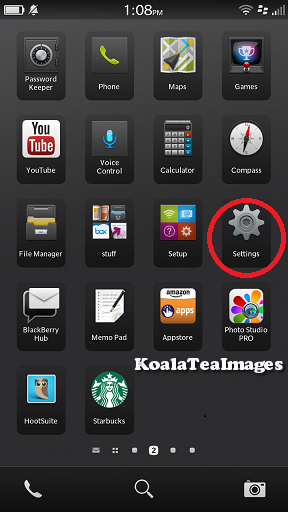
    I asked a few friends and all I got was “delete and reinstall the app and deny the permission” as an answer – which will work but I had an inkling that the BlackBerry 10 Operating System was smarter than than that. So I opened up the settings folder.  It’s the one that looks like a gear.

    A group of application icons with the gear representing the settings icons circled in red
    This is what the Settings icon looks like. I use it a lot.

    From there you will want to select “Security and Privacy” which conveniently lists “Permissions, passwords screen lock, wipe” underneath it.

    a listing of all of the system settings with security and privacy circled in red partway down the list.
    The Security and Privacy tab is about halfway down the list.
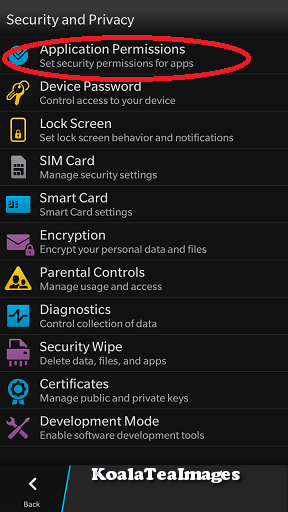
    The security and privacy settings menu with application permissions circled in red at the top..
    Application Permissions is at the very top.


    Once there, select “Application Permissions”.


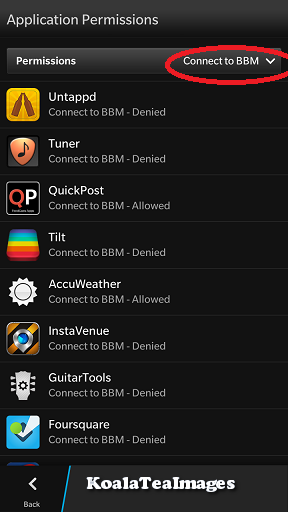
    Within Application Permissions you have a choice, you can filter the permissions by type using the drop down menu – so you can see all of the apps that have requested to connect to BBM for example.

    Your list will look different but these are some of the apps that have requested permission to connect to BBM. I have only allowed one of this set that permission.
    Your list will look different but these are some of the apps that have requested permission to connect to BBM. I have only allowed one of this set that permission.
    Applications permissions drop down list with connect to BBM circled in the middle in red
    There are a lot of options on the drop down list – connect to BBM is near the middle of the list


    By selecting “Connect to BBM” I get a list of all of the apps that have requested this permission and can see at a glance what I have selected.


    You can also look at each of the apps separately and see what permissions each app has requested and what your settings are for that app.  To do this select an app from the list without using the drop down menu.

    The application permissions list with app icons in a list with their version number on the right.
    Select an app to see what permissions you have granted or denied it and to toggle permissions using the slider.

    Here is an example of the Uno app – You can see that I have allowed it permission to access shared files (so it can save games) but not to connect to BBM .  You can use the sliding buttons to toggle permission on and off.

    Permission details menu for the uno app. Shared files and device identifying information are toggeld on with a blue slider but Connect to BBM is toggled off and circled in red.
    Here you can see that I have allowed this app access to shared files and device identifying information but have denied a connection to BBM.

    It is important to remember, that some applications will not run properly without certain permissions, so denying all permissions is not the best strategy.  The good news is that it’s easy to go in and change the settings back if you accidentally revoke a needed permission.  Most apps will even pop up a question asking for that permission to be granted the first time you try and use them.   So that’s application permissions in a nutshell.


    This got me thinking about what the most common permissions were and why they were needed in the first place so I talked to developers and read developer documentation to find some of the most commonly requested permissions and will now attempt to put them into easier (for non developers) to understand terms.

    Contacts:  An application like Twitter (or in my case Blaq since it’s my Twitter  app of choice) needs to be able to access your contacts to bring up the options when you try to tag a friend in a tweet.  Without access to the contacts, you have to type in each twitter user handle manually in a tweet.  (This is not good for someone like me who has a horrible memory for twitter handles.)

    Shared Files: This one is one that looks scary but is actually really benign.  If you want an app such as Igrann (the fabulous Instagram client for BlackBerry 10 -I will write about it soon, I promise) to be able to upload a picture, it needs access to the picture files on your device.

    Camera:  Similar to Shared Files (above), if you want to be able to take a picture with the camera and have it load to Igrann or Twitter instantly without having to go through saved files, the app will need to be able to access your camera.

    Connect to BBM: I tend not to allow access to BBM but that is my choice.  Allowing an application access to BBM means that you can invite other users to download it from the app itself, or even initiate BBM conversations from the app.  It’s a pretty neat permission, I just don’t ever use it so I figure I don’t need apps to have that permission right now.

    Location / GPS Location: Again, this one is pretty self explanatory – if you want to check in on Foursquare or have Endomondo track your run, you need to allow the apps to know where you are.

    Calendar: This permission allows apps such as Facebook to add events to your calendar. I personally love it since I don’t always check the events tab on the Facebook App and have missed events because of it.  This way if I say “I’m going” to an event, it magically ends up in my device calendar with a handy reminder.

    Finally, Run in Background: Most apps don’t request this permission as the BlackBerry development team is pretty strict about which apps they allow to ask for this permission. I only have 3 that request it in my long list of apps. One of the apps that I have that is allowed to run in the background is Blaq.  This permission allows Blaq to keep processing when it is minimized – so that the tweet stream is being refreshed.  It also allows an app like Webex  (a great piece of productivity software), to keep streaming audio and video without losing its place and having to start again.

    Those are the most common app permissions, though if you have any others that you’d like to have explained, ask in the comment section and I will try to find out.

  • Blaq for BlackBerry 10

    Blaq for BlackBerry 10

    When I said that I would blog about Blaq later, I didn’t think it would be later today.  I am at BlackBerry Live in Orlando next week and I’m not bringing my laptop so I figured I should probably write the review sooner rather than later.

    From day 1 with my Z10, I was frustrated by the native Twitter client (Twitter for BlackBerry).  I realize that it is as functional as Twitter for Android and Twitter for iOS, but I’ve been spoiled with Twitter for BlackBerry 7.  I expected the Twitter client on the BlackBerry 10 devices to be just as functional, and when it wasn’t I was disappointed. I tried a number of other Twitter clients in the first two months I had my Z10: Tweetings, Neatly, RewitQ, and Twitter for BlackBerry 10.  Each of them had some advantages but they were either too slow, too frustrating to use, or missing key features (like lists).

    As many of you know, I’m a Twitter junkie.  I need a fairly robust application to use on a daily basis.  One of my favourite features on Twitter is the ability to sort your followers into lists and follow those lists.  I follow over 1600 people on twitter, and, though I do Twitter purges on a regular basis where I unfollow accounts that are no longer relevant to me, it can still be a lot to handle.  Lists allow me sort the people I follow into groups such as “Formula 1 fans”, “CFL” , and “Journalists” and only follow those streams when I’m feeling overwhelmed.  For example, Monday May 6th was the CFL draft and though I love all my tweeps, I was trying to keep up with the draft picks as they happened.  I opened Twitter on my laptop, went to lists, and selected my football list.  Everything else in my stream disappeared and I could pretend that the world outside of football had melted away for awhile. None of the apps I had on my Z10 before Blaq allowed me to follow lists easily.

    Aside from Lists, the other features that I want in a Twitter application are, in order of importance to me:

    • Multiple Account Support (preferably 3)
    • The ability to quote Tweets when retweeting
    • The ability to Mute hashtags (Sometimes, I just don’t want to hear about #PeopleIWantToPunch)
    • Real time refresh rate.

    It’s not a huge or particularly demanding list, yet until Blaq was released no single Twitter application for BlackBerry 10 had all the features I wanted.  Right now Blaq only allows you to have 2 accounts but I’ve heard that support for 3 is coming and I still have the other applications so the accounts I use less frequently are set up on those.

    Blaq is relatively easy to use.  When you first download it, you need to authorize it to access your twitter account, this is pretty standard. Once you’ve done this the screen will pull in your account and change to the main screen.  The main screen looks like this:

    %{include image.html url=“/wp-content/uploads/2013/05/img_00000446.png” alt=“The feed fro the Blaq Twitter App with user profile pictures and their tweets beside them in a simple list format, There is a green bar at the top of the list that is 90% full” description=“Blaq for BlackBerry 10”}

    The green bar at the top is called the timeline progress bar and fills up as you get closer to the newest tweets in your stream.  The clock on the green bar shows the time of the tweet you’re on while the clock in the top right shows the current time.

    From the main screen, it takes a quick swipe to navigate within the app.  Swiping right gets you the most options:

    %{include image.html url=“/wp-content/uploads/2013/05/blaq.png” alt=“The full view of the Blaq app with the sidebar showing there are 10 icons down the side each with a number.” description=“Blaq has lots of options”}

    To make it easier to understand what each of these options are, I’ve numbered them.

    1. Mute:  Allows you to mute a person or a hashtag.  This can be helpful if there is a twitter party going on and you’re not participating. Selecting this option and then “add mute” on the next screen brings up a page where you can enter your criteria for what you want muted. You can also un-mute from this screen.
    2. Search: Lets you search Twitter for a username or hashtag. Blaq imports saved searches but you can delete them at any time.
    3. Me: takes you to your profile page.  You can see your followers, who is following you, how many tweets you’ve tweeted, and lots of other fun stuff.
    4. Favourites: When you favourite a tweet, they are marked  with a star.  You can find them again later by selecting this option.
    5. Lists – All of your twitter lists are here.  Currently, you can’t edit lists from Blaq but if that changes, I will let you know!
    6. Retweets – These are tweets of yours that have been retweeted.
    7. Direct Messages – you can read and compose direct messages from here.
    8. Mentions – these are all of your @ replies.
    9. Home – this takes you back to your whole twitter feed.
    10. Compose – Tap this to compose a new tweet.

    When you swipe down from the top of the screen, you get a much smaller menu: Accounts lets you add another account or switch between accounts, while Settings allows you to change the font size, set the refresh rate while the app is inactive, and access the tutorial again by selecting Help.

    %{include image.html url=“/wp-content/uploads/2013/05/img_00000453.png” alt=“the BlackBerry 10 Blaq app showing the twitter feed, green progress bar, with a menu showing accounts and settings at the very top.” description=“This menu is pretty easy to navigate”}

    Finally, swiping left allows you to access options directly related to the tweet you are viewing.  This is the action that is the least intuitive in Blaq.  To access this menu, touch a tweet and then pull left.  While holding the menu open, pull the list up or down to access the different options.

    %{include image.html url=“/wp-content/uploads/2013/05/img_00000456.png” alt=“The BlackBerry 10 Blaq app with the twitter feed and green progress bar showing, pulled to the left to show a menu with 4 options” description=“Final menu”}

    1. Allows you to reply to the tweet.
    2. Allows you to retweet the tweet to your followers.  (By default the app will confirm that this is an action you want to do)
    3. Marks the tweet as a favourite (again, the default is set to confirm that you want to favourite the tweet)
    4. Options.  If the tweet is one that you sent, you can delete it from here.

    Earlier, I mentioned that one of my “must have” features in a twitter app is the ability to quote tweets.  You need to select the tweet by tapping it so that it opens up in its own screen.  When the tweet is isolated, touch and hold the retweet button (Circled in red below), and select the Middle option “Quote Retweet”.

    %{include image.html url=“/wp-content/uploads/2013/05/img_00000461.png” alt=“The profile page for the BlackBerry Help Twitter account shown in the Blaq app with the 2nd of 4 menu options, a broken rectangle circled in red.” description=“The Quote Retweet Button”}

    Touching and holding the retweet button brings up 3 menus on the right:

    1. Classic retweet – a nice and simple way to retweet
    2. Quote – puts the item you are retweeting in quotes – useful if you’re going to modify the tweet in any way.
    3. Retweet via – a type of retweet I’m beginning to use a lot more often – great for websites – takes the text of the tweet and then at the end puts (via @username).  It’s a stylistic choice but one that I quite enjoy.

    One last thing about Blaq.  By default, Blaq connects itself to BlackBerry Messenger (BBM). You get an option on every tweet and retweet to send the message as your BBM status or share it with BBM contacts.  I don’t like that option, and so I turned it off.  To do this is a little tricky though.  You need to go to the Settings menu on your BlackBerry (it looks like a cog) –> Security and Privacy –>Application Permissions –>Blaq and switch “Connect to BBM” to off.

    In a nutshell, that’s Blaq for BlackBerry 10.  Have you tried Blaq for BlackBerry 10 yet?  What do you think of it?

  • Ten Things you need to know about your BlackBerry

    Ten Things you need to know about your BlackBerry

    Since I started this blog, I’ve met a lot of other members of Team BlackBerry.  One of the things that constantly astounds me is how few people regularly back up their BlackBerry handheld devices.  I learned the hard way about backing up my BlackBerry – earlier this year I managed to brick my Bold 9900 (totally a user error on that one).  I hadn’t backed up in over a month, and while I have a lot of technologically inclined friends, I still lost a few things.  I now back up my BlackBerry at least once a week and have BlackBerry Protect doing a daily back up.  Some of these tips seem really simple, and they are very easy to implement but they will make life easier as a BlackBerry owner.

    1. Plug it in!  Plug your BlackBerry into your computer to create a backup and to move files and folders from your computer to your device and vice versa.  You may never need the backup, but if you do, you’ll be happy you did it.

    2. Use folders so that your home screen isn’t cluttered with apps.  Keep only the things you access daily on your home screen.

    3. Update your BlackBerry – Not just the Operating System (OS) updates but also applications.  Having the latest version of an application means it’s more likely to work the way it was intended and integrate with other applications such as Blackberry Messenger (BBM) more smoothly.

    4. Turn off WiFi coverage when you’re out of range for it.  Unless you’re searching for hotspots, you don’t actually need your wi-fi on when you’re out and about.  When wi-fi is turned on, it will continuously look for networks to connect to which will drain your battery.

    5. Press and hold the BlackBerry button to see what applications are running in the background and close any that you aren’t actually using in order to free up memory and save your battery. The BlackBerry Button is the one that looks like this:

      %{include image.html url=“/wp-content/uploads/2012/10/blackberry-logo.jpg” alt=“The BlackBerry logo – 3 columns of elongated white filled in capital D shapes with 2 in the first column, 3 in the middle column, and 2 in the 3rd column” description=“The BlackBerry Logo.”}

    6. Blackberry Shortcuts.  These are awesome.  Tired of typing your number in a Facebook message, direct message on twitter or on BBM?  Type mynumber and poof – there it is.  Mypindoes the same thing but with your PIN.  If you need to insert the date into a post, type ld (long date) and the date will show up (ie: Tue, Oct 15, 2012). To get the long version of the current time, type lt to show (12:54:45 AM).

    7. Going to a movie and need to put your phone on vibrate quickly?  Press and hold the “Q” key and it will automatically switch your phone to vibrate.  To switch back, press and hold the “Q” key again.

    8. Set up auto on/off times.  You can do this by going to Settings –> Device –> Auto On /Off  and set what time you want your BlackBerry to automatically turn off at night and when you want it to turn on in the morning.  You can set different times for weekdays versus weekends too.

    9. Learn how to do a soft reset of your device.  You know the handy Ctrl + Alt + Del command you use to reboot your computer?  You can do the same thing on your BlackBerry by pressing Alt + Shift + Del at the same time. (If you have a full touch screen you’ll have to do the battery pull instead)

    10. Get a shell or a holster and a screen protector.  I love my holster – it means that I can always have my BlackBerry on me.  If you dislike holsters (and I know some of you do), get a shell casing so the back doesn’t get all scratched up in your purse or briefcase.  The cases make the BlackBerry easy to grip too.  A screen protector is a must if you have a touchscreen and it’s great even if you don’t.  When applied correctly, they don’t interfere with the touchscreen sensitivity but help protect your screen against nicks and scratches.  Of course you can always get a really cool sticker for your BlackBerry like I have for mine.  Have I mentioned how much I love my TARDIS-Berry?

    Well, that’s it.  Those are my top 10 BlackBerry tips.  Do you have a tip or a trick for other members of Team BlackBerry?

  • Synchronizing Calendars between devices

    Synchronizing Calendars between devices

    I’ve been a little quiet on here lately, mostly because I’ve been busy giving BlackBerry Traffic a workout!  A friend who has recently purchased a PlayBook asked  me a question via Twitter today about syncing his BlackBerry calendar with the calendar on the PlayBook.  I synched them as soon as I got my PlayBook in December, so naturally I went to the help on the PlayBook to get him an answer.  The steps there will get your calendars synched but the instructions are a tad confusing.  Here’s the easy way of doing it.

    Step 1: Connect your PlayBook and your BlackBerry using BlackBerry Bridge.

    Step 2:  On your Playbook, in the top right corner is an icon that looks like a cog:  it will take you to the settings.

    %{include image.html url=“/wp-content/uploads/2012/09/settings2.jpg” alt=“screenshot of a BlackBerry PlayBook screen with the home apps row along the bottom and the settings gear icon in the top right corner circled in red” description=“Settings”}

    Step 3:  In the Settings page, there will be a bunch of options on the left hand side.  Select Accounts and then “Email, Calendar and Contacts”.

    %{include image.html url=“/wp-content/uploads/2012/09/pb-calendar-accounts1.jpg” alt=“The BlackBerry PlayBook settings menu expanded to show the Accounts view with the first option, Email, Calendar and Contacts circled in red” description=“PlayBook Calendar Accounts”}

    Step 4:  Select “Add New Account”

    %{include image.html url=“/wp-content/uploads/2012/09/pb-calendar-accounts.jpg” alt=“The BlackBerry PlayBook settings menu expanded to show the Accounts view with the add new account button at the bottom right circled in red.” description=“Adding a new account”}

    Step 5:  Enter the email address you use for your BlackBerry Handheld device Calendar.

    %{include image.html url=“/wp-content/uploads/2012/09/accounts.jpg” alt=“The BlackBerry Playbook Add account screen with the words sign into existing account and boxes for the input of email address and passsword. There are advanced setup and next buttons on the bottom of the screen” description=“This is where you put your information”}

    *Repeat the above steps to add another calendar, if you have more than 1 on your Smartphone

    Step 6: Go to the Calendar application on your playbook and add the calendar(s) to it.

    %{include image.html url=“/wp-content/uploads/2012/09/pbcalendar.jpg” alt=“A calendar showing September 2012 with the 19th highlighted and events on the 19th pulled out in a tab on the left. At the bottom of the calendar is a small calendar icon with a plus sign that has been circled in red and labelled as the Add calendar button.” description=“The BlackBerry PlayBook calendar”}

    Step 7: From the drop down menu, select the new calendar.

    %{include image.html url=“/wp-content/uploads/2012/09/calendar.jpg” alt=“Calendar event view option with the add event feature selected. There is a dropdown with PlayBook local and Gmail calendars as options, fields for subject, location, attendees, start and end date / time, an all day check box, a recurrance option and a reminder time drop down menu.” description=“Adding events to Calendar”}

    You have now successfully synched your PlayBook and BlackBerry Handheld Calendars.  Remember to use BlackBerry Bridge to keep both your Handheld and your PlayBook Calendars on the same page!