Tag: BlackBerry 10

  • Android Applications on my Z30

    Android Applications on my Z30

    I admit to being a purist. I prefer native apps to Android ports. Built for BlackBerry apps give me the best user experience on my Z30, but apps that have been ported into BlackBerry world are a close second.  Android apps? I was reluctant to use them at first, worried about battery drain or security loopholes, but I’ve mellowed out a bit with time. As a rule, I don’t download an Android app if there is a BlackBerry version available. I have the Amazon app store installed on my phone, and it’s pretty nice, if rarely used.  There are, however, three Android apps that I am unwilling to live without:  Waze, the Starbucks app, and Netflix.

    “But wait” you say, Waze is in BlackBerry world.  Technically that’s true but the version of Waze available in Blackberry World is outdated, full of bugs, and kept crashing on me.  I got so sick of having to change the distance units to kilometres from miles every time I opened the app that I wasn’t using it.  Which is unfortunate because Waze is an awesome app for people who drive.  With Waze you can enter your desitination, choose from 3 different routes, and go.  You can also add a stop – say if your gas light comes on while you’re taking a new route home and you have no clue where the nearest gas station is.  Not that it’s ever happened to me. Okay maybe once or twice.  (Note: I always pull over before using Waze or adding a stop, though with the BlackBerry Assistant that may change since I have voice command over applications).  I wrote a post extolling the virtues of BlackBerry Traffic on my Bold 9900, and when I got my Z10, I gamely tried to use its replacement: Blackberry Maps.  Blackberry Maps is functional if you’re trying to get from point A to point B via the most common route.  The problem is that it doesn’t take traffic into account or road closures.  Driving into Toronto for the past few years, I’ve needed something that can help me avoid the numerous construction closures on the highways leading into and out of the city.  Enter Waze.  More than once, Waze has alerted me to heavy congestion on the road ahead and offered up an alternate route to avoid it.  It even saved Dad and I from parking on highway 400 coming down from the cottage.  (Dad wasn’t sure about the off road journey Waze proposed but gamely tried it and we were cruising at a steady 60 km / hr on backroads while the radio reports had the 400 at a standstill.) Waze plays through the bluetooth connection to my car audio system or through the speakers on my phone.  Either way I get turn by turn directions to my destination – directions which, as a bonus, are in enough time to change lanes without panic.  One of the neat things about waze as a passenger, is that I can report traffic jams, accidents and other issues to help my fellow drivers.  It’s a really easy to use interface too, which is a necessity in a GPS app.
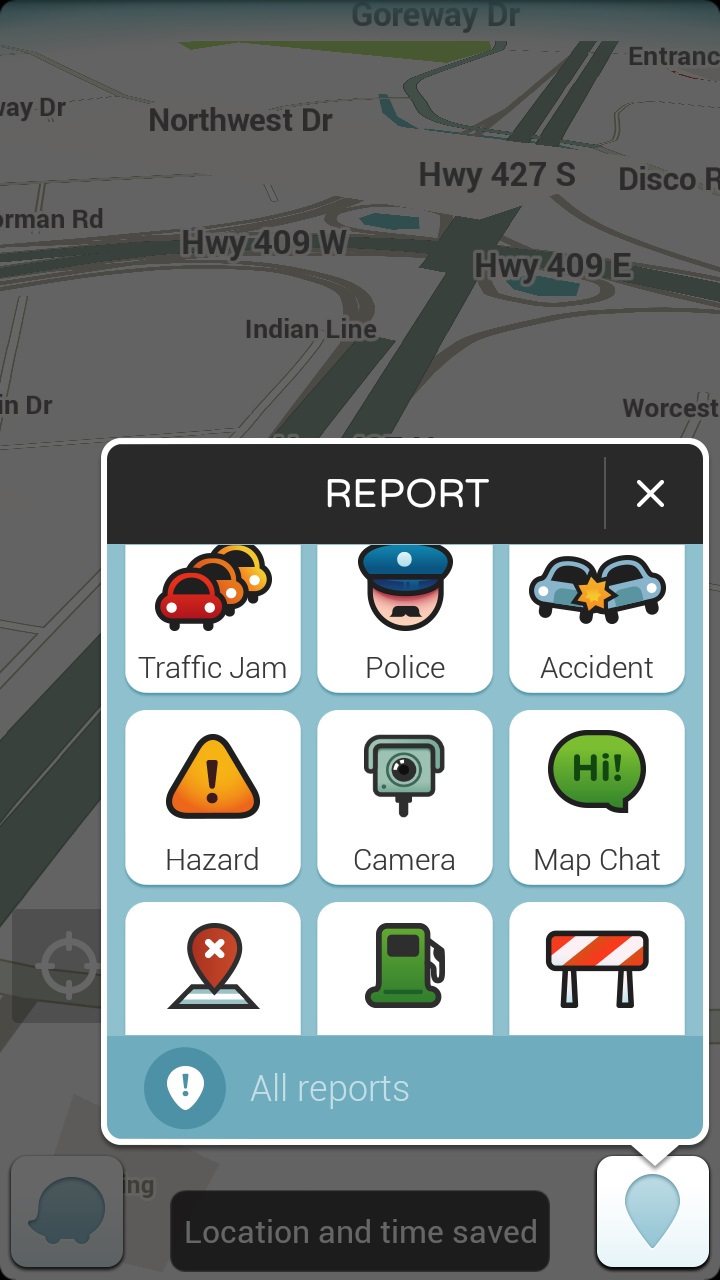
    A map interface with the report function highlighted there are 9 options in a 3x3 grid: traffic jam, police, accident, hazard, camera, map chat, map issue, gas prices, closure
    The easy reporting interface on Waze

    Now I’m not a big coffee drinker, as a rule, but when I do indulge, it’s a flavoured coffee drink (I love mochas) from Starbucks.  I mainly drink tea and Starbucks has me covered there too.  I registered for a Starbucks card, mostly because I liked the idea of earning free drinks, and because I had a couple of instances of needing a caffeine hit but not having any cash on me and I hate to pay debit for a small transaction.  My big problem with the Starbucks card was forgetting it in my other wallet, or in the car. No it’s not a huge deal to walk back to the car to get my card, but when it’s minus 35 with windchill, it’s something I’d rather avoid.  I’d heard rumors of the Starbucks app working on BlackBerry 10 after an update, so I asked a friend who is a self admitted Starbucks addict. Yes, he’d tried it and it worked! He sent me the application file (I could have downloaded it for myself but he already had it so why bother?) and lo-and behold I had the Starbucks App.  I love this app because not only does it work as a payment card, but when you click “pay now” it pops up the bar code the Barista can scan along with any special offers.  I love that it brings up the offers because I can never remember if there is one on, when it expires, and if I’ve used it.  Remembering stuff like that is why I need caffeine!  The other thing that the app helps me remember is when I get my next free drink.  As much as I like being surprised with the fact that I’m eligible to redeem my stars, I like being able to plan ahead. Plus this is on my BlackBerry.  I may forget my wallet in the car, but I’m not going to forget my BlackBerry!  Win-Win.
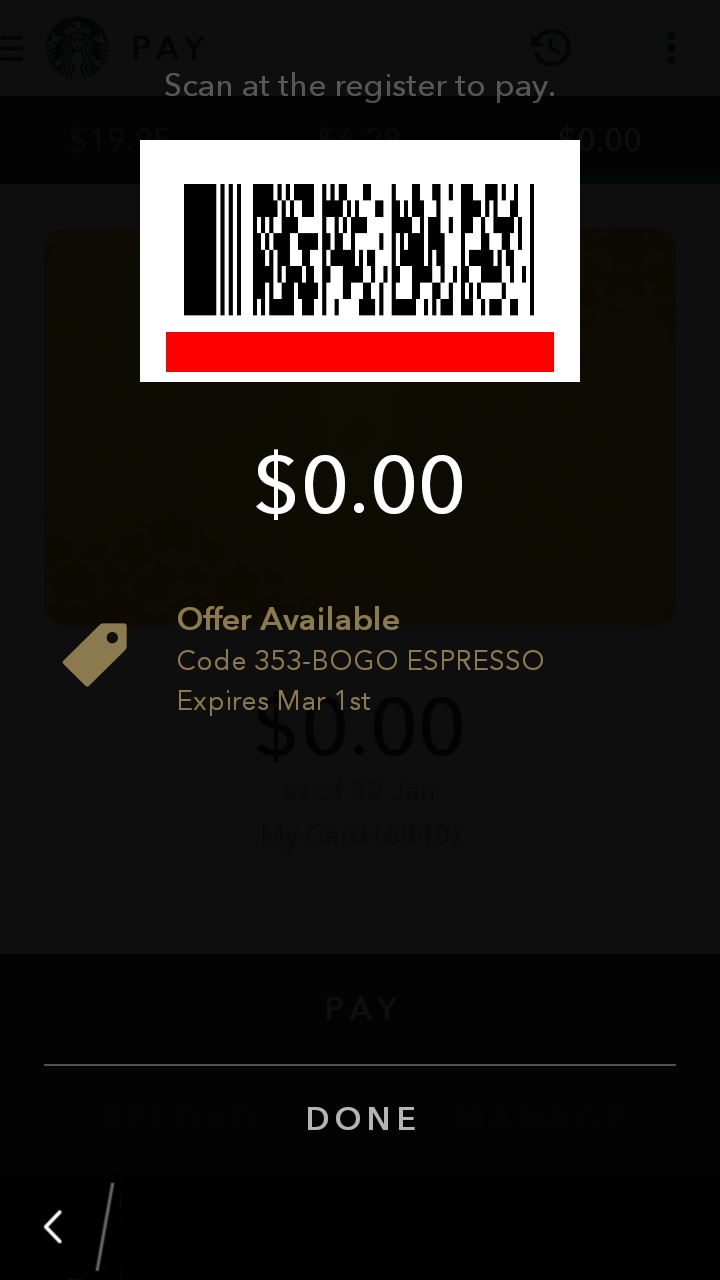
    A screenshot showing the payment barcode and a 0.00 balance on the starbucks app. There is a notice that there is an offer available just below the balance!
    The payment screen. I love the offer available post at the bottom!

    The final app isn’t strictly necessary but it does make my phone into a super-powered entertainment machine.  The Z30 has a high definition screen and though it’s not huge, it’s not bad for watching video.  I’ve been dealing with insomnia lately and while reading helps, I find that it can wake me up more and sometimes a TV show is just what I need to put the worries out of my head and fall back asleep.  Enter the Netflix app.  I downloaded it, signed in , picked my profile, and voila – my Netflix Library is in the palm of my hand.  While there are some shows I wait to watch on the big screen TV (House of Cards season 3 anyone?), there are plenty of shows that are great viewing late at night.  I watch early seasons of Bones, favourite Doctor Who episodes, and Murdoch Mysteries all from the comfort of my bed.  (Yes I know sleep hygeine says no phones in the bedroom – I bring it in when I can’t sleep – that way if I fall asleep while watching a show, it’s on my bed and not on the couch where I’ll wake up with a sore neck in the morning.) The Netflix app is easy to navigate and keeps the settings (like the picture quality) the same as on your main device.  I also like the fact that you can choose the “Stream over wifi only” setting. This helps to prevent data overage charges, which is always good.
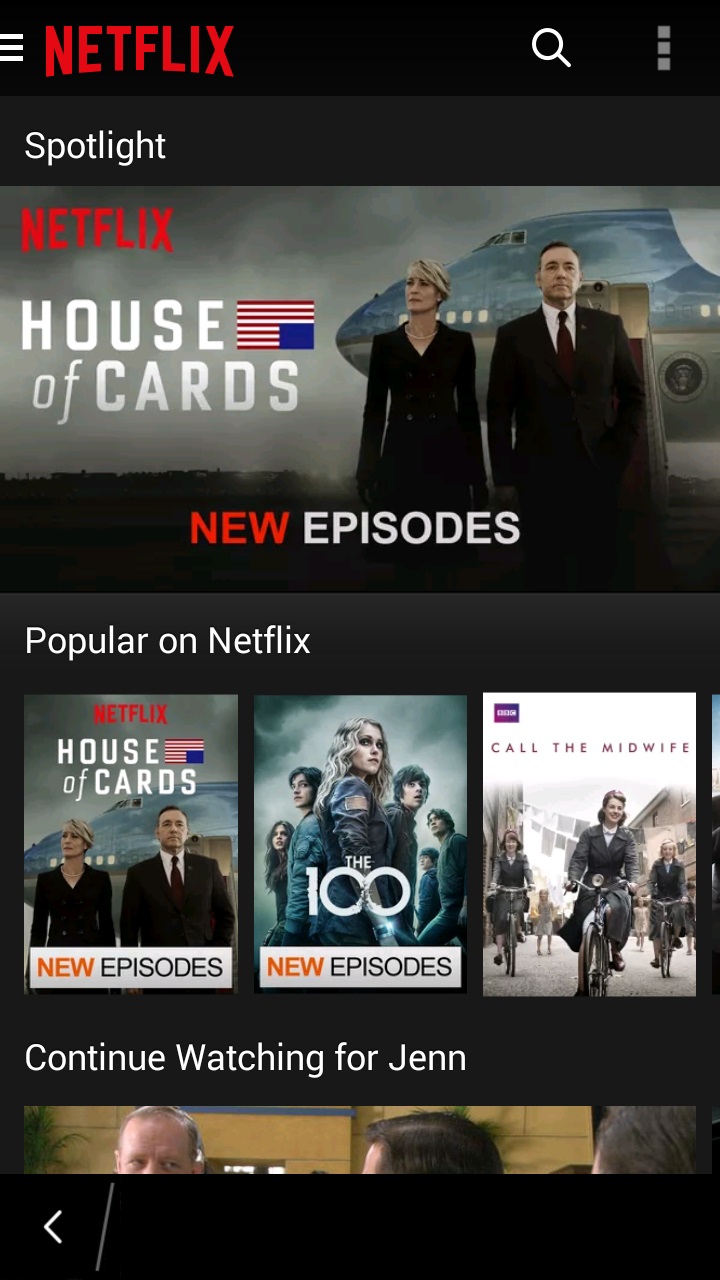
    Screenshot of the netflix app with House of Cards as the banner image and the popular on netflix category immediately beneath it
    The menus on the Netflix app are easy to navigate.

    So those are the three Android applications I have on my BlackBerry.  How many Android apps do you have on your BB10 device?  Are you a purist and have none or did you download Candy Crush the minute you could install Android applications?
  • I’ve been Bobbed!

    I’ve been Bobbed!

    Once in awhile the universe surprises you with something so wonderful, there are no words for it. Then again, I make my living with words so I’m going to find them. I belong to some fantastic groups on BlackBerry Messenger (BBM).  One of them, Team Z30 is a group of people from around the world who chat about pretty much everything. Yes, we are all using BlackBerry devices but we talk about our regular lives as often as we do about devices and upgrades and technological stuff. The members of the group have become like family to me – I worry about them when they’re going through stuff, I enjoy hearing how their day is going, and occasionally, I want to give some of them a good swift kick in the rear.

    The group was named Team Z30 because at the time of its creation, the Z30 was the newest BlackBerry 10 smartphone out there and it was one we all had. As newer BlackBerry 10 phones have been introduced, some members of the group have upgraded to either the Passport or the Classic. As a member of BlackBerry Elite, I get a device upgrade every year. I got the Z30 in late March 2014 which gives me my next device in the next few months. However, a lot of my friends have been asking what I think of the Passport and Classic devices. Having only used them for an hour or so each, I didn’t feel qualified to offer more than a basic opinion on them. I had mentioned this frustration in the group and asked members to let me know what they thought of the new devices so that I could pass on real user opinions to my friends and colleagues who wanted more than just a sales pitch.

    In February, BlackBerry Elites had a promotional code for the shop Blackberry website that gave customers $100 US or $125 Canadian off of a BlackBerry Passport in any colour. I shared the availability of the discount with the group members (and all my BBM contacts) and a number of group members took advantage of the savings to upgrade or get a second device. I love helping people get new BlackBerrys to fall in love with. It didn’t make sense for me to order a new one when times are a bit tight financially and my Z30 is working perfectly fine, so I lived vicariously through my friends who were getting new devices and posting lots of pictures of the unboxing.

    A few weeks ago, one of the members of the group messaged me to say that she had a screen protector for my phone and that she would like to send it to me. I was flabbergasted that someone I hadn’t met in person would do such a thing, but then I remembered that I’ve sent along chargers and cases for phones to people I’ve only known virtually. I sent along my address and waited.

    Then I waited some more. It seems that the Canadian Border Services Agency decided to keep my package for a few days. Then it meandered around Ontario for a few more days. Then, on the 20th, the sender got a message that there had been an attempted delivery and the package was being held at the post office. Except that I’d been home all day and had gone to the superbox at the end of the subdivision and there was no notice or anything else from Canada Post. Strange, but I decided to give it until Tuesday to start raising heck as I’m on a rural route and sometimes my mail takes a bit longer to get from the sorting depot. Tuesday dad was heading out for a business lunch so I asked him to check the mailbox for a slip or a package and let me know. He called to tell me that there was a package being held at the Post office for $55 in “fees”. $55 for a screen protector? That seemed a little rich, even for customs and brokerage fees (and taxes – there are always taxes). So I BBMed my friend. I asked if there was something I should know since I needed to pay a $55 hostage fee for the package. My friend didn’t want to spoil the surprise, but realized that the lovely people at Canada Post had tied her hands. So she told me.

    It wasn’t just a screen protector in the box. It was a new screen for the screen protector to go on – in the form of a BlackBerry Classic! She was quick to tell me that the phone wasn’t from her, it was from an anonymous source who wished to be identified only as Bob.

    Here is the note that accompanied the package: (I am so jealous of the handwriting!)

    %{include image.html url=“/wp-content/uploads/2015/03/img_20150302_141743_edit.jpg” alt=“A handwritten note that says Dear Jenn, You’ve been Bobbed. PS this gift is not from me” description=“It’s a mystery”}

    There was a lot of screaming going on in the family room as I grabbed the heavy duty scissors and went at the multiple rounds of packing tape. I carefully cut off the customs paperwork and put it in a file (I keep stuff like that just in case), then I ripped into the box with abandon. Not only was there a nice new (at least to me), Classic but also a skin and an official BlackBerry pocket to put it in. There was also the screen protector that started the whole adventure, and a piece of delicious chocolate. My day, month, year, have been made.

    %{include image.html url=“/wp-content/uploads/2015/03/img_20150224_153841_edit2.jpg” alt=“A BlackBerry Classic, with 2 different cases, a screen protector, and a small chocolate” description=“So much goodness in one package”}

    So to “Bob”, I’d like to say Thank You. When I get my next upgrade, one of my devices (either the Z30 or the Classic) will be passed on in a similar manner to continue the circle. Your generousity touched me and came at a time when I was feeling low. Knowing somebody cares – makes all the difference. Yet another reason why I am a proud member of #TeamBlackBerry

  • Application Permissions on BlackBerry 10

    Application Permissions on BlackBerry 10

    With all the hubbub recently about Facebook Messenger and the myriad of permissions it requests just to be able to run in the background, I was curious as to what permissions I have given some of the apps on my BlackBerry Z30.   (Okay, the real reason I wanted to know is that I accidentally connected an app to BBM after an update and didn’t want to leave it connected but also didn’t want to delete it and reinstall it if I didn’t have to – Once again, my mistakes become blog fodder.)

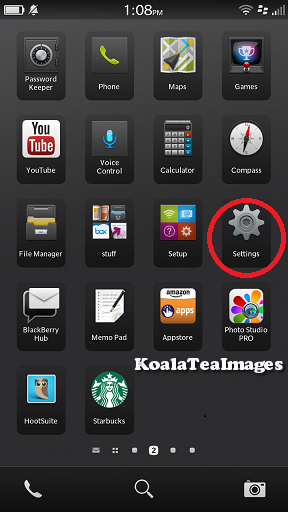
    I asked a few friends and all I got was “delete and reinstall the app and deny the permission” as an answer – which will work but I had an inkling that the BlackBerry 10 Operating System was smarter than than that. So I opened up the settings folder.  It’s the one that looks like a gear.

    A group of application icons with the gear representing the settings icons circled in red
    This is what the Settings icon looks like. I use it a lot.

    From there you will want to select “Security and Privacy” which conveniently lists “Permissions, passwords screen lock, wipe” underneath it.

    a listing of all of the system settings with security and privacy circled in red partway down the list.
    The Security and Privacy tab is about halfway down the list.
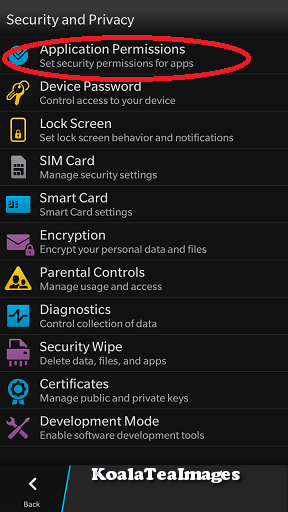
    The security and privacy settings menu with application permissions circled in red at the top..
    Application Permissions is at the very top.


    Once there, select “Application Permissions”.


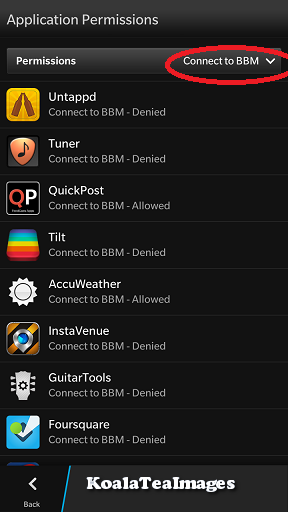
    Within Application Permissions you have a choice, you can filter the permissions by type using the drop down menu – so you can see all of the apps that have requested to connect to BBM for example.

    Your list will look different but these are some of the apps that have requested permission to connect to BBM. I have only allowed one of this set that permission.
    Your list will look different but these are some of the apps that have requested permission to connect to BBM. I have only allowed one of this set that permission.
    Applications permissions drop down list with connect to BBM circled in the middle in red
    There are a lot of options on the drop down list – connect to BBM is near the middle of the list


    By selecting “Connect to BBM” I get a list of all of the apps that have requested this permission and can see at a glance what I have selected.


    You can also look at each of the apps separately and see what permissions each app has requested and what your settings are for that app.  To do this select an app from the list without using the drop down menu.

    The application permissions list with app icons in a list with their version number on the right.
    Select an app to see what permissions you have granted or denied it and to toggle permissions using the slider.

    Here is an example of the Uno app – You can see that I have allowed it permission to access shared files (so it can save games) but not to connect to BBM .  You can use the sliding buttons to toggle permission on and off.

    Permission details menu for the uno app. Shared files and device identifying information are toggeld on with a blue slider but Connect to BBM is toggled off and circled in red.
    Here you can see that I have allowed this app access to shared files and device identifying information but have denied a connection to BBM.

    It is important to remember, that some applications will not run properly without certain permissions, so denying all permissions is not the best strategy.  The good news is that it’s easy to go in and change the settings back if you accidentally revoke a needed permission.  Most apps will even pop up a question asking for that permission to be granted the first time you try and use them.   So that’s application permissions in a nutshell.


    This got me thinking about what the most common permissions were and why they were needed in the first place so I talked to developers and read developer documentation to find some of the most commonly requested permissions and will now attempt to put them into easier (for non developers) to understand terms.

    Contacts:  An application like Twitter (or in my case Blaq since it’s my Twitter  app of choice) needs to be able to access your contacts to bring up the options when you try to tag a friend in a tweet.  Without access to the contacts, you have to type in each twitter user handle manually in a tweet.  (This is not good for someone like me who has a horrible memory for twitter handles.)

    Shared Files: This one is one that looks scary but is actually really benign.  If you want an app such as Igrann (the fabulous Instagram client for BlackBerry 10 -I will write about it soon, I promise) to be able to upload a picture, it needs access to the picture files on your device.

    Camera:  Similar to Shared Files (above), if you want to be able to take a picture with the camera and have it load to Igrann or Twitter instantly without having to go through saved files, the app will need to be able to access your camera.

    Connect to BBM: I tend not to allow access to BBM but that is my choice.  Allowing an application access to BBM means that you can invite other users to download it from the app itself, or even initiate BBM conversations from the app.  It’s a pretty neat permission, I just don’t ever use it so I figure I don’t need apps to have that permission right now.

    Location / GPS Location: Again, this one is pretty self explanatory – if you want to check in on Foursquare or have Endomondo track your run, you need to allow the apps to know where you are.

    Calendar: This permission allows apps such as Facebook to add events to your calendar. I personally love it since I don’t always check the events tab on the Facebook App and have missed events because of it.  This way if I say “I’m going” to an event, it magically ends up in my device calendar with a handy reminder.

    Finally, Run in Background: Most apps don’t request this permission as the BlackBerry development team is pretty strict about which apps they allow to ask for this permission. I only have 3 that request it in my long list of apps. One of the apps that I have that is allowed to run in the background is Blaq.  This permission allows Blaq to keep processing when it is minimized – so that the tweet stream is being refreshed.  It also allows an app like Webex  (a great piece of productivity software), to keep streaming audio and video without losing its place and having to start again.

    Those are the most common app permissions, though if you have any others that you’d like to have explained, ask in the comment section and I will try to find out.

  • Blaq for BlackBerry 10

    Blaq for BlackBerry 10

    When I said that I would blog about Blaq later, I didn’t think it would be later today.  I am at BlackBerry Live in Orlando next week and I’m not bringing my laptop so I figured I should probably write the review sooner rather than later.

    From day 1 with my Z10, I was frustrated by the native Twitter client (Twitter for BlackBerry).  I realize that it is as functional as Twitter for Android and Twitter for iOS, but I’ve been spoiled with Twitter for BlackBerry 7.  I expected the Twitter client on the BlackBerry 10 devices to be just as functional, and when it wasn’t I was disappointed. I tried a number of other Twitter clients in the first two months I had my Z10: Tweetings, Neatly, RewitQ, and Twitter for BlackBerry 10.  Each of them had some advantages but they were either too slow, too frustrating to use, or missing key features (like lists).

    As many of you know, I’m a Twitter junkie.  I need a fairly robust application to use on a daily basis.  One of my favourite features on Twitter is the ability to sort your followers into lists and follow those lists.  I follow over 1600 people on twitter, and, though I do Twitter purges on a regular basis where I unfollow accounts that are no longer relevant to me, it can still be a lot to handle.  Lists allow me sort the people I follow into groups such as “Formula 1 fans”, “CFL” , and “Journalists” and only follow those streams when I’m feeling overwhelmed.  For example, Monday May 6th was the CFL draft and though I love all my tweeps, I was trying to keep up with the draft picks as they happened.  I opened Twitter on my laptop, went to lists, and selected my football list.  Everything else in my stream disappeared and I could pretend that the world outside of football had melted away for awhile. None of the apps I had on my Z10 before Blaq allowed me to follow lists easily.

    Aside from Lists, the other features that I want in a Twitter application are, in order of importance to me:

    • Multiple Account Support (preferably 3)
    • The ability to quote Tweets when retweeting
    • The ability to Mute hashtags (Sometimes, I just don’t want to hear about #PeopleIWantToPunch)
    • Real time refresh rate.

    It’s not a huge or particularly demanding list, yet until Blaq was released no single Twitter application for BlackBerry 10 had all the features I wanted.  Right now Blaq only allows you to have 2 accounts but I’ve heard that support for 3 is coming and I still have the other applications so the accounts I use less frequently are set up on those.

    Blaq is relatively easy to use.  When you first download it, you need to authorize it to access your twitter account, this is pretty standard. Once you’ve done this the screen will pull in your account and change to the main screen.  The main screen looks like this:

    %{include image.html url=“/wp-content/uploads/2013/05/img_00000446.png” alt=“The feed fro the Blaq Twitter App with user profile pictures and their tweets beside them in a simple list format, There is a green bar at the top of the list that is 90% full” description=“Blaq for BlackBerry 10”}

    The green bar at the top is called the timeline progress bar and fills up as you get closer to the newest tweets in your stream.  The clock on the green bar shows the time of the tweet you’re on while the clock in the top right shows the current time.

    From the main screen, it takes a quick swipe to navigate within the app.  Swiping right gets you the most options:

    %{include image.html url=“/wp-content/uploads/2013/05/blaq.png” alt=“The full view of the Blaq app with the sidebar showing there are 10 icons down the side each with a number.” description=“Blaq has lots of options”}

    To make it easier to understand what each of these options are, I’ve numbered them.

    1. Mute:  Allows you to mute a person or a hashtag.  This can be helpful if there is a twitter party going on and you’re not participating. Selecting this option and then “add mute” on the next screen brings up a page where you can enter your criteria for what you want muted. You can also un-mute from this screen.
    2. Search: Lets you search Twitter for a username or hashtag. Blaq imports saved searches but you can delete them at any time.
    3. Me: takes you to your profile page.  You can see your followers, who is following you, how many tweets you’ve tweeted, and lots of other fun stuff.
    4. Favourites: When you favourite a tweet, they are marked  with a star.  You can find them again later by selecting this option.
    5. Lists – All of your twitter lists are here.  Currently, you can’t edit lists from Blaq but if that changes, I will let you know!
    6. Retweets – These are tweets of yours that have been retweeted.
    7. Direct Messages – you can read and compose direct messages from here.
    8. Mentions – these are all of your @ replies.
    9. Home – this takes you back to your whole twitter feed.
    10. Compose – Tap this to compose a new tweet.

    When you swipe down from the top of the screen, you get a much smaller menu: Accounts lets you add another account or switch between accounts, while Settings allows you to change the font size, set the refresh rate while the app is inactive, and access the tutorial again by selecting Help.

    %{include image.html url=“/wp-content/uploads/2013/05/img_00000453.png” alt=“the BlackBerry 10 Blaq app showing the twitter feed, green progress bar, with a menu showing accounts and settings at the very top.” description=“This menu is pretty easy to navigate”}

    Finally, swiping left allows you to access options directly related to the tweet you are viewing.  This is the action that is the least intuitive in Blaq.  To access this menu, touch a tweet and then pull left.  While holding the menu open, pull the list up or down to access the different options.

    %{include image.html url=“/wp-content/uploads/2013/05/img_00000456.png” alt=“The BlackBerry 10 Blaq app with the twitter feed and green progress bar showing, pulled to the left to show a menu with 4 options” description=“Final menu”}

    1. Allows you to reply to the tweet.
    2. Allows you to retweet the tweet to your followers.  (By default the app will confirm that this is an action you want to do)
    3. Marks the tweet as a favourite (again, the default is set to confirm that you want to favourite the tweet)
    4. Options.  If the tweet is one that you sent, you can delete it from here.

    Earlier, I mentioned that one of my “must have” features in a twitter app is the ability to quote tweets.  You need to select the tweet by tapping it so that it opens up in its own screen.  When the tweet is isolated, touch and hold the retweet button (Circled in red below), and select the Middle option “Quote Retweet”.

    %{include image.html url=“/wp-content/uploads/2013/05/img_00000461.png” alt=“The profile page for the BlackBerry Help Twitter account shown in the Blaq app with the 2nd of 4 menu options, a broken rectangle circled in red.” description=“The Quote Retweet Button”}

    Touching and holding the retweet button brings up 3 menus on the right:

    1. Classic retweet – a nice and simple way to retweet
    2. Quote – puts the item you are retweeting in quotes – useful if you’re going to modify the tweet in any way.
    3. Retweet via – a type of retweet I’m beginning to use a lot more often – great for websites – takes the text of the tweet and then at the end puts (via @username).  It’s a stylistic choice but one that I quite enjoy.

    One last thing about Blaq.  By default, Blaq connects itself to BlackBerry Messenger (BBM). You get an option on every tweet and retweet to send the message as your BBM status or share it with BBM contacts.  I don’t like that option, and so I turned it off.  To do this is a little tricky though.  You need to go to the Settings menu on your BlackBerry (it looks like a cog) –> Security and Privacy –>Application Permissions –>Blaq and switch “Connect to BBM” to off.

    In a nutshell, that’s Blaq for BlackBerry 10.  Have you tried Blaq for BlackBerry 10 yet?  What do you think of it?

  • Apps I can’t live without.

    Apps I can’t live without.

    Hi everyone,
    It’s been awhile – I’ve been busy with life and spending far too much time with my BlackBerry Z10.  The advantage of spending so much time with my Z10 is that I have a shortlist of the “Can’t miss Apps” for BlackBerry 10.  These are my favourite apps, the ones I use on a daily basis.

    1) Password Keeper – This app was standard on earlier BlackBerry devices, and is a free download for the Z10.  It has all the functionality that I wrote about here but is on your BlackBerry 10 Device.

    2) BlackBerry Messenger – Another old standard but one that I use daily to keep in touch with friends and family.  It’s just so convenient.  The Video chat feature on BlackBerry 10 devices allows you to do more than simply type to your contacts, you can actually see them and have a face to face conversation.

    3) BlackBerry Remember – I had my doubts on how useful Remember would be.  I was so wrong.  I use it every single day.  It’s better than any other notepad app I’ve used.  It allows you to flag emails and put them into a file folder within the Remember App, but more than that, it allows you to add photos, videos, voice notes, and documents to the folder.

    %{include image.html url=“/wp-content/uploads/2013/05/img_00000445.png” alt=“A folder on a BlackBerry phone showing 5 different coloured folders labelled: Unfiled entries, BlackBerry Live, Guiding, Stuff and Teacher’s College” description=“The BlackBerry 10 Remember App”}

    I have a BlackBerry Live folder and my airline tickets, hotel confirmation, event schedule, and hotel shuttle emails are all inside that folder so that I can easily find them as I need them.You can assign due dates to items within a folder and never forget a deadline again.  You can also pull in contacts so if you are working on a project with a co-worker, you will have their contact info alongside all the information for the project.  The BlackBerry video about Remember gives a pretty awesome overview of this amazing app.

    4) CrackBerry 10 – I admit it, I’m a CrackBerry addict.  I was going to the website a couple of times a day to keep up with the latest BlackBerry news.  The CrackBerry 10 app for BlackBerry 10 allows me to catch up on the latest news and reviews in a really nicely designed and user friendly manner.  To access the category feature simply tap the CB home button at the bottom of the screen in the app:

    %{include image.html url=“/wp-content/uploads/2013/05/crackberry.png” alt=“screenshot of the CrackBerry app with 4 articles visible and the CrackBerry Logo circled in red at the bottom of the app” description=“The CrackBerry App”}

    Once you do that, you will be greeted with a list of categories – I tend to read everything but if you only want to read reviews, it can be really helpful to go straight to the reviews category.  My favourite thing about the CrackBerry 10 app is that it’s built for BlackBerry.  I have nothing against Android ports but they don’t always work in quite the same way that apps built specifically for the BlackBerry 10 platform.

    5) Blaq – The native Twitter app on the BlackBerry 10 operating system is not as good as the version I had on my Bold 9900.  I use Twitter a lot and needed something better.  I have used Blaq on my PlayBook, so when it was released for the BlackBerry 10 in late April, I eagerly downloaded it.  It took a little getting used to and I’m still discovering little gems like the ability to quote tweets. (You can only do it from inside the tweet itself, not from the main screen) I will do a full post on Blaq soon for all my Twitter addicted friends who need a solid app that works well and is stable

    6) Podcasts – I’m late to the podcast party, but I love listening to them as I walk around town.  I had a few different Podcast apps on my Bold 9900 but my favourite wasn’t available for the BlackBerry Z10.  After consulting some of my fellow BlackBerry Elite members, I downloaded Podcasts for BlackBerry 10.  I love how easy and intuitive the app is to use.  It also doesn’t drain my battery the way other podcast apps have.  The selection of podcasts in the app is pretty good but you can search and manually add your favourite podcasts within the menu if they aren’t on the list.  The only complaint I’ve heard is from my friend Nick who listens to a lot of podcasts while riding his bike to and from work – he would like a feature that skips back 5 or 10 seconds in the podcast when you restart after a pause, so that you don’t miss anything.  I agree it would enhance the app but even without that feature, the app is head and shoulders above any other podcast app for BlackBerry 10.

    These are my favourite (non game) apps so far.  I’m going to be testing BlackBerry Travel next week as I journey to BlackBerry Live, and I will let you know how it works on BlackBerry 10 afterwards.

    What are your favourite BlackBerry 10 apps?  What app do you really want to see on the platform?

  • Initial impressions on the BlackBerry Z10

    Initial impressions on the BlackBerry Z10

    On Wednesday, January 30th, I was fortunate enough to be invited to the Toronto launch for the BlackBerry 10 smartphone.  I had been eagerly anticipating the launch and was thrilled to be invited to both the party and a special pre-event for the BlackBerry Elite program.  I am very lucky to be a member of such a great program from a brand that truly knows how important its fans are to its long term success.  As a member of the program, I’d had sneak peeks at the Z10, participated in a conference call / slide share presentation with Alec Saunders – the Vice President of Developer Relations for BlackBerry, and had the chance to chat with other BlackBerry fans through BlackBerry Messenger (BBM) and on social media.  There was a reception for the members of the BlackBerry Elite program at a wonderful restaurant on Church Street prior to the evening’s fan night activities.  The always wonderful Kerri Birch was there (she’s one of the awesome people who manage the @BlackBerry twitter account).  There was some socializing, and then she announced that we were all getting BlackBerry Z10 smartphones to use and show off and generally do what I’ve always done with my devices.  I seriously debated squealing with delight but it wasn’t that type of restaurant.  I’m pretty sure that my friend Christine and I didn’t stop grinning for hours.  Some of the people there had received their phones earlier that day, and some had had them for a few days already so they helped those of us who had just received our phones put the micro Sim cards in and get started with our phones.

    Let me say now that I was a bit hesitant about going to a touch screen phone.  I’ve had some horrible auto correct fails on the iPhone and on an Android phone.  I found the keyboards hard to get used to and slow to type on.  The predictive text was average at best.  I created a new BlackBerry ID for my Z10 – because I was going to keep my Bold 9900 around as a backup, and because my Fido e-mail address wouldn’t migrate to the BlackBerry 10. Within 10 minutes of getting the Z10 up and running I was marveling at the ease of typing on this touch screen.  While a lot of the pre-launch information was describing the ability to type one handed, I was thrilled to discover that I could still “thumb type” on the Z10.  The predictive text is amazing – as you start typing words appear where your eyes would go on the keyboard if you were typing the whole word, and a simple swipe up will select that word.  For example if you were typing the word “hello”, you would type “h-e” and then as you look to the “l” the word “hello” is above it, a single swipe and it’s there. It’s pretty cool.  Another neat feature of the predictive text is if you type a few words “Testing out” the phone will suggest words that you’ve used before after those words or words that commonly come after the words you typed.  You just need to swipe up to select them.

    %{include image.html url=“/wp-content/uploads/2013/02/img_00000066.png” alt=“a white screen with the BlackBerry virtual keyboard displayed at the bottom and the words Testing out written on the screen” description=“The keyboard functions like a physical one”}

    The other thing that amazed me right away was how light the Z10 is.  It weighs less than 140g (5oz).  The light weight makes it easy to use one handed (even if I still prefer to type with 2 hands).

    It’s the little things that are making me love my Z10.  The address bar for the browser is at the bottom of the screen, not the top so that if you’re using it one handed you can tap the bar to enter an address without trying to stretch and reach the top of the rather tall screen.  I love how functional the documents to go feature is – I can create, edit, and share Excel, Powerpoint, and Word files on the go.  It’s a big improvement over the documents to go on my Bold 9900 that lets me edit and share documents but not create them.  Some of the apps aren’t quite as useful as I’d like them to be – Twitter for instance doesn’t yet allow multiple accounts and doesn’t let me use the lists I’ve meticulously created to manage all of the accounts I follow.  This isn’t a knock on the BlackBerry Z10 – it’s a criticism of the native app, and one that I’ve been told is being fixed.  I’ve been playing with different twitter apps, and though I still prefer the native app on my Bold 9900, I’ve found that Neatly is a nice little app for the Z10.  It allows me to mute hashtags (a huge plus) but didn’t import my lists from Twitter, which is kind of annoying since I don’t want to have to recreate them.   Likewise, the Facebook app is not as fully featured as the app on my Bold 9900.  I can’t say that I miss Facebook chat but some people will.

    I’ve had a lot of fun playing with the time shift camera – taking pictures with friends and their kids is so easy with the camera – the only thing i would change about it is to have the flash work with timeshift. Some of the times when I most need the feature have been in dimly lit situations where I need a flash too.  In fact it’s the flash that often makes people blink.  I’m hoping that there will be a way to let the flash stay on (like it does for a flashlight app) in a future update of the OS.

    The Hub has won me over completely.  I love being able to see all my messages immediately and decide if I want to stop what I’m doing in order to reply or if they’re not worth my time.  It’s now at the point where rather than being frustrated by the things I was used to about my Bold 9900 and don’t have on my Z10 (like the physical keyboard), I’m trying to do things like access the Hub on my 9900 and am frustrated when I can’t get there.

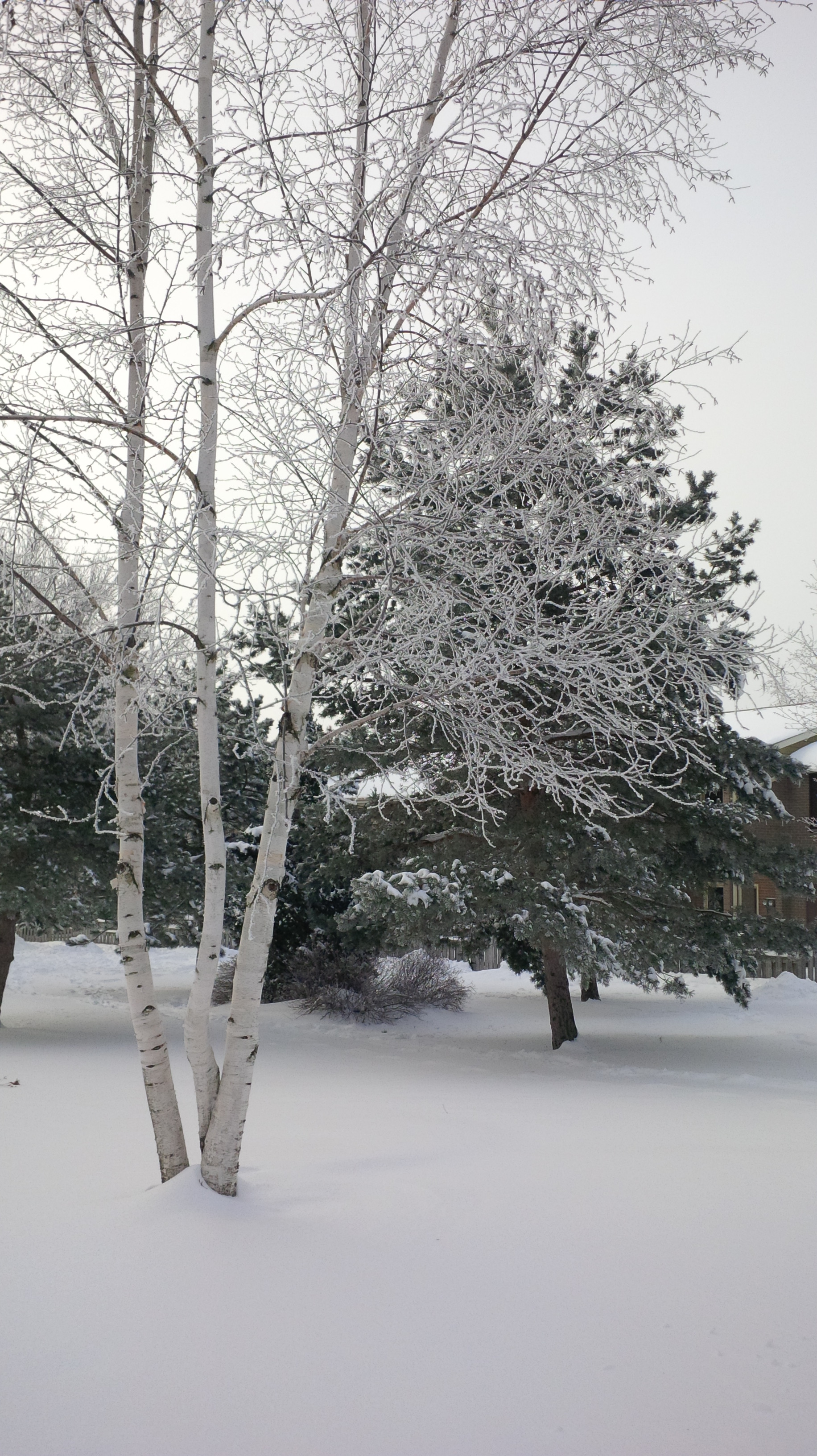
    One thing that I’m not using as much on my Z10 but that I can see a lot of other people using is the filters that are built into the camera.  I have to confess, I’m not huge on Instagram – mostly because it seems to just be a vehicle to share pictures that I don’t really need to see.  The one thing that intrigued me about Instagram was the photo filters.  I have a photo editing program on my Z10 ( KVAD Group Photo Studio Pro) that allows me to edit any pictures but for the simplified filter effects, I don’t even need to leave the camera.  You can take a picture of the pretty snow:

    photo of a birch tree with 3 trunks in front of a pine tree all covered in snow.
    Snow

    Then you can add any one of a number of artistic filters (black and white, sepia, antique, lomo, whiteboard, watercolor, negative, or sketch), styles (smooth face, sixties, grain, age photo, filmstrip, halftone, cartoon, or big eyes), auto enhance it, adjust the brightness, remove red eye, or change the contrast, sharpness, white balance, and saturation of the picture. Of course you can also rotate the picture, change its orientation or its aspect ratio; all within the editing program that is part of the camera package on the Z10.   The only style I really like to use so far is the age photo. Here’s the picture with the Age Photo style applied.

    %{include image.html url=“/wp-content/uploads/2013/02/img_00000102_edit.jpg” alt=“The same photo but with a large white border around it and several stylistic cracks through parts of the photo to make it look old” description=“The filters are pretty fun”}

    Do you have a BlackBerry Z10?  Are you holding out for the Q10? What is  your favourite feature on the BlackBerry 10?

  • She’s Connected and my BlackBerry

    She’s Connected and my BlackBerry

    You know what I absolutely love hearing when showing off my Bold 9900?  “Wow, I didn’t know a BlackBerry could do THAT”.  I heard that a lot this weekend at the She’s Connected Conference in Toronto.  Mostly it was the simple things like the fact that managing multiple accounts in the Native Twitter Application is so easy.  Or that I could remote control my PlayBook from my Bold 9900 (to be honest, that was me showing off because I had the bluetooth keyboard for the PlayBook and was perfectly capable of typing on that but I like the wow factor of the remote control).  I loved meeting so many fellow BlackBerry devotees and being able to help them use their devices more easily.  It’s not rocket science but there are tips and tricks that will enhance your experience as a member of Team BlackBerry.

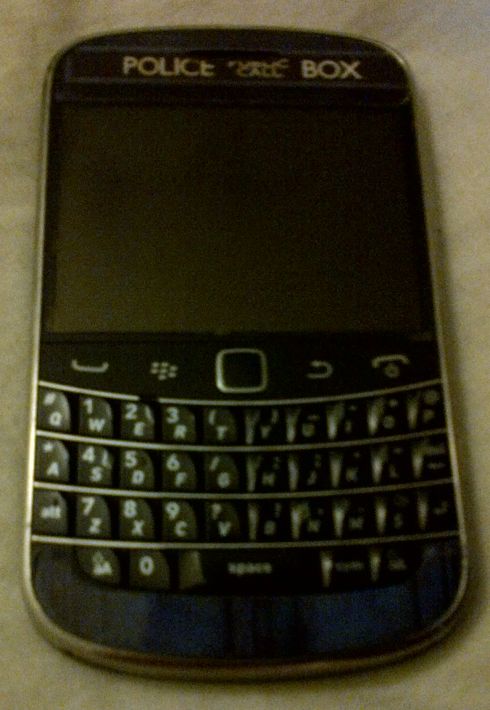
    A BlackBerry Bold 9900 with a sticker on it that makes it look like the TARDIS from Doctor Who - a blue police box
    My BlackBerry Bold 9900

    The one question everyone seemed to ask me was if I was excited about the upcoming release of the BlackBerry 10 devices and operating system.  The answer to that was an unequivocal YES!  I am very excited about BlackBerry 10 and can’t wait until it is released!  I still don’t know how I’m going to get a BlackBerry 10 device into my hot little hands but rest assured, it will be done.  I have friends who are developers for BlackBerry and their excitement at what the BB10 OS can do has rubbed off on me.    I truly believe that there is a core market of BlackBerry users who may have switched to another platform who are waiting for an excuse to come back to the BlackBerry fold.  I believe that the BlackBerry 10 Operating System will be the thing to bring them back.  I spoke to quite a few people who either had been BlackBerry users in the past or who were simply curious about the new product launch.  A number of them were at the end of their cell phone contracts and were eligible for a new device, either now or at the beginning of the year.  After chatting with me, many of them are waiting to see what BlackBerry 10 has to offer before deciding what phone to get. I wasn’t out to strong arm people into becoming members of Team BlackBerry but I wanted people to give it a chance.

    BlackBerry isn’t for everyone.  If you want a smartphone to game on, then this isn’t the right solution for you.  However, if you want your phone to work FOR you, and WITH you then you need to consider BlackBerry.  I primarily use my BlackBerry for social media, emails, as a gps, as a camera, and *gasp* to make and receive phone calls  Yes I have a number of very entertaining apps and games, but they’re not the reason I chose my BlackBerry.  I have far more games on my 64 gb PlayBook.

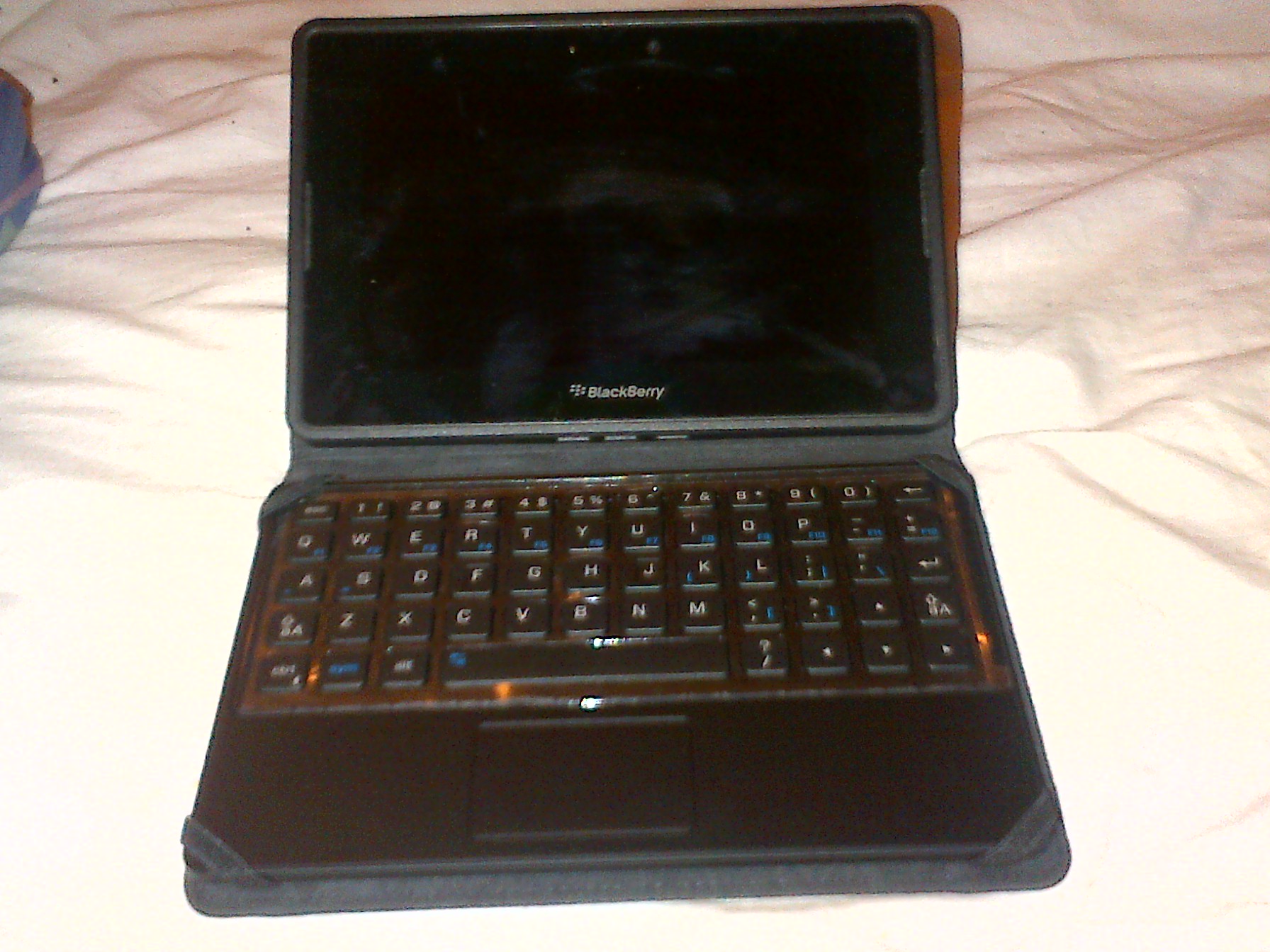
    BlackBerry PlayBook, small rectangular tablet in a case with a full keyboard
    My PlayBook

    Not once all conference did i wish I had a different phone.  My Bold 9900 had no issues connecting to the wifi, releasing the cached wifi info page so I could log in again on the second day, or with maintaining a battery charge throughout the conference.  I don’t want to have to carry around a charger for my phone because it won’t last 10 hours.  I was having too much fun trying to meet up with twitter friends to be hunting for somewhere to plug in my phone.