Tag: Bold

  • Thank You

    Thank You

    I think as a society we focus too much on the negative and not enough on the positive.  This applies to BlackBerry too.  We are all too eager to jump all over the company for a perceived misstep but rarely do we stand back and thank the company and their employees for all of their hard work and dedication to the principles that make BlackBerry the great company that it is.

    Today BlackBerry rolled out Channels for BlackBerry Messenger.  BlackBerry could have done what other companies have done and said “screw legacy users, if they want Channels, they should upgrade to a newer device”.  The fact that they didn’t says a lot about the corporate culture at BlackBerry.  Instead of releasing Channels for the new, flashy BB10 operating system and leaving legacy device users hanging, BlackBerry employees working on channels worked long days, nights, and even weekends in order to roll out Channels to everyone at the same time. To me that says that BlackBerry values all of its customers and wants to bring them all the best experience.  Yes there was an error in the app world description of channels where it said that OS 10.2 (which at this time is still unavailable from US carriers) was required to load the Channels instead of requiring BBM 10.2.  To their credit, within 20 minutes of learning of the problem, the problem was fixed.   No company is perfect, mistakes will be made, but the speed with which the mistake was corrected shows that Blackberry cares about their customers.  Would BlackBerry like everyone to upgrade to the newest devices?  Of course they would.  (If you’re reading this and are on the fence about upgrading to BlackBerry 10 – do it!  It’s an amazing operating system with both touchscreen and keyboard models.) But BlackBerry also respects their customer base enough to realize that not everyone can afford to upgrade, and that even those who haven’t upgraded to a new device or operating system deserve the best possible mobile computing experience.  For that I give a heartfelt thank you.

    Thank you BlackBerry for caring about all of your customers and for providing user experience that shows that your customers are more than just faceless sources of revenue. The next time someone questions my loyalty to BlackBerry, I will direct them to this post.

  • The Grey Cup with BlackBerry

    The Grey Cup with BlackBerry

    It’s no secret that I love my BlackBerry devices. I also love the Canadian Football League. With the 100th Grey Cup practically in my backyard, I decided that once again this year, I was going to go and report from the big game without taking my old and heavy laptop. This year, however, I did add the BlackBerry Bluetooth keyboard for my PlayBook. This gave me more functionality with very little additional weight.

    I also added a second battery and charging case (which is basically a small case for the extra battery that you plug the regular micro usb adapter into) for my trusty Bold 9900. I knew I would be putting in some very long days and didn’t want to need to find somewhere to plug in my BlackBerry. Between the 2 batteries, I got somewhere in the range of 12-13 hours of heavy use out of my Bold each day. My BlackBerry was in hand from the time I got up (around 6am each day) until I finally got back to my hotel room somewhere between midnight and 1 am.

    I was pulling double duty at the Grey Cup this year – as a member of Argonotes (the official pep band of the Toronto Argonauts) and as a member of the media for Rouge Radio.com. I could not have successfully done both things without my BlackBerry calendar to help me keep track of where I needed to be and when. It was indispensable for getting press releases, schedule updates, and interview requests into my hands immediately so that I could add or adjust my schedule accordingly. Between my Bold and my PlayBook, I had everything I needed: email, calendar, documents to go, a voice recorder, cameras, a phone, access to text messages, Twitter, Facebook, and, of course, BlackBerry Messenger.

    I recorded interviews on my PlayBook while tweeting and taking pictures on my Bold or vice versa. I typed game notes on my PlayBook with the keyboard while watching the game. I freaked out another reporter by using the remote control feature to type on my PlayBook from 2 rows back in the press box. Having words appear on the tablet next to you that you were asked to watch for a couple of minutes can be a freaky experience, especially when the words are addressed specifically to you. (Yes I know, it was wrong to use my PlayBook to freak out other people but it was a prank I’d been planning for awhile and the opportunity presented itself at the Vanier Cup on Friday night.)

    The combination of my Bold 9900 and my PlayBook were all I needed to make the most of my Grey Cup experience – no need to lug around a heavy, awkward laptop, a voice recorder, or a camera – just my trusty BlackBerry Bold 9900 and my PlayBook.

    I will note that being able to update my Facebook, Twitter, and BBM statuses with things like “I just drank out of the Grey Cup” was awesome. I uploaded a ton of Photos, directly from my devices, often while walking between events.

    Have you ever used a tablet instead of a Laptop? Would you consider leaving the laptop at home for a major conference or event?

    Exterior view of the Rogers Centre with 2 banners, a horizontal one reading 100th Grey Cup and a vertical one featuring an image of the Grey cup
    Banners outside the Rogers Centre

    [

  • She’s Connected and my BlackBerry

    She’s Connected and my BlackBerry

    You know what I absolutely love hearing when showing off my Bold 9900?  “Wow, I didn’t know a BlackBerry could do THAT”.  I heard that a lot this weekend at the She’s Connected Conference in Toronto.  Mostly it was the simple things like the fact that managing multiple accounts in the Native Twitter Application is so easy.  Or that I could remote control my PlayBook from my Bold 9900 (to be honest, that was me showing off because I had the bluetooth keyboard for the PlayBook and was perfectly capable of typing on that but I like the wow factor of the remote control).  I loved meeting so many fellow BlackBerry devotees and being able to help them use their devices more easily.  It’s not rocket science but there are tips and tricks that will enhance your experience as a member of Team BlackBerry.

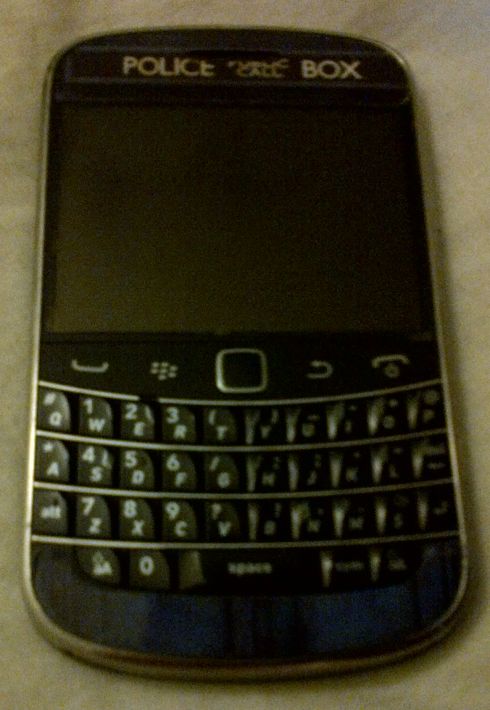
    A BlackBerry Bold 9900 with a sticker on it that makes it look like the TARDIS from Doctor Who - a blue police box
    My BlackBerry Bold 9900

    The one question everyone seemed to ask me was if I was excited about the upcoming release of the BlackBerry 10 devices and operating system.  The answer to that was an unequivocal YES!  I am very excited about BlackBerry 10 and can’t wait until it is released!  I still don’t know how I’m going to get a BlackBerry 10 device into my hot little hands but rest assured, it will be done.  I have friends who are developers for BlackBerry and their excitement at what the BB10 OS can do has rubbed off on me.    I truly believe that there is a core market of BlackBerry users who may have switched to another platform who are waiting for an excuse to come back to the BlackBerry fold.  I believe that the BlackBerry 10 Operating System will be the thing to bring them back.  I spoke to quite a few people who either had been BlackBerry users in the past or who were simply curious about the new product launch.  A number of them were at the end of their cell phone contracts and were eligible for a new device, either now or at the beginning of the year.  After chatting with me, many of them are waiting to see what BlackBerry 10 has to offer before deciding what phone to get. I wasn’t out to strong arm people into becoming members of Team BlackBerry but I wanted people to give it a chance.

    BlackBerry isn’t for everyone.  If you want a smartphone to game on, then this isn’t the right solution for you.  However, if you want your phone to work FOR you, and WITH you then you need to consider BlackBerry.  I primarily use my BlackBerry for social media, emails, as a gps, as a camera, and *gasp* to make and receive phone calls  Yes I have a number of very entertaining apps and games, but they’re not the reason I chose my BlackBerry.  I have far more games on my 64 gb PlayBook.

    BlackBerry PlayBook, small rectangular tablet in a case with a full keyboard
    My PlayBook

    Not once all conference did i wish I had a different phone.  My Bold 9900 had no issues connecting to the wifi, releasing the cached wifi info page so I could log in again on the second day, or with maintaining a battery charge throughout the conference.  I don’t want to have to carry around a charger for my phone because it won’t last 10 hours.  I was having too much fun trying to meet up with twitter friends to be hunting for somewhere to plug in my phone.

  • Thoughts on She’s Connected 2012

    Thoughts on She’s Connected 2012

    In case you haven’t noticed, I’ve been blogging over at my other blog Adventures with my BlackBerry for the last few months.  I’m going to have another wrap up there but from the technological side of things – how my BlackBerry helped me make connections and made my conference experience more enjoyable.  This is more about the experience I had at She’s Connected (or SCCTO which was the twitter hashtag for the event), what I learned, and the great people I met.

    Overall, I had a great time at She’s Connected. The getting up at the crack of dawn wasn’t something I was looking forward to but I had great carpool with Courtney and Jacki and not only did we get to the hotel an hour before the conference breakfast was supposed to start, the fabulous people at the Renaissance Hotel were able to check us into our room super early (at 7am) so that we didn’t have to come back later and check in or try to do it after the conference when we were tired etc.  I have to say that the Renaissance is a fabulous hotel, and I wish I’d spent more than just one night there!   I’d go back for Grey Cup in the blink of an eye but it’s definitely out of my price range!

    I learned a lot about myself at the conference.  I learned I can be funny and witty in real life even with strangers and when I’m scared to death that I’ll say something stupid and they will write me off as a moron.  I learned that mink eyelashes are pretty cool and very dramatic but take a long time to get used to.  I learned that having a professional do a blow out on my hair leads to the same result as me doing one – flat hair in less than an hour!  Not that the stylist from Blo wasn’t really good, but my hair is stupid that way.  It looked fabulous for the hour, but then it was just messy and full of product.   I learned that I really get a kick out of people complementing me on my business cards (which were super fabulous thanks to Lindsay from Grace Announcements).

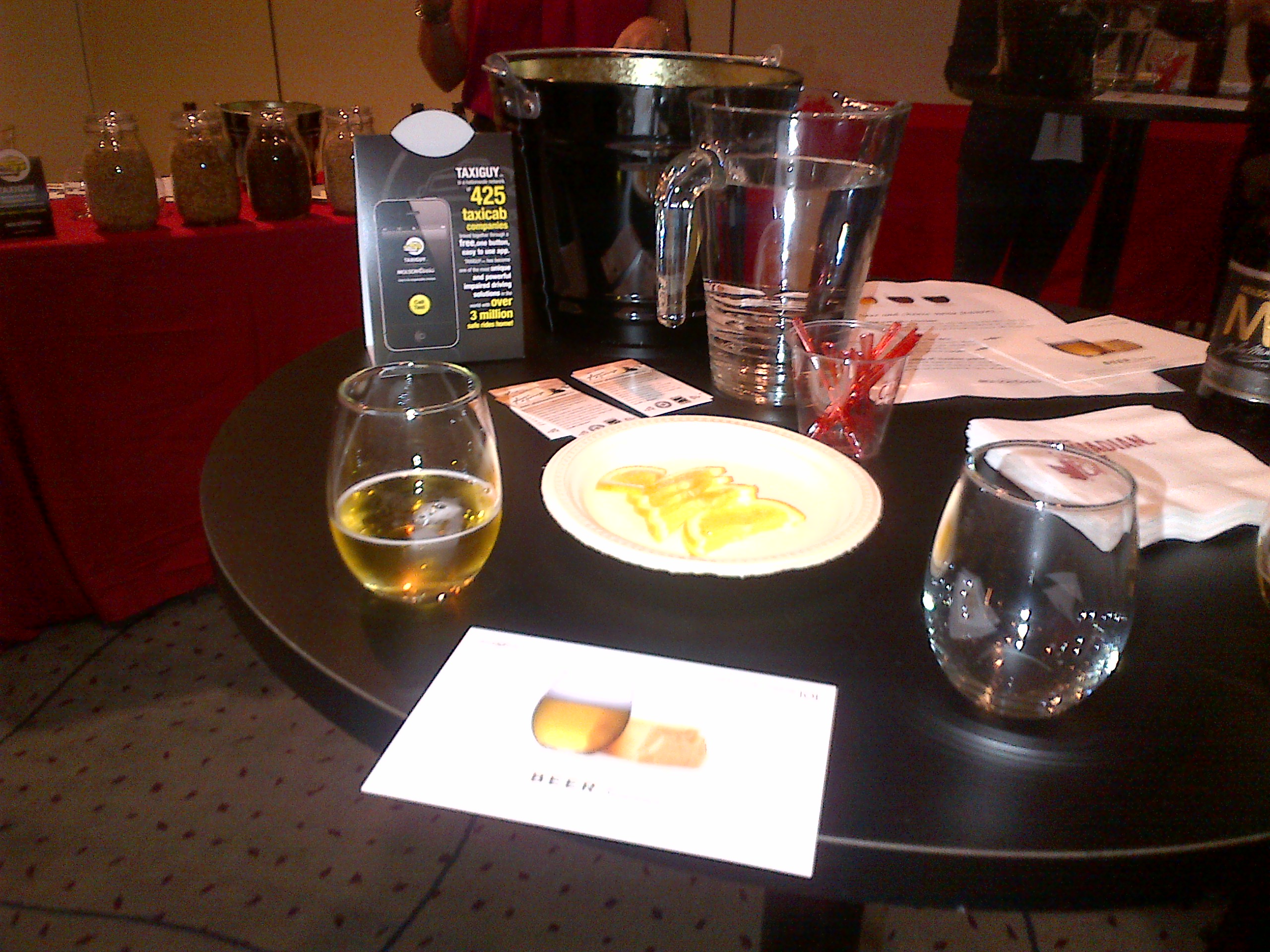
    The sessions were amazing.  It’s impossible to pick just one to single out as the best.  One of the best part of the sessions was that the panelists and speakers were more than willing to meet and speak with the attendees after the panels.  There were 2 time slots in which I couldn’t find a session that I really wanted to attend, one on Friday and one on Saturday.  This worked out pretty well because it gave me a chance to hang out in the McCafe lounge and get my nails painted and enjoy a chair massage.  On Friday I got to hang out in the Molson 67 lounge and learn about pairing Beer and Cheese.  This was really awesome and I’m never going back to wine and cheese again.

    A hightop bar table with 1 small glass of beer, an empty glass, and a plate of cheese between the two glasses.
    Beer and cheese = nature’s perfect pairing.

    I learned a lot about trying to find a niche in the overcrowded world of online writing, editing and social media.  I got some awesome advice from awesome people.  I got to meet people with whom I’ve been tweeting and BBMing for over a year. I learned that if I love blogging (and I do) I should keep doing it.  That getting a chance at a community manager position isn’t as impossible a dream as I thought it would be and that some brands and agencies are okay with paying bloggers.

    I missed the Friday ’80s Party because I wanted to go watch the Argos Lose Argo game and play with Argonotes.  I love playing with the best band in the CFL.  Even when the team loses, we get to go out and entertain thousands of people.  I did, however, stick around for the Shades of Grey party on Saturday night.  There’s not a lot to say about that Party other than wow.  I got gel nail polish put on – it’s supposed to last 2 weeks and so far it’s lasted through me digging in sand and typing so I’m impressed.  The food was delicious!  It’s A Cake Thing made some of the best cookies and cupcakes that I’ve ever had!  They looked as good as they tasted.

    a tray with 12 vanilla cupcakes with white frosting in 3 rows of 4. The front and back rows have decorations in greyscale on them
    The Shades of Grey Cupcakes

    All in all it was a great 2 days.  I’m glad it was only 2 days because I was exhausted at the end of the party.  I know I’ve missed some wonderful people and things in this wrap up but the point is, it was a great experience and I can’t wait to go again next year.

  • Conference Time!

    Conference Time!

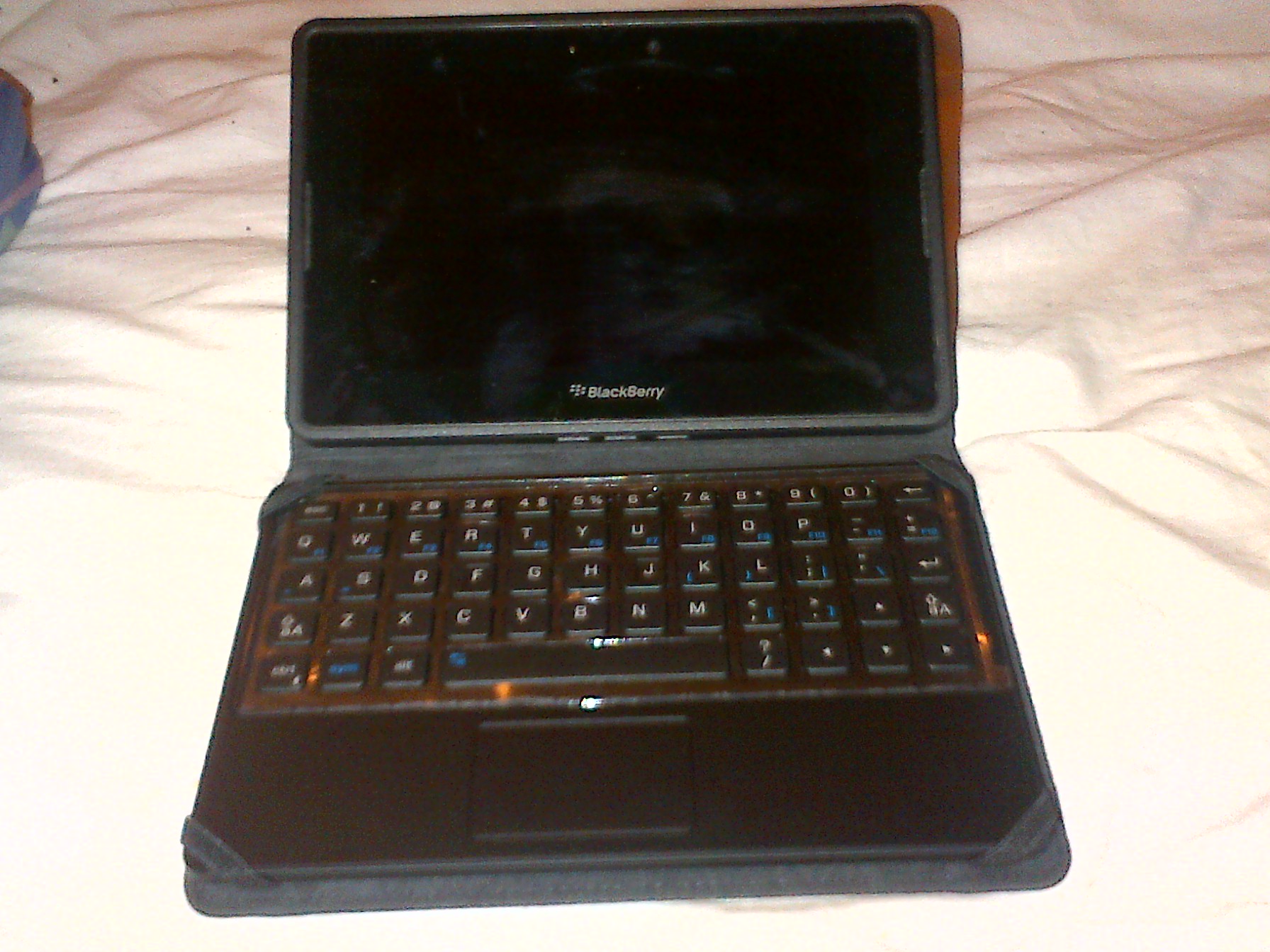
    I’m very excited to be going back to the She’s Connected Conference this year.  Last year I had a great time meeting new people and learning a lot about blogs, brands and how the two can work together.  The only thing I really didn’t like about the experience was lugging my laptop around to take notes on.  This year I’m solving that problem by borrowing a BlackBerry PlayBook Keyboard Case from a friend to test it out during the conference.  If I like it, I may just have to find a way to purchase one. My BlackBerry PlayBook already goes pretty much everywhere I do, so it makes sense to use it at the conference.  I will, of course, also be taking my BlackBerry Bold 9900.  Not only can I use the BlackBerry Bridge and connect my tablet to my phone, but I can use my BlackBerry PlayBook charger to charge everything.  I love the way it looks like a little netbook but one that has a ton of great apps on it.

    %{include image.html url=“/wp-content/uploads/2012/10/playbook-keyboard.jpg” alt=“A BlackBerry Playbook stands up on a bed in a case with a full keyboard” description=“The PlayBook with keyboard”}

    Yes I realize I’m a little insane to be going to a conference about blogging and social media and not taking my laptop.  I still love my laptop (though at 7 years old it’s on its last legs) but I don’t like lugging it around and constantly worrying about it being stolen.  With the keyboard, I have everything I need to make my BlackBerry PlayBook into a mini laptop for the 2 days I’ll need it.  I covered the Grey Cup in 2011 without taking my laptop (again it was a weight / space / afraid it would get broken issue) and didn’t really miss it and won’t be borrowing the digital audio recorder again since the recording on my PlayBook is actually better quality and easier to upload.  One thing I want to try to find before I leave for the conference is a neoprene sleeve so the case doesn’t get scratched when I toss it in my bag.  I got a neoprene case with the PlayBook but it’s too small to fit the PlayBook and case.
    I’m also going to be wearing a BlackBerry shirt to the conference on Friday.  I have promised several people that I’d help set up their BlackBerry devices to do what they needed them to do and I figure it’s best if they can find me.  🙂  While I don’t work for Research In Motion (though I would love to work for such a great company whose products I love and use daily), I have spent a lot of time with my BlackBerry Bold 9900, my friends’ BlackBerries, and I’ve got a pretty good grasp of what’s going on with them.  If I should happen to run into a problem that I can’t fix, I also know that help is only a BBM message away.    If you’re attending the She’s Connected Conference and want me to show you how either my Bold 9900 or my PlayBook / PlayBook with keyboard work just ask!  I’m always happy to talk mobile devices!

  • Ten Things you need to know about your BlackBerry

    Ten Things you need to know about your BlackBerry

    Since I started this blog, I’ve met a lot of other members of Team BlackBerry.  One of the things that constantly astounds me is how few people regularly back up their BlackBerry handheld devices.  I learned the hard way about backing up my BlackBerry – earlier this year I managed to brick my Bold 9900 (totally a user error on that one).  I hadn’t backed up in over a month, and while I have a lot of technologically inclined friends, I still lost a few things.  I now back up my BlackBerry at least once a week and have BlackBerry Protect doing a daily back up.  Some of these tips seem really simple, and they are very easy to implement but they will make life easier as a BlackBerry owner.

    1. Plug it in!  Plug your BlackBerry into your computer to create a backup and to move files and folders from your computer to your device and vice versa.  You may never need the backup, but if you do, you’ll be happy you did it.

    2. Use folders so that your home screen isn’t cluttered with apps.  Keep only the things you access daily on your home screen.

    3. Update your BlackBerry – Not just the Operating System (OS) updates but also applications.  Having the latest version of an application means it’s more likely to work the way it was intended and integrate with other applications such as Blackberry Messenger (BBM) more smoothly.

    4. Turn off WiFi coverage when you’re out of range for it.  Unless you’re searching for hotspots, you don’t actually need your wi-fi on when you’re out and about.  When wi-fi is turned on, it will continuously look for networks to connect to which will drain your battery.

    5. Press and hold the BlackBerry button to see what applications are running in the background and close any that you aren’t actually using in order to free up memory and save your battery. The BlackBerry Button is the one that looks like this:

      %{include image.html url=“/wp-content/uploads/2012/10/blackberry-logo.jpg” alt=“The BlackBerry logo – 3 columns of elongated white filled in capital D shapes with 2 in the first column, 3 in the middle column, and 2 in the 3rd column” description=“The BlackBerry Logo.”}

    6. Blackberry Shortcuts.  These are awesome.  Tired of typing your number in a Facebook message, direct message on twitter or on BBM?  Type mynumber and poof – there it is.  Mypindoes the same thing but with your PIN.  If you need to insert the date into a post, type ld (long date) and the date will show up (ie: Tue, Oct 15, 2012). To get the long version of the current time, type lt to show (12:54:45 AM).

    7. Going to a movie and need to put your phone on vibrate quickly?  Press and hold the “Q” key and it will automatically switch your phone to vibrate.  To switch back, press and hold the “Q” key again.

    8. Set up auto on/off times.  You can do this by going to Settings –> Device –> Auto On /Off  and set what time you want your BlackBerry to automatically turn off at night and when you want it to turn on in the morning.  You can set different times for weekdays versus weekends too.

    9. Learn how to do a soft reset of your device.  You know the handy Ctrl + Alt + Del command you use to reboot your computer?  You can do the same thing on your BlackBerry by pressing Alt + Shift + Del at the same time. (If you have a full touch screen you’ll have to do the battery pull instead)

    10. Get a shell or a holster and a screen protector.  I love my holster – it means that I can always have my BlackBerry on me.  If you dislike holsters (and I know some of you do), get a shell casing so the back doesn’t get all scratched up in your purse or briefcase.  The cases make the BlackBerry easy to grip too.  A screen protector is a must if you have a touchscreen and it’s great even if you don’t.  When applied correctly, they don’t interfere with the touchscreen sensitivity but help protect your screen against nicks and scratches.  Of course you can always get a really cool sticker for your BlackBerry like I have for mine.  Have I mentioned how much I love my TARDIS-Berry?

    Well, that’s it.  Those are my top 10 BlackBerry tips.  Do you have a tip or a trick for other members of Team BlackBerry?

  • Why I’m Retiring the GPS

    Why I’m Retiring the GPS

    I don’t actually have a GPS but my parents do, as do a lot of my friends, so when I’m going somewhere where there’s a good possibility of my getting horribly, horribly lost (*cough* Hamilton *cough*) I borrow someone’s GPS to ensure I make it back home.  I’ve managed to make out decently well with borrowed GPS units in the past but they’re bulky and I can’t leave it in the car for fear of it being stolen .  All that is a thing of the past now that I have discovered the wonder that is BlackBerry Traffic.    BlackBerry Traffic is a free app that you can download from BlackBerry App World and in my opinion, it’s better than a GPS and it’s on something you’re probably bringing with you anyway – your BlackBerry!

    Once downloaded, BlackBerry Traffic appears as an icon on your homescreen.  It’s pretty easy to find – it’s the one that looks like traffic lights

    %{include image.html url=“/wp-content/uploads/2012/09/traffic.png” alt=“A BlackBerry home screen with 3 rows of app icons on it. One of the app looks like a traffic light and is circled in Red” description=“BlackBerry Traffic”}

    Now I’m a huge fan of putting things in folders on the BlackBerry, but I leave BlackBerry Traffic out on my homescreen because I use it pretty much daily.

    Once you start up BlackBerry Traffic, you can set up addresses for “Home” and “Work”.  You can also add an address to the “My Places” section if you know the address you’re looking for, or you can search for one you don’t know.

    %{include image.html url=“/wp-content/uploads/2012/10/traffic-2.png” alt=“BlackBerry Traffic Home screen with the words BlackBerry Traffic Where do you want to go? Choose a destination on the screen and home, set work, my places, and search options below it.” description=“The BlackBerry Traffic Home Screen”}

    Once you choose your destination, the app does a search based on current traffic conditions and gives you two options. You select the one you want to take, and you get step by step voice instructions either through your bluetooth headset or through the speaker on your BlackBerry to where you’re going.  It gives plenty of notice for upcoming turns, allowing you to change lanes if necessary.  It’s best to set your destination before you go because otherwise your attention won’t be on driving and the app won’t be hands free.  (I have, when needed, pulled over to the shoulder to revise a route.)

    I have a very bad habit of not being able to find my way to or from Ivor Wynne Stadium in Hamilton.  Every time I’ve gone there I’ve been lost.  Except this year.  The difference?  BlackBerry Traffic.  Before I left, I did a search for Ivor Wynne Stadium and chose which of the 2 routes presented I wanted to take.

    The one I chose, ended up being great.  Note that BlackBerry Traffic gives you an estimated time of arrival – in this case about 30 minutes early but I was sure I would need that time to get myself un-lost.

    %{include image.html url=“/wp-content/uploads/2012/10/traffic3.png” alt=“BlackBerry Traffic screen showing turn by turn directions to Ivor Wynn Stadium with an accident notification circled in red in the directions and an ETA in the top right corner circled in red and labelled.” description=“I love the ETA”}

    The yellow exclamation point was notifying me about an accident about 9 km along the QEW – as it turned out, the accident was cleared by the time I reached that point but it was great to be prepared for a bit of a delay there.

    I got to the stadium about 30 minutes early (first time ever!) The game went well, and then when I got back to my car, I simply turned BlackBerry Traffic back on and chose “Home” as my destination.

    %{include image.html url=“/wp-content/uploads/2012/10/traffic4.png” alt=“The BlackBerry Traffic directions screen showing directions to home in a list format with the ETA in the top right corner” description=“I find the directions easy to follow”}

    I got home in under an hour (a first), and with no stress.  It was great.  It was after that day that BlackBerry Traffic became my favourite app. It’s helped me avoid long weekend traffic on highway 400 to cottage country, and accidents on the 401 going to Toronto.  It isn’t the app i use the most (that would be either BlackBerry Messenger or Twitter) but it’s the one I’d miss the most if it was gone! One word of  caution is that if you leave it running, it does chew through battery.  Once you get to your destination, you should exit the app to conserve battery.

    Have you tried BlackBerry Traffic?

  • The Camera Question Part II – PlayBook Edition

    The Camera Question Part II – PlayBook Edition

    One of the best features of my BlackBerry PlayBook is its portability.  I didn’t want a tablet I’d need a separate bag to lug around.  I wanted something truly portable.  With its 7 inch display, the PlayBook fits in my purse, meaning I can take it pretty much anywhere I go.  Case in Point – I went to the Honda Indy Toronto on July 6th.  The Toronto area Honda dealers all get together and sponsor the Friday at the Indy so that fans get onto the grounds and into the grandstands for free.  It’s an awesome promotion and a great way for people who wouldn’t be able to afford to go otherwise.  I was going primarily to watch a driver I’ve known for most of his life, James Hinchcliffe, race in the GoDaddy car.  The Indy Cars go in excess of 100 miles per hour so catching them on film isn’t easy.  I decided that instead of using a digital camera,  I would try to take pictures on my BlackBerry Bold 9900 and my PlayBook.

    %{include image.html url=“/wp-content/uploads/2012/07/img_00000037.jpg” alt=“a bright green Indycar turns around a corner on the racetrack at the Honda Indy Toronto with the red Honda bridge visible in the background of the shot” description=“James Hinchcliffe on Track”}

    That would be James on track at full speed.  I was surprised at just how good the camera on the playbook was at taking pictures of objects moving quickly!  The quality of the ones on my bold were just as good.  I love me a good camera.

  • Identify yourself with the BlackBerry ID

    Identify yourself with the BlackBerry ID

    BlackBerry ID falls into the category of things your really need to do first on your BlackBerry.  It makes life so much easier.  Once you’ve created your BlackBerry ID, you can use your email address and password to log in to any product that supports the BlackBerry ID.  For example, you will use the same one on your Playbook as on your smartphone.  With BlackBerry ID, you can manage apps that you download from BlackBerry App World and keep them if you switch devices.

    Setting up a BlackBerry ID is easy, there are 2 ways to do it.  You can either do it from an app that uses BlackBerry ID – it will prompt you the first time you use something with that feature, or you can do it online by going to the BlackBerry ID website and creating one there and then entering it on your device.  If you are using the BlackBerry 7 operating system, you have to have a BlackBerry ID.  Same goes with the Playbook – it’s not an option.   Once you have it though, it makes life so much easier.

    The important thing about your BlackBerry ID is to associate it with an email address you check regularly.  It doesn’t have to be one that is associated with your device but you need to be able to get to the account if you forget your password because that’s where the recovery information will be sent. You can change the details of your BlackBerry ID once it’s been setup.  To do this go to options on the home screen, the one that looks like a wrench.

    %{include image.html url=“/wp-content/uploads/2012/06/settings.png” alt=“a BlackBerry home screen with 3 rows of icons visible. There is a wrench icon in the middle row that is circled in red and labelled Settings” description=“Settings”}

    From the settings box go to Device settings – this is where you can schedule other cool stuff like Auto on / off times (more about those in a later post)

    %{include image.html url=“/wp-content/uploads/2012/06/munch_2012_06_28_004519.png” alt=“The Options menu on a BlackBerry with Display, Typing and Language, Device, Call Management, and Security. Device is highlighted in Blue” description=“Device settings”}

    Select “BlackBerry ID” and you’ll get a screen that looks like this (but with your details filled in)

    %{include image.html url=“/wp-content/uploads/2012/06/munch_2012_06_28_005055.png” alt=“The BlackBerry ID menu with fields for First name, last name, screen name and username (email address)” description=“BlackBerry ID menu”}

    Change the details you want to change and then hit the BlackBerry button and then Save. If you don’t save, it will prompt you to do so before you leave the screen.

    BlackBerry ID is becoming more and more integrated into apps, so pick a password you can remember easily or use the password keeper to help you remember it.

  • What’s the secret (Pass)word?

    What’s the secret (Pass)word?

    A few weeks ago, the social networking site LinkedIn was hacked and millions of passwords were stolen.  I dutifully went and changed my password and promptly forgot it.  I have too many passwords to remember them all.  I’ve tried to follow all the password advice I’ve heard over the years – use a mixture of capital and lowercase letters, use numbers, don’t use real words, don’t use dates of significant events, basically don’t use anything that you’ll ever have a chance of remembering.  That’s all well and good in theory but if i can’t remember my password, and I don’t trust my browser to remember my password, what’s a girl to do?  Then, while looking in my applications folder, I noticed an icon that looked like a safe.

    %{include image.html url=“/wp-content/uploads/2012/06/password.png” alt=“Screenshot of a BlackBerry homescreen with 3 rows of icons. In the bottom row there is an icon of a safe on the far left that is circled and labelled with the words it’s a safe for passwords” description=“Password Keeper”}

    I clicked on it and to my surprise, it was an application for storing all my passwords.  I had to enter a password for the app itself, so i created one that I could remember.  After that I hit the BlackBerry button %{include image.html url=“/wp-content/uploads/2012/06/bbbutton1.jpg” alt=“a small icon of the blackberry button which is a tiny version of the BlackBerry logo” description=“I love the BlackBerry Button most of all”} and selected “new” from the menu.  I then got this screen up:

    %{include image.html url=“/wp-content/uploads/2012/06/munch_2012_06_27_152912.png” alt=“Screenshot of the new password screen with the heading credentials and fields for title, username, password, website, and notes. All are blank” description=“The New Password Screen”}

    I typed in “facebook”as my title, my username, my password, and the website address.  Then I hit save.  I repeated the process for all of the sites I could remember that I had a password for.

    In addition to storing passwords (you can change the default setting to either show or hide passwords from the menu), the password keeper can generate a random password for a site.  On the form pictured above, instead of entering a password, hit the BlackBerry button and then select “Random Password” from the list.  You will get a random alpha numeric password – the kind that has no meaning to anyone (but at least you’ll have a program to remember it for you!) You can set criteria for the randomly generated passwords too.  Just click on the BlackBerry button while in the password keeper app and select “Options” You can set the length of the random password, (default is 8 characters but you can have between 4-16), whether it should include numbers, and if you want it to include symbols.    From the options menu you can also decide if you want to allow copying of the password to the clipboard (do you want to be able to copy and paste the passwords or do you want to type them out each time), and how many attempts at the main password you will allow.

    This is a great app and one that is easily missed if you’re not looking for it.  Yes it takes a bit of time to set up but once you’ve done the initial set up, it’s great – as long as you can remember the main password!