Tag: Twitter

  • How my BlackBerry Passport Equals Mobile Freedom

    How my BlackBerry Passport Equals Mobile Freedom

    It’s no secret that I love my BlackBerry devices. I have a BlackBerry in my hand for a good 60% of the day.  One of the things I love most about BlackBerry is how easy it makes it to work on the go. I wrote about my Blackberry Classic  and how much I loved it and the difficulties in choosing a case for it. I’ve found the same thing with my BlackBerry Passport. I love the Passport even more than the Classic. At first I thought it was going to be too big. I looked down at the device in the box and thought “I’ll probably be using the Classic again within a month”. Well, I was wrong. So very wrong. The Classic has found a new home in the hands of my dad, and the Passport is mine, all mine. I mentioned with regards to the Classic how much I had missed the physical keyboard even though I had loved my Z30 with all my heart. Well the Passport takes the keyboard experience to a whole new level. It just feels right.  The screen width on the Passport makes reading text a breeze – the wider screen allows more characters which reduces scrolling (and makes me a happier reader). Contrary to what I thought before I had a Passport, the Passport does fit in my pants pocket, and in my purse, so it goes pretty much everywhere I go. I have a BlackBerry hard shell case on it 90% of the time and a Folio case with a credit card slot the rest of the time (It’s an aftermarket one, but needs improvements if it was going to be a daily driver).

    Last fall, I talked about the Blissdom Canada Social Media Conference and how I presented a micro-session there. What I didn’t say was that I did most of the planning for that session on my BlackBerry Passport. I didn’t want to have to carry my laptop around for the day, or make the trek back across Blue Mountain Resort to drop it back in my room. Instead I used Docs to go, and planned out my entire presentation on my mobile device. I travel 1-2 days a week and work remotely. Lately I’ve been doing all the work I need with just my BlackBerry Passport. I have a list of clients and projects on the go in BlackBerry Remember – I love how easy it is to add notes to items or mark items as finished and how I can flag email messages and attach them to the task list so that I’m not constantly going back and forth to check details from an email. I currently have 14 projects on the go and they’re all lined up neatly within the Remember app. In May, I’m going to be speaking at ROAM – another Social Media event – this time in Vancouver. My travel arrangements are in BlackBerry Travel – including confirmation numbers, hotel phone numbers, and event details. If someone asks me where I’ll be on one of the days when I’m in Vancouver, all I have to do is open BlackBerry Travel and all the information is right there.  I’m not taking my laptop to ROAM either. Having attended a number of conferences in the last 12 months and presented at one, I’m confident that my BlackBerry Passport will be all I need to work on the go.

    Working remotely via the BlackBerry Passport is awesome. One of the things that I love most about working from my BlackBerry is that unlike some other phones where you can only edit or view a document on the go, my BlackBerry Passport allows me to start a new document or spreadsheet, so I can start on a new project before I get back to my computer.  Given that the vast majority of my work is done in either Excel or Word, the ability to start documents is a must. There are so many little things to love about my Passport too – The Hub, for example. I’ve written about my love of the Hub before but it’s at a new level now that I’m emailing attachments almost daily. I love that I can search through email attachments directly from the hub while I’m on the phone with a client – there’s no lost time, which is good since I have very little to spare these days.  I love the way my Passport looks too – fashion isn’t a deal-breaker for me but it’s nice when function and fashion meld together so seamlessly.

    %{include image.html url=“/wp-content/uploads/2016/04/IMG_20150515_162425_edit.jpg” alt=“A BlackBerry Passport – a square shaped cellphone with a physical keyboard in a box” description=“I think this is one of the coolest looking phones out there.”}

    My Passport battery gets me through the work day – and I’ve been told I’m exceptionally hard on battery life due to the number of high drain apps I like to run at the same time. I use Facebook a lot for business these days, and while the loss of the dedicated Facebook app was hard on me, I actually enjoy the mobile browser experience more in terms of the capabilities to manage my pages. I’ve been off of Twitter lately due to some ugliness there, but check in via Blaq or the native Twitter app daily even if I’m not tweeting as much. I’m hoping that the problem has been solved by my recent blocking spree, and will be back to using Twitter to talk about the things I love.  Instagram – while there isn’t a native client for Instagram, there is a great app called Igrann that gives me all the access I need to take amazing photos and share them with the world. I love how easy it is to edit pictures in the native BlackBerry photo editor and a huge bonus is the 1:1 ratio that is the default on the Passport – making all my pictures perfect for Instagram without cropping (Yes, I know cropping is pretty simple but hey…saving time and effort is awesome). The Passport camera is amazing and I love taking effortless panorama shots.

    A panoramic view of the football field inside skydome taken from the 200 levels. There are players warming up on field and fans in the stands.
    Panorama picture from the last Argos game at the Rogers Centre. I love how panorama mode allowed me to capture everything in one shot.

    I use BlackBerry Messenger to set up meetings more than I use email now. I’ve convinced quite a few of my clients to try out BBM for Android or Iphone (those that aren’t already on BlackBerry devices) and love how easy it is to chat, add pictures, and even send works in progress back and forth over BBM. I could do that over text message I guess, but then I’m using MMS which can be expensive for some people, while BBM works over wifi.  I’m not a heavy email user – I probably send 25 a day and receive about 100 that I need to read, but I use my BlackBerry Passport about 95% of the time when I’m sending or reading emails. It’s just that much more convenient.  I also use my car’s Bluetooth connection and have the BlackBerry Assistant read emails to me if I’m driving when an important email comes in.

    Recently one of my friends joked that BlackBerry devices seem to be an extension of me – whether it was my Z30, my Passport, or my Classic, they seem like natural extensions of my body. I choose to take that as a compliment. We are well suited for each other – BlackBerry devices enable me to keep my busy life organized and allow me to work wherever I find myself as long as I have a signal. I couldn’t imagine trying to do what I do without a BlackBerry in my hand – I’m pretty sure it would be theoretically possible, but I know it wouldn’t be anywhere near as enjoyable. Have questions? Feel free to leave them below or find me on Social Media – I’m always willing to help #TeamBlackBerry.  Oh and this post? I wrote it entirely on my Passport – all 1300 words.


  • Blaq for BlackBerry 10

    Blaq for BlackBerry 10

    When I said that I would blog about Blaq later, I didn’t think it would be later today.  I am at BlackBerry Live in Orlando next week and I’m not bringing my laptop so I figured I should probably write the review sooner rather than later.

    From day 1 with my Z10, I was frustrated by the native Twitter client (Twitter for BlackBerry).  I realize that it is as functional as Twitter for Android and Twitter for iOS, but I’ve been spoiled with Twitter for BlackBerry 7.  I expected the Twitter client on the BlackBerry 10 devices to be just as functional, and when it wasn’t I was disappointed. I tried a number of other Twitter clients in the first two months I had my Z10: Tweetings, Neatly, RewitQ, and Twitter for BlackBerry 10.  Each of them had some advantages but they were either too slow, too frustrating to use, or missing key features (like lists).

    As many of you know, I’m a Twitter junkie.  I need a fairly robust application to use on a daily basis.  One of my favourite features on Twitter is the ability to sort your followers into lists and follow those lists.  I follow over 1600 people on twitter, and, though I do Twitter purges on a regular basis where I unfollow accounts that are no longer relevant to me, it can still be a lot to handle.  Lists allow me sort the people I follow into groups such as “Formula 1 fans”, “CFL” , and “Journalists” and only follow those streams when I’m feeling overwhelmed.  For example, Monday May 6th was the CFL draft and though I love all my tweeps, I was trying to keep up with the draft picks as they happened.  I opened Twitter on my laptop, went to lists, and selected my football list.  Everything else in my stream disappeared and I could pretend that the world outside of football had melted away for awhile. None of the apps I had on my Z10 before Blaq allowed me to follow lists easily.

    Aside from Lists, the other features that I want in a Twitter application are, in order of importance to me:

    • Multiple Account Support (preferably 3)
    • The ability to quote Tweets when retweeting
    • The ability to Mute hashtags (Sometimes, I just don’t want to hear about #PeopleIWantToPunch)
    • Real time refresh rate.

    It’s not a huge or particularly demanding list, yet until Blaq was released no single Twitter application for BlackBerry 10 had all the features I wanted.  Right now Blaq only allows you to have 2 accounts but I’ve heard that support for 3 is coming and I still have the other applications so the accounts I use less frequently are set up on those.

    Blaq is relatively easy to use.  When you first download it, you need to authorize it to access your twitter account, this is pretty standard. Once you’ve done this the screen will pull in your account and change to the main screen.  The main screen looks like this:

    %{include image.html url=“/wp-content/uploads/2013/05/img_00000446.png” alt=“The feed fro the Blaq Twitter App with user profile pictures and their tweets beside them in a simple list format, There is a green bar at the top of the list that is 90% full” description=“Blaq for BlackBerry 10”}

    The green bar at the top is called the timeline progress bar and fills up as you get closer to the newest tweets in your stream.  The clock on the green bar shows the time of the tweet you’re on while the clock in the top right shows the current time.

    From the main screen, it takes a quick swipe to navigate within the app.  Swiping right gets you the most options:

    %{include image.html url=“/wp-content/uploads/2013/05/blaq.png” alt=“The full view of the Blaq app with the sidebar showing there are 10 icons down the side each with a number.” description=“Blaq has lots of options”}

    To make it easier to understand what each of these options are, I’ve numbered them.

    1. Mute:  Allows you to mute a person or a hashtag.  This can be helpful if there is a twitter party going on and you’re not participating. Selecting this option and then “add mute” on the next screen brings up a page where you can enter your criteria for what you want muted. You can also un-mute from this screen.
    2. Search: Lets you search Twitter for a username or hashtag. Blaq imports saved searches but you can delete them at any time.
    3. Me: takes you to your profile page.  You can see your followers, who is following you, how many tweets you’ve tweeted, and lots of other fun stuff.
    4. Favourites: When you favourite a tweet, they are marked  with a star.  You can find them again later by selecting this option.
    5. Lists – All of your twitter lists are here.  Currently, you can’t edit lists from Blaq but if that changes, I will let you know!
    6. Retweets – These are tweets of yours that have been retweeted.
    7. Direct Messages – you can read and compose direct messages from here.
    8. Mentions – these are all of your @ replies.
    9. Home – this takes you back to your whole twitter feed.
    10. Compose – Tap this to compose a new tweet.

    When you swipe down from the top of the screen, you get a much smaller menu: Accounts lets you add another account or switch between accounts, while Settings allows you to change the font size, set the refresh rate while the app is inactive, and access the tutorial again by selecting Help.

    %{include image.html url=“/wp-content/uploads/2013/05/img_00000453.png” alt=“the BlackBerry 10 Blaq app showing the twitter feed, green progress bar, with a menu showing accounts and settings at the very top.” description=“This menu is pretty easy to navigate”}

    Finally, swiping left allows you to access options directly related to the tweet you are viewing.  This is the action that is the least intuitive in Blaq.  To access this menu, touch a tweet and then pull left.  While holding the menu open, pull the list up or down to access the different options.

    %{include image.html url=“/wp-content/uploads/2013/05/img_00000456.png” alt=“The BlackBerry 10 Blaq app with the twitter feed and green progress bar showing, pulled to the left to show a menu with 4 options” description=“Final menu”}

    1. Allows you to reply to the tweet.
    2. Allows you to retweet the tweet to your followers.  (By default the app will confirm that this is an action you want to do)
    3. Marks the tweet as a favourite (again, the default is set to confirm that you want to favourite the tweet)
    4. Options.  If the tweet is one that you sent, you can delete it from here.

    Earlier, I mentioned that one of my “must have” features in a twitter app is the ability to quote tweets.  You need to select the tweet by tapping it so that it opens up in its own screen.  When the tweet is isolated, touch and hold the retweet button (Circled in red below), and select the Middle option “Quote Retweet”.

    %{include image.html url=“/wp-content/uploads/2013/05/img_00000461.png” alt=“The profile page for the BlackBerry Help Twitter account shown in the Blaq app with the 2nd of 4 menu options, a broken rectangle circled in red.” description=“The Quote Retweet Button”}

    Touching and holding the retweet button brings up 3 menus on the right:

    1. Classic retweet – a nice and simple way to retweet
    2. Quote – puts the item you are retweeting in quotes – useful if you’re going to modify the tweet in any way.
    3. Retweet via – a type of retweet I’m beginning to use a lot more often – great for websites – takes the text of the tweet and then at the end puts (via @username).  It’s a stylistic choice but one that I quite enjoy.

    One last thing about Blaq.  By default, Blaq connects itself to BlackBerry Messenger (BBM). You get an option on every tweet and retweet to send the message as your BBM status or share it with BBM contacts.  I don’t like that option, and so I turned it off.  To do this is a little tricky though.  You need to go to the Settings menu on your BlackBerry (it looks like a cog) –> Security and Privacy –>Application Permissions –>Blaq and switch “Connect to BBM” to off.

    In a nutshell, that’s Blaq for BlackBerry 10.  Have you tried Blaq for BlackBerry 10 yet?  What do you think of it?

  • Apps I can’t live without.

    Apps I can’t live without.

    Hi everyone,
    It’s been awhile – I’ve been busy with life and spending far too much time with my BlackBerry Z10.  The advantage of spending so much time with my Z10 is that I have a shortlist of the “Can’t miss Apps” for BlackBerry 10.  These are my favourite apps, the ones I use on a daily basis.

    1) Password Keeper – This app was standard on earlier BlackBerry devices, and is a free download for the Z10.  It has all the functionality that I wrote about here but is on your BlackBerry 10 Device.

    2) BlackBerry Messenger – Another old standard but one that I use daily to keep in touch with friends and family.  It’s just so convenient.  The Video chat feature on BlackBerry 10 devices allows you to do more than simply type to your contacts, you can actually see them and have a face to face conversation.

    3) BlackBerry Remember – I had my doubts on how useful Remember would be.  I was so wrong.  I use it every single day.  It’s better than any other notepad app I’ve used.  It allows you to flag emails and put them into a file folder within the Remember App, but more than that, it allows you to add photos, videos, voice notes, and documents to the folder.

    %{include image.html url=“/wp-content/uploads/2013/05/img_00000445.png” alt=“A folder on a BlackBerry phone showing 5 different coloured folders labelled: Unfiled entries, BlackBerry Live, Guiding, Stuff and Teacher’s College” description=“The BlackBerry 10 Remember App”}

    I have a BlackBerry Live folder and my airline tickets, hotel confirmation, event schedule, and hotel shuttle emails are all inside that folder so that I can easily find them as I need them.You can assign due dates to items within a folder and never forget a deadline again.  You can also pull in contacts so if you are working on a project with a co-worker, you will have their contact info alongside all the information for the project.  The BlackBerry video about Remember gives a pretty awesome overview of this amazing app.

    4) CrackBerry 10 – I admit it, I’m a CrackBerry addict.  I was going to the website a couple of times a day to keep up with the latest BlackBerry news.  The CrackBerry 10 app for BlackBerry 10 allows me to catch up on the latest news and reviews in a really nicely designed and user friendly manner.  To access the category feature simply tap the CB home button at the bottom of the screen in the app:

    %{include image.html url=“/wp-content/uploads/2013/05/crackberry.png” alt=“screenshot of the CrackBerry app with 4 articles visible and the CrackBerry Logo circled in red at the bottom of the app” description=“The CrackBerry App”}

    Once you do that, you will be greeted with a list of categories – I tend to read everything but if you only want to read reviews, it can be really helpful to go straight to the reviews category.  My favourite thing about the CrackBerry 10 app is that it’s built for BlackBerry.  I have nothing against Android ports but they don’t always work in quite the same way that apps built specifically for the BlackBerry 10 platform.

    5) Blaq – The native Twitter app on the BlackBerry 10 operating system is not as good as the version I had on my Bold 9900.  I use Twitter a lot and needed something better.  I have used Blaq on my PlayBook, so when it was released for the BlackBerry 10 in late April, I eagerly downloaded it.  It took a little getting used to and I’m still discovering little gems like the ability to quote tweets. (You can only do it from inside the tweet itself, not from the main screen) I will do a full post on Blaq soon for all my Twitter addicted friends who need a solid app that works well and is stable

    6) Podcasts – I’m late to the podcast party, but I love listening to them as I walk around town.  I had a few different Podcast apps on my Bold 9900 but my favourite wasn’t available for the BlackBerry Z10.  After consulting some of my fellow BlackBerry Elite members, I downloaded Podcasts for BlackBerry 10.  I love how easy and intuitive the app is to use.  It also doesn’t drain my battery the way other podcast apps have.  The selection of podcasts in the app is pretty good but you can search and manually add your favourite podcasts within the menu if they aren’t on the list.  The only complaint I’ve heard is from my friend Nick who listens to a lot of podcasts while riding his bike to and from work – he would like a feature that skips back 5 or 10 seconds in the podcast when you restart after a pause, so that you don’t miss anything.  I agree it would enhance the app but even without that feature, the app is head and shoulders above any other podcast app for BlackBerry 10.

    These are my favourite (non game) apps so far.  I’m going to be testing BlackBerry Travel next week as I journey to BlackBerry Live, and I will let you know how it works on BlackBerry 10 afterwards.

    What are your favourite BlackBerry 10 apps?  What app do you really want to see on the platform?

  • Initial impressions on the BlackBerry Z10

    Initial impressions on the BlackBerry Z10

    On Wednesday, January 30th, I was fortunate enough to be invited to the Toronto launch for the BlackBerry 10 smartphone.  I had been eagerly anticipating the launch and was thrilled to be invited to both the party and a special pre-event for the BlackBerry Elite program.  I am very lucky to be a member of such a great program from a brand that truly knows how important its fans are to its long term success.  As a member of the program, I’d had sneak peeks at the Z10, participated in a conference call / slide share presentation with Alec Saunders – the Vice President of Developer Relations for BlackBerry, and had the chance to chat with other BlackBerry fans through BlackBerry Messenger (BBM) and on social media.  There was a reception for the members of the BlackBerry Elite program at a wonderful restaurant on Church Street prior to the evening’s fan night activities.  The always wonderful Kerri Birch was there (she’s one of the awesome people who manage the @BlackBerry twitter account).  There was some socializing, and then she announced that we were all getting BlackBerry Z10 smartphones to use and show off and generally do what I’ve always done with my devices.  I seriously debated squealing with delight but it wasn’t that type of restaurant.  I’m pretty sure that my friend Christine and I didn’t stop grinning for hours.  Some of the people there had received their phones earlier that day, and some had had them for a few days already so they helped those of us who had just received our phones put the micro Sim cards in and get started with our phones.

    Let me say now that I was a bit hesitant about going to a touch screen phone.  I’ve had some horrible auto correct fails on the iPhone and on an Android phone.  I found the keyboards hard to get used to and slow to type on.  The predictive text was average at best.  I created a new BlackBerry ID for my Z10 – because I was going to keep my Bold 9900 around as a backup, and because my Fido e-mail address wouldn’t migrate to the BlackBerry 10. Within 10 minutes of getting the Z10 up and running I was marveling at the ease of typing on this touch screen.  While a lot of the pre-launch information was describing the ability to type one handed, I was thrilled to discover that I could still “thumb type” on the Z10.  The predictive text is amazing – as you start typing words appear where your eyes would go on the keyboard if you were typing the whole word, and a simple swipe up will select that word.  For example if you were typing the word “hello”, you would type “h-e” and then as you look to the “l” the word “hello” is above it, a single swipe and it’s there. It’s pretty cool.  Another neat feature of the predictive text is if you type a few words “Testing out” the phone will suggest words that you’ve used before after those words or words that commonly come after the words you typed.  You just need to swipe up to select them.

    %{include image.html url=“/wp-content/uploads/2013/02/img_00000066.png” alt=“a white screen with the BlackBerry virtual keyboard displayed at the bottom and the words Testing out written on the screen” description=“The keyboard functions like a physical one”}

    The other thing that amazed me right away was how light the Z10 is.  It weighs less than 140g (5oz).  The light weight makes it easy to use one handed (even if I still prefer to type with 2 hands).

    It’s the little things that are making me love my Z10.  The address bar for the browser is at the bottom of the screen, not the top so that if you’re using it one handed you can tap the bar to enter an address without trying to stretch and reach the top of the rather tall screen.  I love how functional the documents to go feature is – I can create, edit, and share Excel, Powerpoint, and Word files on the go.  It’s a big improvement over the documents to go on my Bold 9900 that lets me edit and share documents but not create them.  Some of the apps aren’t quite as useful as I’d like them to be – Twitter for instance doesn’t yet allow multiple accounts and doesn’t let me use the lists I’ve meticulously created to manage all of the accounts I follow.  This isn’t a knock on the BlackBerry Z10 – it’s a criticism of the native app, and one that I’ve been told is being fixed.  I’ve been playing with different twitter apps, and though I still prefer the native app on my Bold 9900, I’ve found that Neatly is a nice little app for the Z10.  It allows me to mute hashtags (a huge plus) but didn’t import my lists from Twitter, which is kind of annoying since I don’t want to have to recreate them.   Likewise, the Facebook app is not as fully featured as the app on my Bold 9900.  I can’t say that I miss Facebook chat but some people will.

    I’ve had a lot of fun playing with the time shift camera – taking pictures with friends and their kids is so easy with the camera – the only thing i would change about it is to have the flash work with timeshift. Some of the times when I most need the feature have been in dimly lit situations where I need a flash too.  In fact it’s the flash that often makes people blink.  I’m hoping that there will be a way to let the flash stay on (like it does for a flashlight app) in a future update of the OS.

    The Hub has won me over completely.  I love being able to see all my messages immediately and decide if I want to stop what I’m doing in order to reply or if they’re not worth my time.  It’s now at the point where rather than being frustrated by the things I was used to about my Bold 9900 and don’t have on my Z10 (like the physical keyboard), I’m trying to do things like access the Hub on my 9900 and am frustrated when I can’t get there.

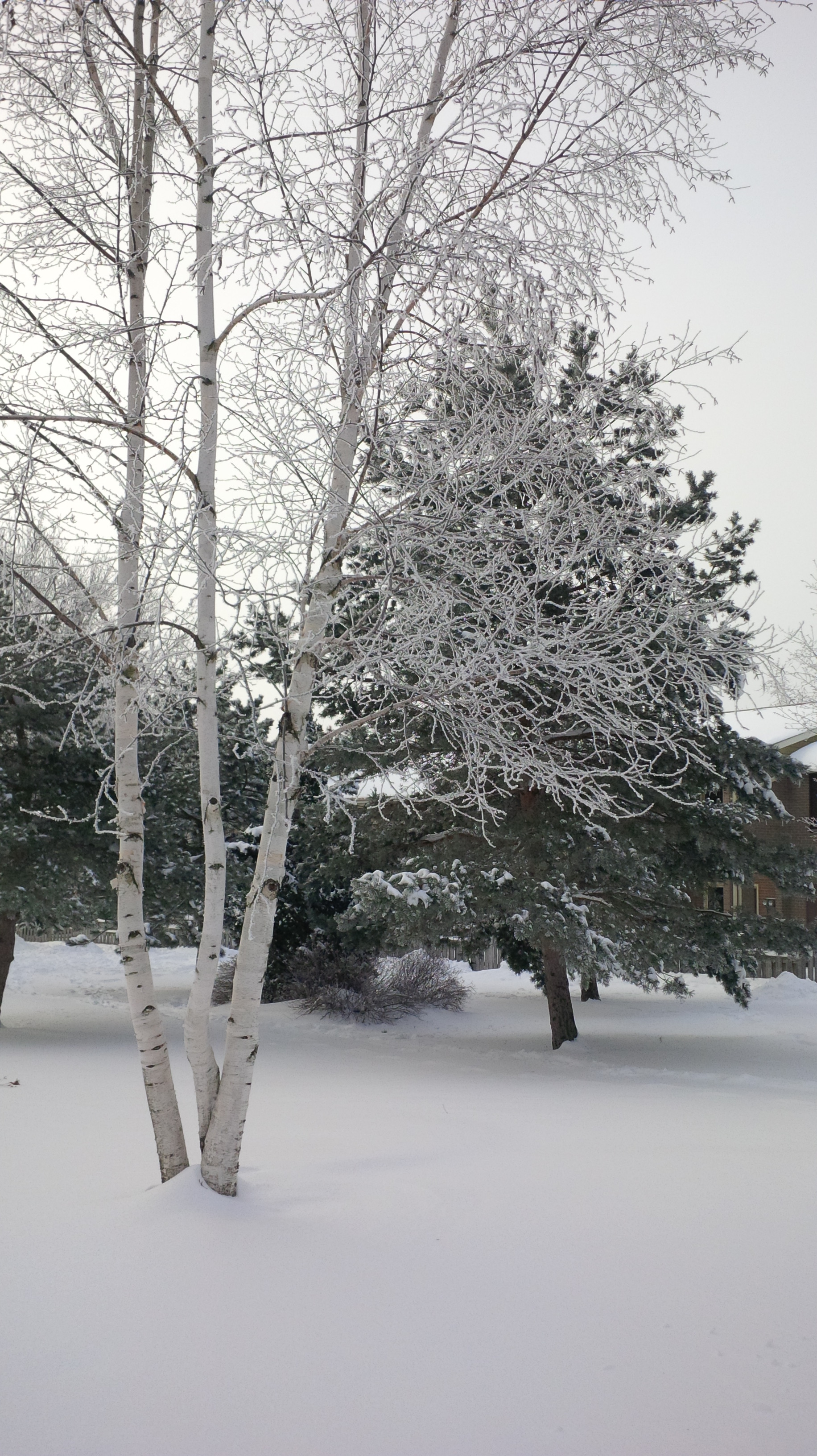
    One thing that I’m not using as much on my Z10 but that I can see a lot of other people using is the filters that are built into the camera.  I have to confess, I’m not huge on Instagram – mostly because it seems to just be a vehicle to share pictures that I don’t really need to see.  The one thing that intrigued me about Instagram was the photo filters.  I have a photo editing program on my Z10 ( KVAD Group Photo Studio Pro) that allows me to edit any pictures but for the simplified filter effects, I don’t even need to leave the camera.  You can take a picture of the pretty snow:

    photo of a birch tree with 3 trunks in front of a pine tree all covered in snow.
    Snow

    Then you can add any one of a number of artistic filters (black and white, sepia, antique, lomo, whiteboard, watercolor, negative, or sketch), styles (smooth face, sixties, grain, age photo, filmstrip, halftone, cartoon, or big eyes), auto enhance it, adjust the brightness, remove red eye, or change the contrast, sharpness, white balance, and saturation of the picture. Of course you can also rotate the picture, change its orientation or its aspect ratio; all within the editing program that is part of the camera package on the Z10.   The only style I really like to use so far is the age photo. Here’s the picture with the Age Photo style applied.

    %{include image.html url=“/wp-content/uploads/2013/02/img_00000102_edit.jpg” alt=“The same photo but with a large white border around it and several stylistic cracks through parts of the photo to make it look old” description=“The filters are pretty fun”}

    Do you have a BlackBerry Z10?  Are you holding out for the Q10? What is  your favourite feature on the BlackBerry 10?

  • The Grey Cup with BlackBerry

    The Grey Cup with BlackBerry

    It’s no secret that I love my BlackBerry devices. I also love the Canadian Football League. With the 100th Grey Cup practically in my backyard, I decided that once again this year, I was going to go and report from the big game without taking my old and heavy laptop. This year, however, I did add the BlackBerry Bluetooth keyboard for my PlayBook. This gave me more functionality with very little additional weight.

    I also added a second battery and charging case (which is basically a small case for the extra battery that you plug the regular micro usb adapter into) for my trusty Bold 9900. I knew I would be putting in some very long days and didn’t want to need to find somewhere to plug in my BlackBerry. Between the 2 batteries, I got somewhere in the range of 12-13 hours of heavy use out of my Bold each day. My BlackBerry was in hand from the time I got up (around 6am each day) until I finally got back to my hotel room somewhere between midnight and 1 am.

    I was pulling double duty at the Grey Cup this year – as a member of Argonotes (the official pep band of the Toronto Argonauts) and as a member of the media for Rouge Radio.com. I could not have successfully done both things without my BlackBerry calendar to help me keep track of where I needed to be and when. It was indispensable for getting press releases, schedule updates, and interview requests into my hands immediately so that I could add or adjust my schedule accordingly. Between my Bold and my PlayBook, I had everything I needed: email, calendar, documents to go, a voice recorder, cameras, a phone, access to text messages, Twitter, Facebook, and, of course, BlackBerry Messenger.

    I recorded interviews on my PlayBook while tweeting and taking pictures on my Bold or vice versa. I typed game notes on my PlayBook with the keyboard while watching the game. I freaked out another reporter by using the remote control feature to type on my PlayBook from 2 rows back in the press box. Having words appear on the tablet next to you that you were asked to watch for a couple of minutes can be a freaky experience, especially when the words are addressed specifically to you. (Yes I know, it was wrong to use my PlayBook to freak out other people but it was a prank I’d been planning for awhile and the opportunity presented itself at the Vanier Cup on Friday night.)

    The combination of my Bold 9900 and my PlayBook were all I needed to make the most of my Grey Cup experience – no need to lug around a heavy, awkward laptop, a voice recorder, or a camera – just my trusty BlackBerry Bold 9900 and my PlayBook.

    I will note that being able to update my Facebook, Twitter, and BBM statuses with things like “I just drank out of the Grey Cup” was awesome. I uploaded a ton of Photos, directly from my devices, often while walking between events.

    Have you ever used a tablet instead of a Laptop? Would you consider leaving the laptop at home for a major conference or event?

    Exterior view of the Rogers Centre with 2 banners, a horizontal one reading 100th Grey Cup and a vertical one featuring an image of the Grey cup
    Banners outside the Rogers Centre

    [

  • Bye Week

    Bye Week

    So it’s the bye week for my team the Toronto Argos – I’m going through withdrawal even though there were 2 very good teams playing football this week.  The Bye week means that we’re halfway through the CFL season – It feels like it just started yesterday.  I’m not ready for the regular season to be over in 8 short weeks!  the CFL season is so short compared to the off-season.  Pretty soon it will be November and November means PLAYOFFS.  I dearly hope that my Argos  turn things around and make it into the playoffs!  There’s nothing better than playoff football.  And while I root for the Argos, that  doesn’t mean I can’t appreciate a good game no matter who is playing.  This week was a prime example of why I love the CFL – Both games went down to the final two minutes, and both of my picks were right (but boy was I nervous!).


    I was rooting for Winnipeg primarily because of the flak Tina LaPolice got for daring to express an opinion.  I don’t believe that anything is different because she is the wife of the Head Coach of the Bombers.  I think she has a right to cheer for the team and not take crap from certain loudmouthed players and fans on twitter.  It even says in her twitter bio that her opinions are her own.  I LOVE her twitter bio Football wife, mother of 2 gorgeous babes! Opinions are my own, not that of my husband! It’s not the 50’s..I say what I want! Still!!   I think the whole situation got seriously blown out of proportion.   When Dave Stala commented about wanting to take the swag out of swaggerville, she replied “We’ll see hacky sack boy!” – the Hacky sack boy comment refers to a touchdown celebration in which Stala plays hacky sack with the football (how this doesn’t run afoul of the non celebration rule still boggles my mind).  That’s it.  That was the comment that got everyone riled up.  Seriously?  Don’t you people have better things to do with your time?  Tina is a strong woman who has strong beliefs – she was a Bomber’s cheerleader too so it’s natural for her to stick up for her team.  I know I’m in the minority here, but I salute her and hope that she continues to show confidence in her team.  They are one of the best stories of the 2011 CFL season to date – Yes Calvillo breaking the passing records is a great story but it was expected.  I’m not sure that anyone expected the Bombers to be 7-1 at the midway point.  Instead of making a twitter tempest in a teapot, let’s celebrate the great season the Bombers are having – and this despite the untimely death of their Assistant Head Coach Richard Harris earlier this season.

    I will also add to the twitter follower who told me after I tweeted in support of @tinalapo … “Of course you’d defend her your (sic)  a mouthy broad too”.  Thanks.  I will take that as a complement.

  • Let Me Introduce Myself.

    Let Me Introduce Myself.

    So I’m super-inspired by all my blogging friends – I want to have a blog that people read and that makes them think twice about their preconceived notions – both about women in sports and maybe about women in general.  I am not, however, sure where to start.

    I guess I should introduce myself.  I’m 31, between jobs at the moment as I have just left my Ph.D program (unfinished) to actually *do* something with my life, and a sports fanatic.   My first passion is the CFL.  I co-host a weekly on-line radio show about the CFL.  I have loved football in all of its incarnations for as long as I can remember.  I also love Open-Wheel racing.  I was 6 when the (then) Molson Indy roared through the streets of Toronto for the first time – I went with my parents and fell in love with the sound of the engines and even the smell of the hot rubber.  Formula One came a bit later but I am no less passionate about it.  I watch baseball, hockey, lacrosse, and basketball when there is no football or racing to watch.

    I am also passionate about social media.  I believe that connecting with other people is one of the greatest gifts of the technological age and that social media is an easy way to meet all sorts of fabulous people I wouldn’t otherwise meet.  I am trying to figure out how to merge these two interests of mine – sports and social media.

    I’m also intrigued by brand blogging.  I have always been the type of person who, when they find something neat, is more than willing to tell everyone within earshot how fabulous it is.  I also am not afraid to tell people when something fails to meet my expectations.  It seems to follow that brand blogging would be a natural extension of my nature – the question is how do I start.  Actually there are more questions – how do I ensure that I can remain true to my moral code while still doing the job expected of a brand blogger?  I don’t think I could endorse something I didn’t truly love.  How could I, in good conscience send my friends off to buy something I think is crap?  I don’t lie well.  Never have – even as a kid my guilty conscience would get the best of me within minutes.  I want to be sure that I won’t be selling myself to the devil in order to get some free stuff.

    I guess that’s enough of an introduction.  I have another post I want to share today so I should get going on that one.


    Jenn