Tag: BlackBerry By Choice

  • Blaq for BlackBerry 10

    Blaq for BlackBerry 10

    When I said that I would blog about Blaq later, I didn’t think it would be later today.  I am at BlackBerry Live in Orlando next week and I’m not bringing my laptop so I figured I should probably write the review sooner rather than later.

    From day 1 with my Z10, I was frustrated by the native Twitter client (Twitter for BlackBerry).  I realize that it is as functional as Twitter for Android and Twitter for iOS, but I’ve been spoiled with Twitter for BlackBerry 7.  I expected the Twitter client on the BlackBerry 10 devices to be just as functional, and when it wasn’t I was disappointed. I tried a number of other Twitter clients in the first two months I had my Z10: Tweetings, Neatly, RewitQ, and Twitter for BlackBerry 10.  Each of them had some advantages but they were either too slow, too frustrating to use, or missing key features (like lists).

    As many of you know, I’m a Twitter junkie.  I need a fairly robust application to use on a daily basis.  One of my favourite features on Twitter is the ability to sort your followers into lists and follow those lists.  I follow over 1600 people on twitter, and, though I do Twitter purges on a regular basis where I unfollow accounts that are no longer relevant to me, it can still be a lot to handle.  Lists allow me sort the people I follow into groups such as “Formula 1 fans”, “CFL” , and “Journalists” and only follow those streams when I’m feeling overwhelmed.  For example, Monday May 6th was the CFL draft and though I love all my tweeps, I was trying to keep up with the draft picks as they happened.  I opened Twitter on my laptop, went to lists, and selected my football list.  Everything else in my stream disappeared and I could pretend that the world outside of football had melted away for awhile. None of the apps I had on my Z10 before Blaq allowed me to follow lists easily.

    Aside from Lists, the other features that I want in a Twitter application are, in order of importance to me:

    • Multiple Account Support (preferably 3)
    • The ability to quote Tweets when retweeting
    • The ability to Mute hashtags (Sometimes, I just don’t want to hear about #PeopleIWantToPunch)
    • Real time refresh rate.

    It’s not a huge or particularly demanding list, yet until Blaq was released no single Twitter application for BlackBerry 10 had all the features I wanted.  Right now Blaq only allows you to have 2 accounts but I’ve heard that support for 3 is coming and I still have the other applications so the accounts I use less frequently are set up on those.

    Blaq is relatively easy to use.  When you first download it, you need to authorize it to access your twitter account, this is pretty standard. Once you’ve done this the screen will pull in your account and change to the main screen.  The main screen looks like this:

    %{include image.html url=“/wp-content/uploads/2013/05/img_00000446.png” alt=“The feed fro the Blaq Twitter App with user profile pictures and their tweets beside them in a simple list format, There is a green bar at the top of the list that is 90% full” description=“Blaq for BlackBerry 10”}

    The green bar at the top is called the timeline progress bar and fills up as you get closer to the newest tweets in your stream.  The clock on the green bar shows the time of the tweet you’re on while the clock in the top right shows the current time.

    From the main screen, it takes a quick swipe to navigate within the app.  Swiping right gets you the most options:

    %{include image.html url=“/wp-content/uploads/2013/05/blaq.png” alt=“The full view of the Blaq app with the sidebar showing there are 10 icons down the side each with a number.” description=“Blaq has lots of options”}

    To make it easier to understand what each of these options are, I’ve numbered them.

    1. Mute:  Allows you to mute a person or a hashtag.  This can be helpful if there is a twitter party going on and you’re not participating. Selecting this option and then “add mute” on the next screen brings up a page where you can enter your criteria for what you want muted. You can also un-mute from this screen.
    2. Search: Lets you search Twitter for a username or hashtag. Blaq imports saved searches but you can delete them at any time.
    3. Me: takes you to your profile page.  You can see your followers, who is following you, how many tweets you’ve tweeted, and lots of other fun stuff.
    4. Favourites: When you favourite a tweet, they are marked  with a star.  You can find them again later by selecting this option.
    5. Lists – All of your twitter lists are here.  Currently, you can’t edit lists from Blaq but if that changes, I will let you know!
    6. Retweets – These are tweets of yours that have been retweeted.
    7. Direct Messages – you can read and compose direct messages from here.
    8. Mentions – these are all of your @ replies.
    9. Home – this takes you back to your whole twitter feed.
    10. Compose – Tap this to compose a new tweet.

    When you swipe down from the top of the screen, you get a much smaller menu: Accounts lets you add another account or switch between accounts, while Settings allows you to change the font size, set the refresh rate while the app is inactive, and access the tutorial again by selecting Help.

    %{include image.html url=“/wp-content/uploads/2013/05/img_00000453.png” alt=“the BlackBerry 10 Blaq app showing the twitter feed, green progress bar, with a menu showing accounts and settings at the very top.” description=“This menu is pretty easy to navigate”}

    Finally, swiping left allows you to access options directly related to the tweet you are viewing.  This is the action that is the least intuitive in Blaq.  To access this menu, touch a tweet and then pull left.  While holding the menu open, pull the list up or down to access the different options.

    %{include image.html url=“/wp-content/uploads/2013/05/img_00000456.png” alt=“The BlackBerry 10 Blaq app with the twitter feed and green progress bar showing, pulled to the left to show a menu with 4 options” description=“Final menu”}

    1. Allows you to reply to the tweet.
    2. Allows you to retweet the tweet to your followers.  (By default the app will confirm that this is an action you want to do)
    3. Marks the tweet as a favourite (again, the default is set to confirm that you want to favourite the tweet)
    4. Options.  If the tweet is one that you sent, you can delete it from here.

    Earlier, I mentioned that one of my “must have” features in a twitter app is the ability to quote tweets.  You need to select the tweet by tapping it so that it opens up in its own screen.  When the tweet is isolated, touch and hold the retweet button (Circled in red below), and select the Middle option “Quote Retweet”.

    %{include image.html url=“/wp-content/uploads/2013/05/img_00000461.png” alt=“The profile page for the BlackBerry Help Twitter account shown in the Blaq app with the 2nd of 4 menu options, a broken rectangle circled in red.” description=“The Quote Retweet Button”}

    Touching and holding the retweet button brings up 3 menus on the right:

    1. Classic retweet – a nice and simple way to retweet
    2. Quote – puts the item you are retweeting in quotes – useful if you’re going to modify the tweet in any way.
    3. Retweet via – a type of retweet I’m beginning to use a lot more often – great for websites – takes the text of the tweet and then at the end puts (via @username).  It’s a stylistic choice but one that I quite enjoy.

    One last thing about Blaq.  By default, Blaq connects itself to BlackBerry Messenger (BBM). You get an option on every tweet and retweet to send the message as your BBM status or share it with BBM contacts.  I don’t like that option, and so I turned it off.  To do this is a little tricky though.  You need to go to the Settings menu on your BlackBerry (it looks like a cog) –> Security and Privacy –>Application Permissions –>Blaq and switch “Connect to BBM” to off.

    In a nutshell, that’s Blaq for BlackBerry 10.  Have you tried Blaq for BlackBerry 10 yet?  What do you think of it?
  • Ten Things you need to know about your BlackBerry

    Ten Things you need to know about your BlackBerry

    Since I started this blog, I’ve met a lot of other members of Team BlackBerry.  One of the things that constantly astounds me is how few people regularly back up their BlackBerry handheld devices.  I learned the hard way about backing up my BlackBerry – earlier this year I managed to brick my Bold 9900 (totally a user error on that one).  I hadn’t backed up in over a month, and while I have a lot of technologically inclined friends, I still lost a few things.  I now back up my BlackBerry at least once a week and have BlackBerry Protect doing a daily back up.  Some of these tips seem really simple, and they are very easy to implement but they will make life easier as a BlackBerry owner.

    1. Plug it in!  Plug your BlackBerry into your computer to create a backup and to move files and folders from your computer to your device and vice versa.  You may never need the backup, but if you do, you’ll be happy you did it.

    2. Use folders so that your home screen isn’t cluttered with apps.  Keep only the things you access daily on your home screen.

    3. Update your BlackBerry – Not just the Operating System (OS) updates but also applications.  Having the latest version of an application means it’s more likely to work the way it was intended and integrate with other applications such as Blackberry Messenger (BBM) more smoothly.

    4. Turn off WiFi coverage when you’re out of range for it.  Unless you’re searching for hotspots, you don’t actually need your wi-fi on when you’re out and about.  When wi-fi is turned on, it will continuously look for networks to connect to which will drain your battery.

    5. Press and hold the BlackBerry button to see what applications are running in the background and close any that you aren’t actually using in order to free up memory and save your battery. The BlackBerry Button is the one that looks like this:

      %{include image.html url=“/wp-content/uploads/2012/10/blackberry-logo.jpg” alt=“The BlackBerry logo – 3 columns of elongated white filled in capital D shapes with 2 in the first column, 3 in the middle column, and 2 in the 3rd column” description=“The BlackBerry Logo.”}

    6. Blackberry Shortcuts.  These are awesome.  Tired of typing your number in a Facebook message, direct message on twitter or on BBM?  Type mynumber and poof – there it is.  Mypindoes the same thing but with your PIN.  If you need to insert the date into a post, type ld (long date) and the date will show up (ie: Tue, Oct 15, 2012). To get the long version of the current time, type lt to show (12:54:45 AM).

    7. Going to a movie and need to put your phone on vibrate quickly?  Press and hold the “Q” key and it will automatically switch your phone to vibrate.  To switch back, press and hold the “Q” key again.

    8. Set up auto on/off times.  You can do this by going to Settings –> Device –> Auto On /Off  and set what time you want your BlackBerry to automatically turn off at night and when you want it to turn on in the morning.  You can set different times for weekdays versus weekends too.

    9. Learn how to do a soft reset of your device.  You know the handy Ctrl + Alt + Del command you use to reboot your computer?  You can do the same thing on your BlackBerry by pressing Alt + Shift + Del at the same time. (If you have a full touch screen you’ll have to do the battery pull instead)

    10. Get a shell or a holster and a screen protector.  I love my holster – it means that I can always have my BlackBerry on me.  If you dislike holsters (and I know some of you do), get a shell casing so the back doesn’t get all scratched up in your purse or briefcase.  The cases make the BlackBerry easy to grip too.  A screen protector is a must if you have a touchscreen and it’s great even if you don’t.  When applied correctly, they don’t interfere with the touchscreen sensitivity but help protect your screen against nicks and scratches.  Of course you can always get a really cool sticker for your BlackBerry like I have for mine.  Have I mentioned how much I love my TARDIS-Berry?

    Well, that’s it.  Those are my top 10 BlackBerry tips.  Do you have a tip or a trick for other members of Team BlackBerry?

  • Why my loyalty isn’t going anywhere

    Why my loyalty isn’t going anywhere

    In case you couldn’t tell from the title of my blog, I’m a BlackBerry fan.  I have tried iphones and Androids and while they were a lot of fun, my infatuation usually only lasted a month or two.  I’ve had my Bold 9900 for a year now.  A year of bad press for Research In Motion and of people constantly asking me why I would want to jump on board a sinking ship.  The answer is simple: I don’t believe that the ship is sinking.  I LOVE the functionality of my BlackBerry Bold 9900 and am very excited by what I’ve been hearing about BlackBerry 10.  My Bold 9900 allows me to work from the dock, at a football game, or from my bedroom.  Documents To Go allows me to edit word and excel documents from my BlackBerry without turning on my laptop or PlayBook.  BlackBerry Messenger (which despite some comments I’ve heard on Twitter is not going anywhere) helps me keep in touch with friends and family.

    I have a bunch of amazing apps on my BlackBerry Bold 9900 and on my PlayBook.  To all those who say that BlackBerry doesn’t have a wide selection of apps, I ask: Have you been to App World lately?  The app that I fell in love with  most recently is BlackBerry Traffic.  I drive into Toronto a few times a month, and there’s nothing I like less than being stuck in traffic because I don’t know the alternate routes.  Now I have an app that not only gives me my ETA based on current traffic conditions but it also gives me an alternate route in case I can’t take the traffic jams anymore.  How awesome is that?  The app gives you turn by turn directions either through your bluetooth headset or through the speaker on the BlackBerry.  You can even set it up to go through your car’s audio system (though I haven’t done this yet).    I learned about this awesome app from my friend Nick who used it to get us to the Canadian National Exhibition on Sunday despite some fairly major construction on the 401.  Yes we still ended up stuck in traffic but we knew how long we would be in that traffic and that (surprise!) there wasn’t any traffic turning into the underground parking at the Direct Energy Centre.
    The app is updated in real time by other users who are also running it.  So if I leave from the cottage 30 minutes ahead of Dad and we’re both running it, he gets updated if I slow down for an extended period of time.

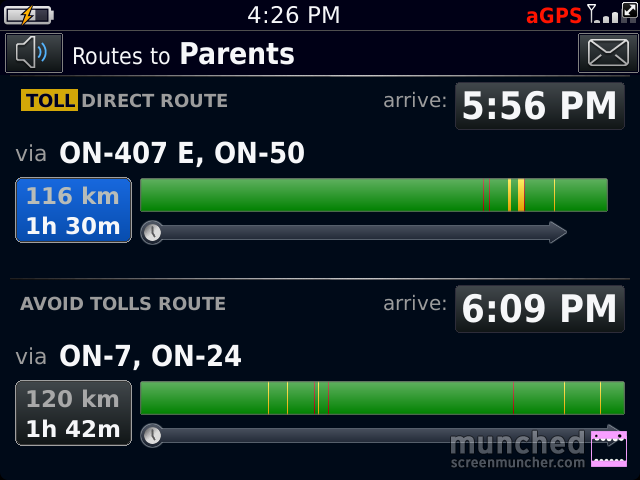
    If I’m going home to visit my parents, I have a plethora of routes I can choose from.  BlackBerry Traffic makes it easy to pick the right one.  I simply select my destination and choose the route that’s quickest.

    The BlackBerry Traffic app screen with the words Routes to Parents at the top and 2 different routes below, one with tolls and one avoiding tolls.
    The choice screen.

    In this case I’d pick the 2nd one because it doesn’t take me on the 407. The green sections indicate good traffic flow, the yellow indicates slower than normal flow, and the red sections mean traffic is very slow.

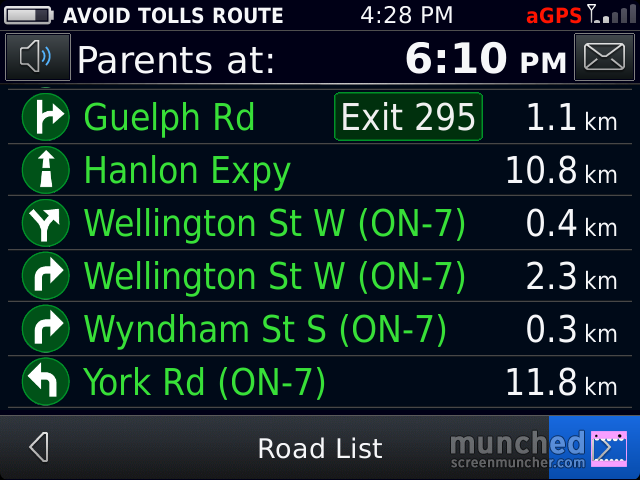
    You can click on a route and it will show you road by road how the traffic is:

    The BlackBerry Traffic directions screen with all of the roads in green, indicating no delays on the route. The top of the screen says Parents at 6:03pm (the ETA), the time on the phone is 4:28
    All Green!

    I’m going to test this app out more thoroughly over the Labour Day weekend when I’ll be doing a lot of driving, some of it to very unfamiliar places.  So far it’s the best traffic app I’ve seen for ANY device.