Tag: App

  • Android Applications on my Z30

    Android Applications on my Z30

    I admit to being a purist. I prefer native apps to Android ports. Built for BlackBerry apps give me the best user experience on my Z30, but apps that have been ported into BlackBerry world are a close second.  Android apps? I was reluctant to use them at first, worried about battery drain or security loopholes, but I’ve mellowed out a bit with time. As a rule, I don’t download an Android app if there is a BlackBerry version available. I have the Amazon app store installed on my phone, and it’s pretty nice, if rarely used.  There are, however, three Android apps that I am unwilling to live without:  Waze, the Starbucks app, and Netflix.

    “But wait” you say, Waze is in BlackBerry world.  Technically that’s true but the version of Waze available in Blackberry World is outdated, full of bugs, and kept crashing on me.  I got so sick of having to change the distance units to kilometres from miles every time I opened the app that I wasn’t using it.  Which is unfortunate because Waze is an awesome app for people who drive.  With Waze you can enter your desitination, choose from 3 different routes, and go.  You can also add a stop – say if your gas light comes on while you’re taking a new route home and you have no clue where the nearest gas station is.  Not that it’s ever happened to me. Okay maybe once or twice.  (Note: I always pull over before using Waze or adding a stop, though with the BlackBerry Assistant that may change since I have voice command over applications).  I wrote a post extolling the virtues of BlackBerry Traffic on my Bold 9900, and when I got my Z10, I gamely tried to use its replacement: Blackberry Maps.  Blackberry Maps is functional if you’re trying to get from point A to point B via the most common route.  The problem is that it doesn’t take traffic into account or road closures.  Driving into Toronto for the past few years, I’ve needed something that can help me avoid the numerous construction closures on the highways leading into and out of the city.  Enter Waze.  More than once, Waze has alerted me to heavy congestion on the road ahead and offered up an alternate route to avoid it.  It even saved Dad and I from parking on highway 400 coming down from the cottage.  (Dad wasn’t sure about the off road journey Waze proposed but gamely tried it and we were cruising at a steady 60 km / hr on backroads while the radio reports had the 400 at a standstill.) Waze plays through the bluetooth connection to my car audio system or through the speakers on my phone.  Either way I get turn by turn directions to my destination – directions which, as a bonus, are in enough time to change lanes without panic.  One of the neat things about waze as a passenger, is that I can report traffic jams, accidents and other issues to help my fellow drivers.  It’s a really easy to use interface too, which is a necessity in a GPS app.
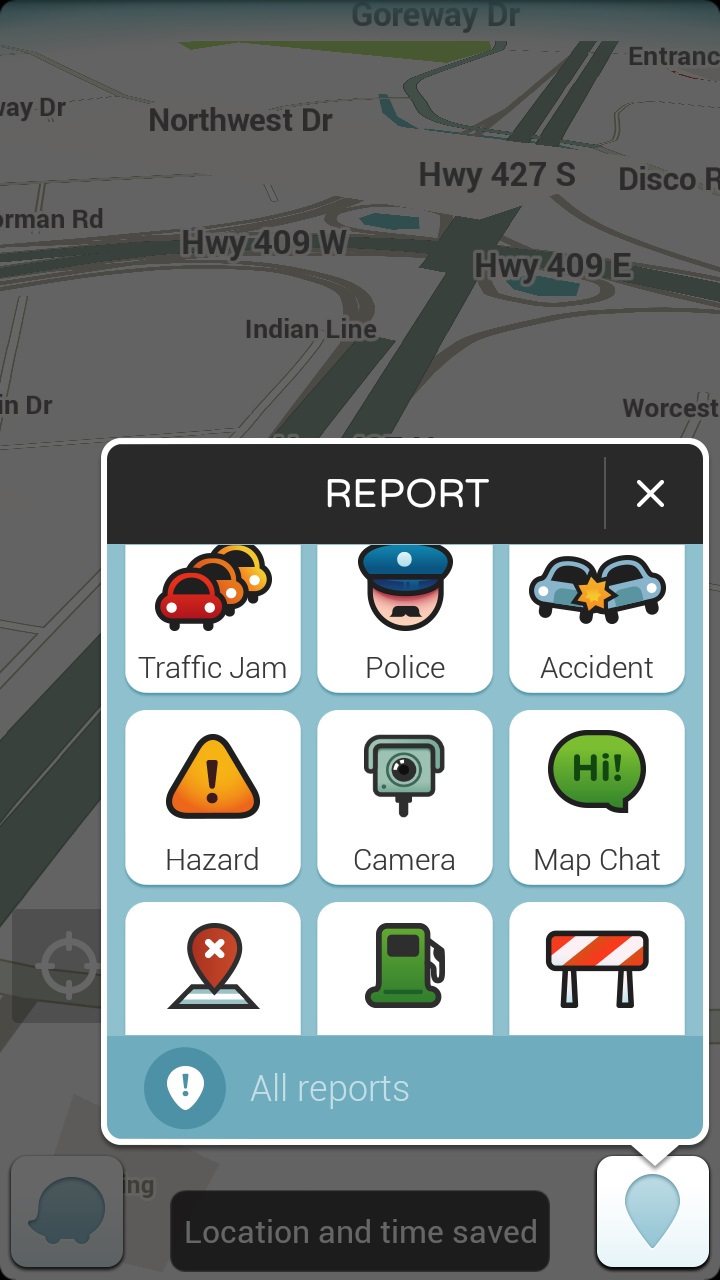
    A map interface with the report function highlighted there are 9 options in a 3x3 grid: traffic jam, police, accident, hazard, camera, map chat, map issue, gas prices, closure
    The easy reporting interface on Waze

    Now I’m not a big coffee drinker, as a rule, but when I do indulge, it’s a flavoured coffee drink (I love mochas) from Starbucks.  I mainly drink tea and Starbucks has me covered there too.  I registered for a Starbucks card, mostly because I liked the idea of earning free drinks, and because I had a couple of instances of needing a caffeine hit but not having any cash on me and I hate to pay debit for a small transaction.  My big problem with the Starbucks card was forgetting it in my other wallet, or in the car. No it’s not a huge deal to walk back to the car to get my card, but when it’s minus 35 with windchill, it’s something I’d rather avoid.  I’d heard rumors of the Starbucks app working on BlackBerry 10 after an update, so I asked a friend who is a self admitted Starbucks addict. Yes, he’d tried it and it worked! He sent me the application file (I could have downloaded it for myself but he already had it so why bother?) and lo-and behold I had the Starbucks App.  I love this app because not only does it work as a payment card, but when you click “pay now” it pops up the bar code the Barista can scan along with any special offers.  I love that it brings up the offers because I can never remember if there is one on, when it expires, and if I’ve used it.  Remembering stuff like that is why I need caffeine!  The other thing that the app helps me remember is when I get my next free drink.  As much as I like being surprised with the fact that I’m eligible to redeem my stars, I like being able to plan ahead. Plus this is on my BlackBerry.  I may forget my wallet in the car, but I’m not going to forget my BlackBerry!  Win-Win.
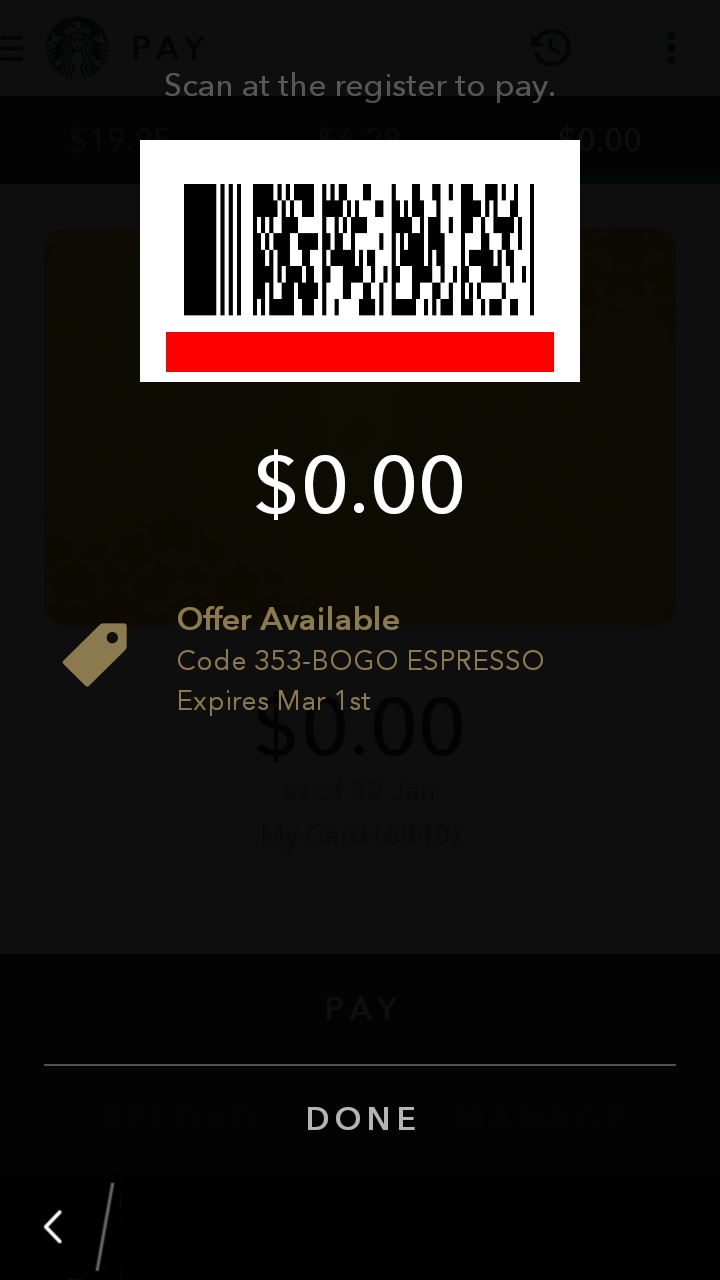
    A screenshot showing the payment barcode and a 0.00 balance on the starbucks app. There is a notice that there is an offer available just below the balance!
    The payment screen. I love the offer available post at the bottom!

    The final app isn’t strictly necessary but it does make my phone into a super-powered entertainment machine.  The Z30 has a high definition screen and though it’s not huge, it’s not bad for watching video.  I’ve been dealing with insomnia lately and while reading helps, I find that it can wake me up more and sometimes a TV show is just what I need to put the worries out of my head and fall back asleep.  Enter the Netflix app.  I downloaded it, signed in , picked my profile, and voila – my Netflix Library is in the palm of my hand.  While there are some shows I wait to watch on the big screen TV (House of Cards season 3 anyone?), there are plenty of shows that are great viewing late at night.  I watch early seasons of Bones, favourite Doctor Who episodes, and Murdoch Mysteries all from the comfort of my bed.  (Yes I know sleep hygeine says no phones in the bedroom – I bring it in when I can’t sleep – that way if I fall asleep while watching a show, it’s on my bed and not on the couch where I’ll wake up with a sore neck in the morning.) The Netflix app is easy to navigate and keeps the settings (like the picture quality) the same as on your main device.  I also like the fact that you can choose the “Stream over wifi only” setting. This helps to prevent data overage charges, which is always good.
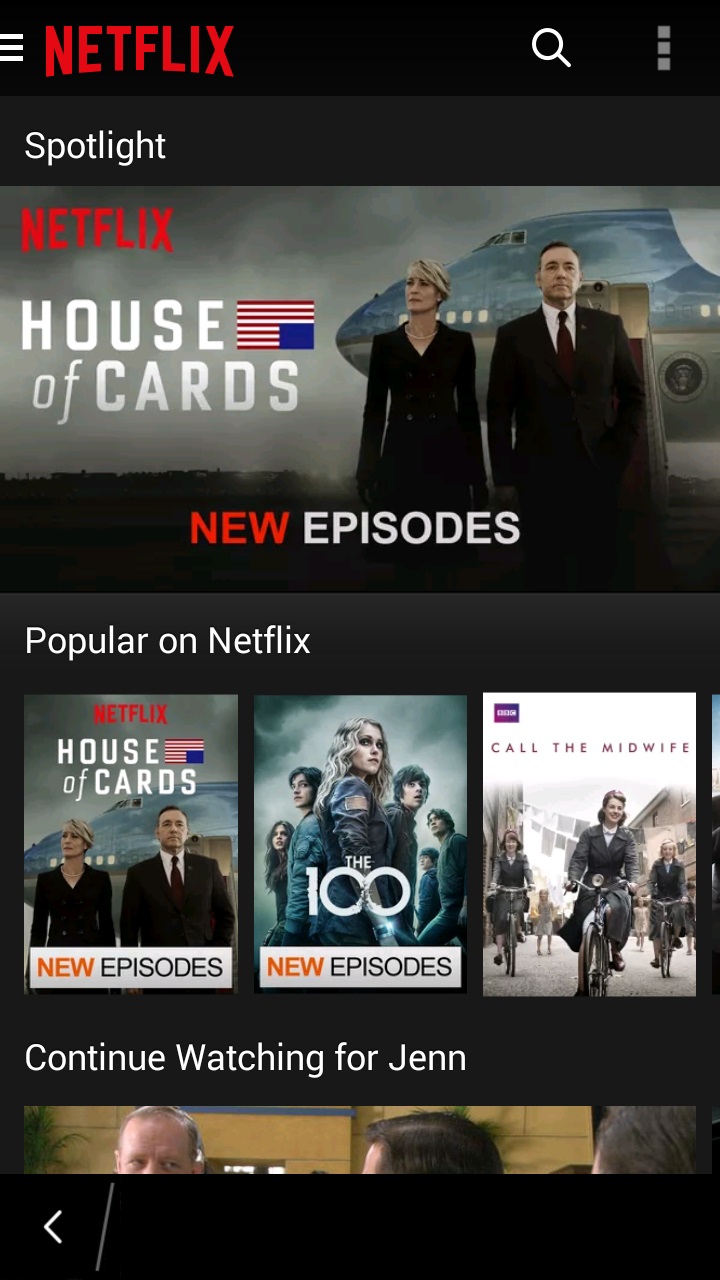
    Screenshot of the netflix app with House of Cards as the banner image and the popular on netflix category immediately beneath it
    The menus on the Netflix app are easy to navigate.

    So those are the three Android applications I have on my BlackBerry.  How many Android apps do you have on your BB10 device?  Are you a purist and have none or did you download Candy Crush the minute you could install Android applications?
  • Application Permissions on BlackBerry 10

    Application Permissions on BlackBerry 10

    With all the hubbub recently about Facebook Messenger and the myriad of permissions it requests just to be able to run in the background, I was curious as to what permissions I have given some of the apps on my BlackBerry Z30.   (Okay, the real reason I wanted to know is that I accidentally connected an app to BBM after an update and didn’t want to leave it connected but also didn’t want to delete it and reinstall it if I didn’t have to – Once again, my mistakes become blog fodder.)

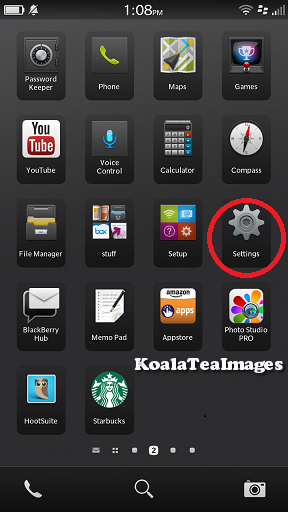
    I asked a few friends and all I got was “delete and reinstall the app and deny the permission” as an answer – which will work but I had an inkling that the BlackBerry 10 Operating System was smarter than than that. So I opened up the settings folder.  It’s the one that looks like a gear.

    A group of application icons with the gear representing the settings icons circled in red
    This is what the Settings icon looks like. I use it a lot.

    From there you will want to select “Security and Privacy” which conveniently lists “Permissions, passwords screen lock, wipe” underneath it.

    a listing of all of the system settings with security and privacy circled in red partway down the list.
    The Security and Privacy tab is about halfway down the list.
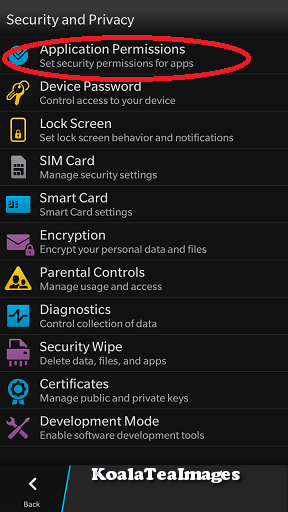
    The security and privacy settings menu with application permissions circled in red at the top..
    Application Permissions is at the very top.


    Once there, select “Application Permissions”.


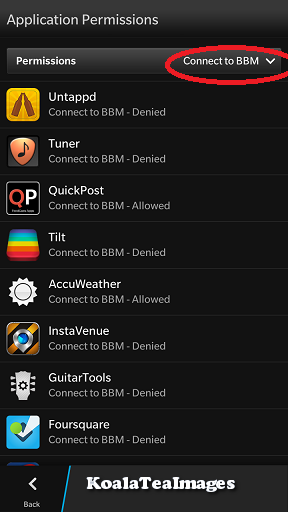
    Within Application Permissions you have a choice, you can filter the permissions by type using the drop down menu – so you can see all of the apps that have requested to connect to BBM for example.

    Your list will look different but these are some of the apps that have requested permission to connect to BBM. I have only allowed one of this set that permission.
    Your list will look different but these are some of the apps that have requested permission to connect to BBM. I have only allowed one of this set that permission.
    Applications permissions drop down list with connect to BBM circled in the middle in red
    There are a lot of options on the drop down list – connect to BBM is near the middle of the list


    By selecting “Connect to BBM” I get a list of all of the apps that have requested this permission and can see at a glance what I have selected.


    You can also look at each of the apps separately and see what permissions each app has requested and what your settings are for that app.  To do this select an app from the list without using the drop down menu.

    The application permissions list with app icons in a list with their version number on the right.
    Select an app to see what permissions you have granted or denied it and to toggle permissions using the slider.

    Here is an example of the Uno app – You can see that I have allowed it permission to access shared files (so it can save games) but not to connect to BBM .  You can use the sliding buttons to toggle permission on and off.

    Permission details menu for the uno app. Shared files and device identifying information are toggeld on with a blue slider but Connect to BBM is toggled off and circled in red.
    Here you can see that I have allowed this app access to shared files and device identifying information but have denied a connection to BBM.

    It is important to remember, that some applications will not run properly without certain permissions, so denying all permissions is not the best strategy.  The good news is that it’s easy to go in and change the settings back if you accidentally revoke a needed permission.  Most apps will even pop up a question asking for that permission to be granted the first time you try and use them.   So that’s application permissions in a nutshell.


    This got me thinking about what the most common permissions were and why they were needed in the first place so I talked to developers and read developer documentation to find some of the most commonly requested permissions and will now attempt to put them into easier (for non developers) to understand terms.

    Contacts:  An application like Twitter (or in my case Blaq since it’s my Twitter  app of choice) needs to be able to access your contacts to bring up the options when you try to tag a friend in a tweet.  Without access to the contacts, you have to type in each twitter user handle manually in a tweet.  (This is not good for someone like me who has a horrible memory for twitter handles.)

    Shared Files: This one is one that looks scary but is actually really benign.  If you want an app such as Igrann (the fabulous Instagram client for BlackBerry 10 -I will write about it soon, I promise) to be able to upload a picture, it needs access to the picture files on your device.

    Camera:  Similar to Shared Files (above), if you want to be able to take a picture with the camera and have it load to Igrann or Twitter instantly without having to go through saved files, the app will need to be able to access your camera.

    Connect to BBM: I tend not to allow access to BBM but that is my choice.  Allowing an application access to BBM means that you can invite other users to download it from the app itself, or even initiate BBM conversations from the app.  It’s a pretty neat permission, I just don’t ever use it so I figure I don’t need apps to have that permission right now.

    Location / GPS Location: Again, this one is pretty self explanatory – if you want to check in on Foursquare or have Endomondo track your run, you need to allow the apps to know where you are.

    Calendar: This permission allows apps such as Facebook to add events to your calendar. I personally love it since I don’t always check the events tab on the Facebook App and have missed events because of it.  This way if I say “I’m going” to an event, it magically ends up in my device calendar with a handy reminder.

    Finally, Run in Background: Most apps don’t request this permission as the BlackBerry development team is pretty strict about which apps they allow to ask for this permission. I only have 3 that request it in my long list of apps. One of the apps that I have that is allowed to run in the background is Blaq.  This permission allows Blaq to keep processing when it is minimized – so that the tweet stream is being refreshed.  It also allows an app like Webex  (a great piece of productivity software), to keep streaming audio and video without losing its place and having to start again.

    Those are the most common app permissions, though if you have any others that you’d like to have explained, ask in the comment section and I will try to find out.

  • Why my loyalty isn’t going anywhere

    Why my loyalty isn’t going anywhere

    In case you couldn’t tell from the title of my blog, I’m a BlackBerry fan.  I have tried iphones and Androids and while they were a lot of fun, my infatuation usually only lasted a month or two.  I’ve had my Bold 9900 for a year now.  A year of bad press for Research In Motion and of people constantly asking me why I would want to jump on board a sinking ship.  The answer is simple: I don’t believe that the ship is sinking.  I LOVE the functionality of my BlackBerry Bold 9900 and am very excited by what I’ve been hearing about BlackBerry 10.  My Bold 9900 allows me to work from the dock, at a football game, or from my bedroom.  Documents To Go allows me to edit word and excel documents from my BlackBerry without turning on my laptop or PlayBook.  BlackBerry Messenger (which despite some comments I’ve heard on Twitter is not going anywhere) helps me keep in touch with friends and family.

    I have a bunch of amazing apps on my BlackBerry Bold 9900 and on my PlayBook.  To all those who say that BlackBerry doesn’t have a wide selection of apps, I ask: Have you been to App World lately?  The app that I fell in love with  most recently is BlackBerry Traffic.  I drive into Toronto a few times a month, and there’s nothing I like less than being stuck in traffic because I don’t know the alternate routes.  Now I have an app that not only gives me my ETA based on current traffic conditions but it also gives me an alternate route in case I can’t take the traffic jams anymore.  How awesome is that?  The app gives you turn by turn directions either through your bluetooth headset or through the speaker on the BlackBerry.  You can even set it up to go through your car’s audio system (though I haven’t done this yet).    I learned about this awesome app from my friend Nick who used it to get us to the Canadian National Exhibition on Sunday despite some fairly major construction on the 401.  Yes we still ended up stuck in traffic but we knew how long we would be in that traffic and that (surprise!) there wasn’t any traffic turning into the underground parking at the Direct Energy Centre.
    The app is updated in real time by other users who are also running it.  So if I leave from the cottage 30 minutes ahead of Dad and we’re both running it, he gets updated if I slow down for an extended period of time.

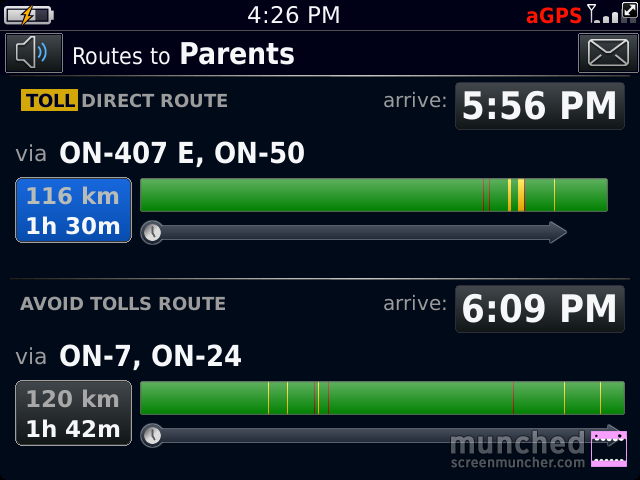
    If I’m going home to visit my parents, I have a plethora of routes I can choose from.  BlackBerry Traffic makes it easy to pick the right one.  I simply select my destination and choose the route that’s quickest.

    The BlackBerry Traffic app screen with the words Routes to Parents at the top and 2 different routes below, one with tolls and one avoiding tolls.
    The choice screen.

    In this case I’d pick the 2nd one because it doesn’t take me on the 407. The green sections indicate good traffic flow, the yellow indicates slower than normal flow, and the red sections mean traffic is very slow.

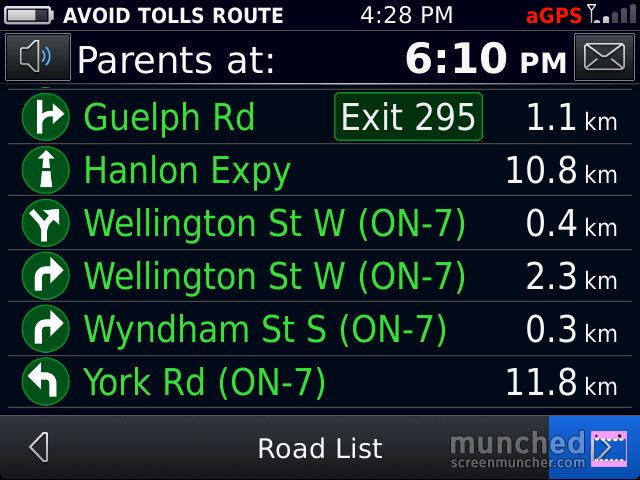
    You can click on a route and it will show you road by road how the traffic is:

    The BlackBerry Traffic directions screen with all of the roads in green, indicating no delays on the route. The top of the screen says Parents at 6:03pm (the ETA), the time on the phone is 4:28
    All Green!

    I’m going to test this app out more thoroughly over the Labour Day weekend when I’ll be doing a lot of driving, some of it to very unfamiliar places.  So far it’s the best traffic app I’ve seen for ANY device.